
Microsoft Copilot: A Faculty Quick Guide
Work Smarter. Save Time. Support Your Students.
Microsoft Copilot is an AI-powered assistant that can help faculty brainstorm, create, revise, organize, and summarize information. Think of Copilot as a starting point and productivity partner—not a replacement for your expertise as the instructor.
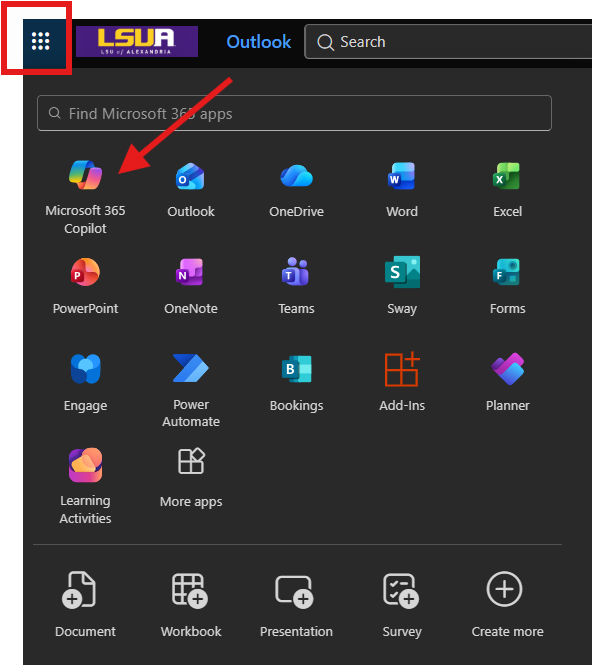
To access copilot, you must be logged into your LSUA email.
What Can Copilot Help Me Do?
Course & Lesson Preparation
Copilot can help you:
- Brainstorm lesson, forum and module ideas
- Create examples or scenarios related to course concepts
- Create study or review materials
- Develop ideas for learning activities
- Rewrite complicated information in student-friendly language
- Brainstorm ways to make course content more engaging
Assignments & Assessments
Copilot can help you brainstorm or draft:
- Assignment instructions
- Rubrics
- Quiz questions
- Practice questions
- Case studies
- Reflection activities
- Discussion forum prompts
- Project ideas
Try this prompt:
Create a draft rubric for this assignment using four performance levels. Include criteria for content knowledge, application of concepts, organization, and communication.
Faculty Tip: Always review AI-generated questions, answers, rubrics, and instructional materials for accuracy and alignment with your course learning objectives.
Improve Student Instructions
Have an assignment that students frequently misunderstand?
Copilot can help revise instructions to make them:
- Clearer
- More concise
- Better organized
- Easier for students to follow
- More supportive and student-friendly
Try this prompt:
Review these assignment instructions for clarity. Identify anything an undergraduate student might misunderstand and suggest clearer wording. Do not change the assignment requirements.
Accessibility & Inclusive Course Design
Copilot can assist you with ideas for making content easier to understand and navigate.
For example, ask Copilot to:
- Simplify complicated wording
- Create descriptive headings
- Organize long instructions into logical sections
- Suggest alternative ways of presenting information
- Draft alternative text for an image for you to review
- Rewrite content using plain language
Try this prompt:
Review the following instructions for readability and organization. Use descriptive headings, short paragraphs, and clear language while maintaining the original meaning.
Important: Copilot can assist with accessibility, but AI-generated content should not replace an accessibility review or your institution's approved accessibility tools and processes.
Faculty Communication
Copilot can help draft or revise:
- Course announcements
- Reminder messages
- Welcome messages
- Student emails
- Weekly module introductions
- Frequently asked questions
- Explanations of course policies
Try this prompt:
Draft a friendly Moodle announcement reminding students that Module 3 closes Sunday at 11:59 p.m. Include a reminder to review the assignment requirements before submitting.
Brainstorm New Ways to Teach
Not sure how to teach a difficult concept?
Try asking Copilot:
Give me three ways to teach [CONCEPT] to undergraduate students. Include one individual activity, one collaborative activity, and one real-world application.
You can continue the conversation:
I like option #2. How could I adapt this activity for an asynchronous online course?
Copilot works best when you treat the conversation as an iterative process rather than expecting the perfect answer from one prompt.
The Four Parts of a Strong Prompt
The quality of your prompt can greatly affect the quality of Copilot's response.
When possible, give Copilot:
1. GOAL — What do you want?
"Create a discussion activity..."
2. CONTEXT — What should Copilot know?
"This is for a 1000-level asynchronous online course..."
3. EXPECTATIONS — What should the result look like?
"Create four questions that require application and critical thinking..."
4. SOURCE — What information should it use?
"Use the learning objectives and course material I provide..."
Put It Together:
Create a discussion activity for a 1000-level asynchronous online course. Students are learning about [TOPIC]. Create four questions that require students to apply the concepts rather than simply recall information. Use the module learning objectives and course material provided below. Write the instructions directly to students.
Try These Faculty Prompts
Improve an Assignment
Review this assignment from a student's perspective. Identify instructions that may be unclear or questions a student might have before completing the assignment.
Create a Rubric
Using these assignment instructions, draft a rubric that measures the stated learning objectives. Do not add criteria unrelated to the assignment.
Generate Examples
Create three examples that demonstrate [CONCEPT]: one basic example, one intermediate example, and one real-world example.
Create a Module Introduction
Write a short, welcoming introduction for this week's Moodle module. Explain what students will learn, why the topic matters, and what they will complete this week.
Increase Engagement
Suggest five ways students could actively engage with this content in an asynchronous online course. Focus on activities that require students to apply or discuss what they learned.
Remember: Copilot Can Make Mistakes
Generative AI can produce information that sounds convincing but is incorrect, incomplete, biased, or fabricated.
Faculty remain responsible for reviewing anything created with AI before using it with students.
Before using Copilot-generated material:
- ✓ Review it for accuracy.
- ✓ Verify important facts and sources.
- ✓ Check alignment with your learning objectives.
- ✓ Review questions and answer keys.
- ✓ Make sure instructions reflect your actual course policies.
- ✓ Edit the content so it reflects your expertise and teaching style.
- ✓ Follow LSUA policies regarding student information, privacy, copyright, and appropriate AI use.
Copilot should assist your expertise—not replace it.
Protect Student & Institutional Information
When using Copilot for university work, use your institutional Microsoft 365 account and follow LSUA policies regarding protected, confidential, or sensitive information.
Do not assume that because an AI tool accepts information, the information is appropriate to enter.
Avoid entering student information or sensitive institutional information unless its use is specifically permitted under university policy.
A Good Rule of Thumb
Use Copilot to help you...
Brainstorm → Draft → Organize → Revise → Explore
Then use your expertise to...
Review → Verify → Personalize → Decide → Teach
AI can help you get to the first draft faster.
You remain the subject-matter expert and instructor.