
Before You Begin
Ensure:
- You have an active internet connection.
- The YouTube video is publicly available or accessible to viewers.
- You are using a current version of Microsoft PowerPoint.
Note: Embedded YouTube videos require an internet connection during presentation playback.
Step 1: Open Your Presentation
- Open Microsoft PowerPoint.
- Open an existing presentation or create a new one.
- Navigate to the slide where you want to insert the video.
Step 2: Copy the YouTube Video Link
- Open YouTube in your web browser.
- Navigate to the video you want to insert.
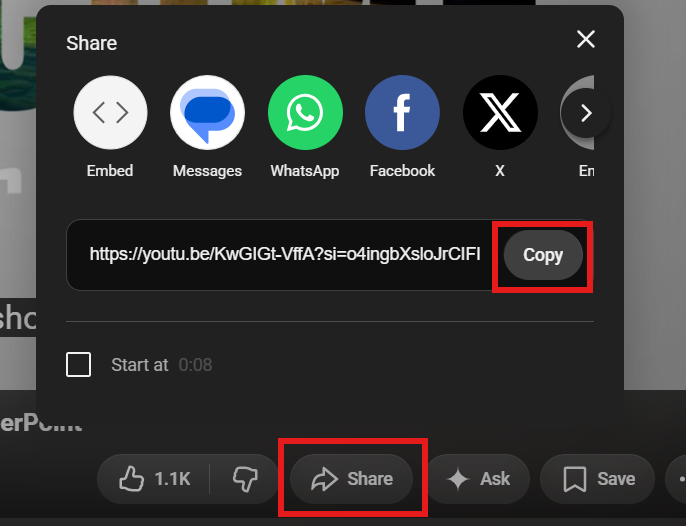
- Select Share below the video.
- Click Copy to copy the video link.
Step 3: Insert the Online Video
- Return to PowerPoint.
- Select the Insert tab.
- Click Video.
- Choose Online Video.

Step 4: Paste the YouTube Link
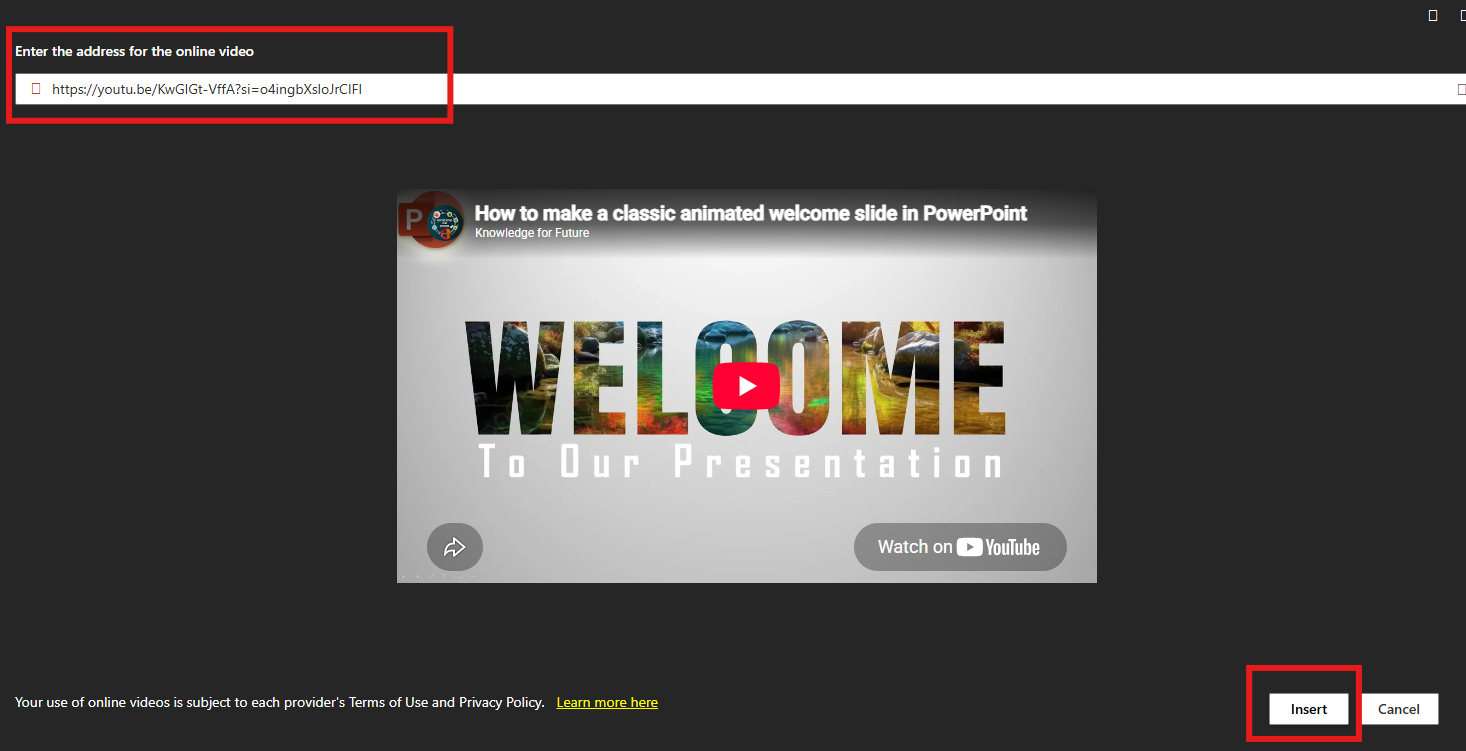
- In the Online Video window, paste the YouTube URL.
- Press Enter or select the video from the search results.
- Click Insert.
The video will appear on the slide.
Step 5: Resize and Position the Video
- Select the video on the slide.
- Drag the corners to resize it.
- Move the video to the desired location on the slide.
Step 6: Test the Video
- Select Slide Show.
- Click From Current Slide or From Beginning.
- Click the video and verify it plays correctly.
Adjust Video Playback Settings
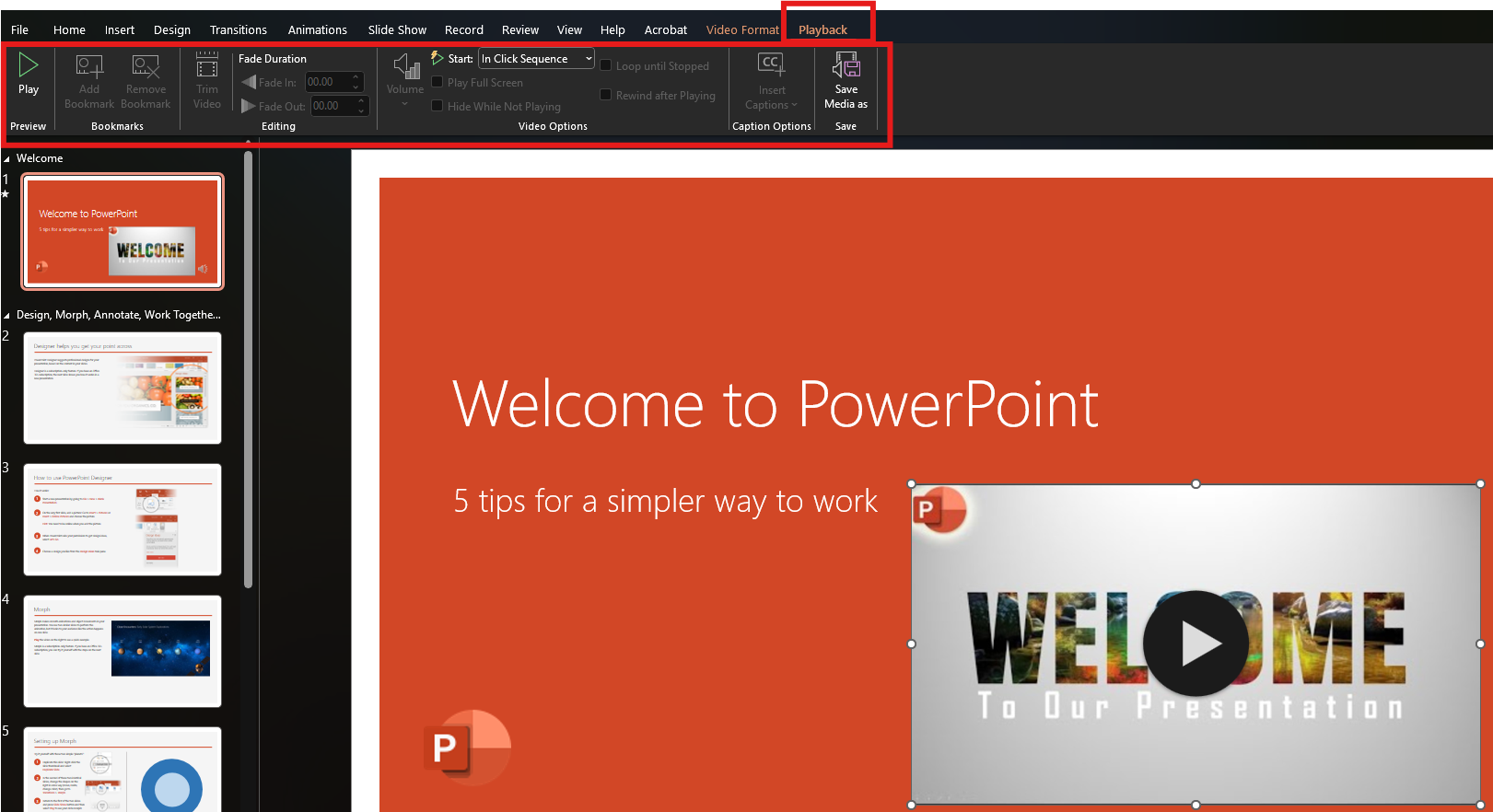
- Select the embedded video.
- Choose the Playback tab.
Available options may include:
- Play Automatically
- Play When Clicked
- Rewind After Playing
- Volume Settings
Removing an Embedded Video
- Select the video on the slide.
- Press Delete on your keyboard.
The video will be removed from the presentation.
Best Practices
✅ Test all embedded videos before presenting
✅ Use reliable internet access during presentations
✅ Resize videos to fit the slide layout
✅ Avoid overcrowding slides with multiple videos
✅ Include a brief description of the video content for accessibility