
LSUA Faculty, Staff, and Student Guide
Installing Microsoft 365 (Office)
Overview
As a member of the LSUA community, you have access to Microsoft 365 applications, including:
- Microsoft Word
- Microsoft Excel
- Microsoft PowerPoint
- Microsoft Outlook
- Microsoft OneNote
- Microsoft Teams
- OneDrive
This guide explains how to download and install Microsoft 365 on your personal or university-owned devices.
Before You Begin
Ensure that:
- You have an active LSUA email account.
- You know your LSUA username and password.
- You have an internet connection.
- Any previous versions of Microsoft Office are closed before beginning installation.
Install Microsoft 365 on Windows or Mac
Step 1: Sign In to Microsoft 365
- Open a web browser.
- Navigate to:
- https://portal.office.com
- Sign in using your LSUA email address and password.
Example:
username@lsua.edu
Step 2: Start the Installation
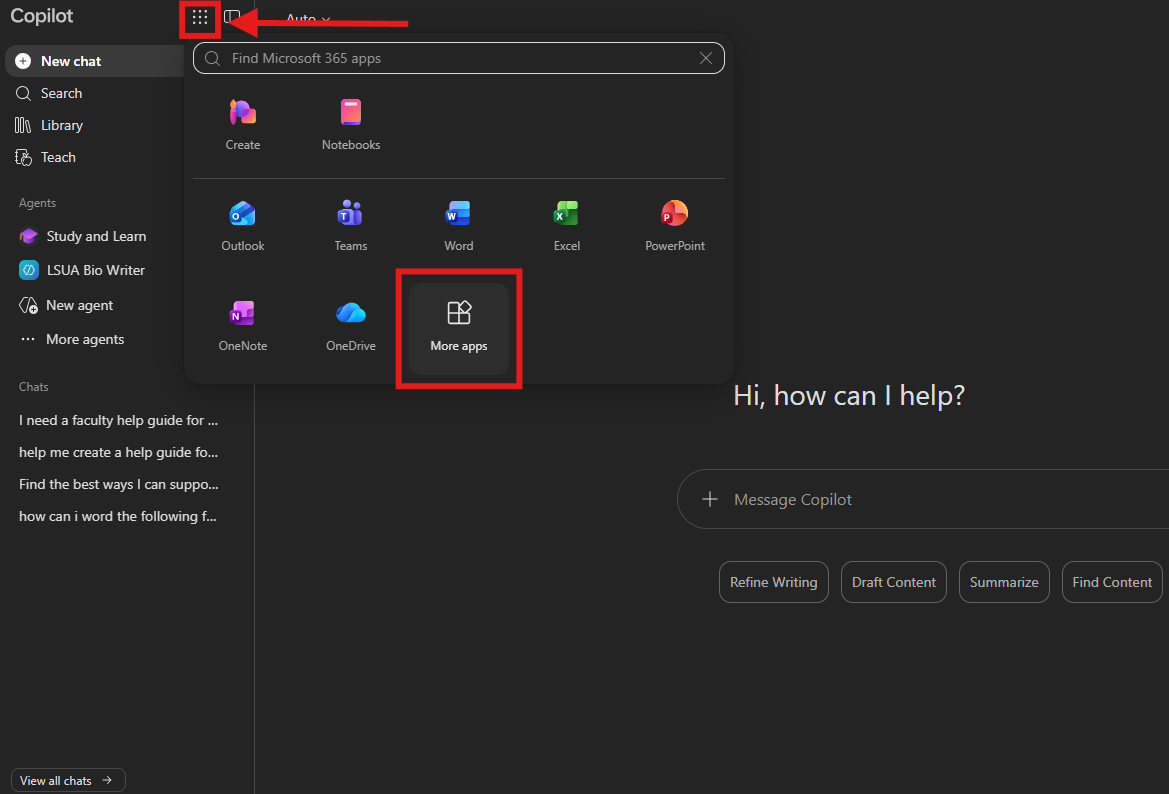
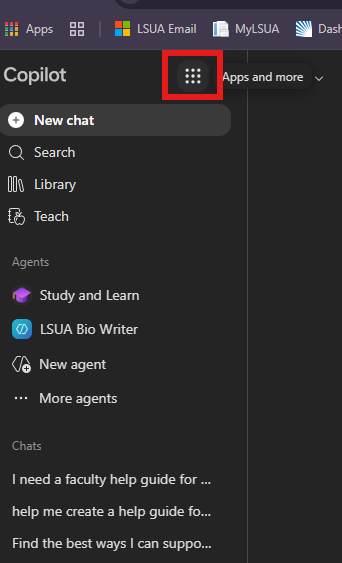
- After signing in, locate the and select Apps and More button near the upper-right corner of the page. Then select the More apps button from the menu.
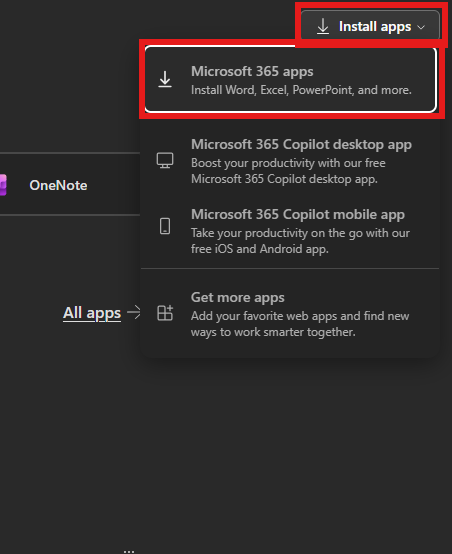
- Select the Install apps button from the upper right corner of your screen, then Microsoft 365 apps from the menu.
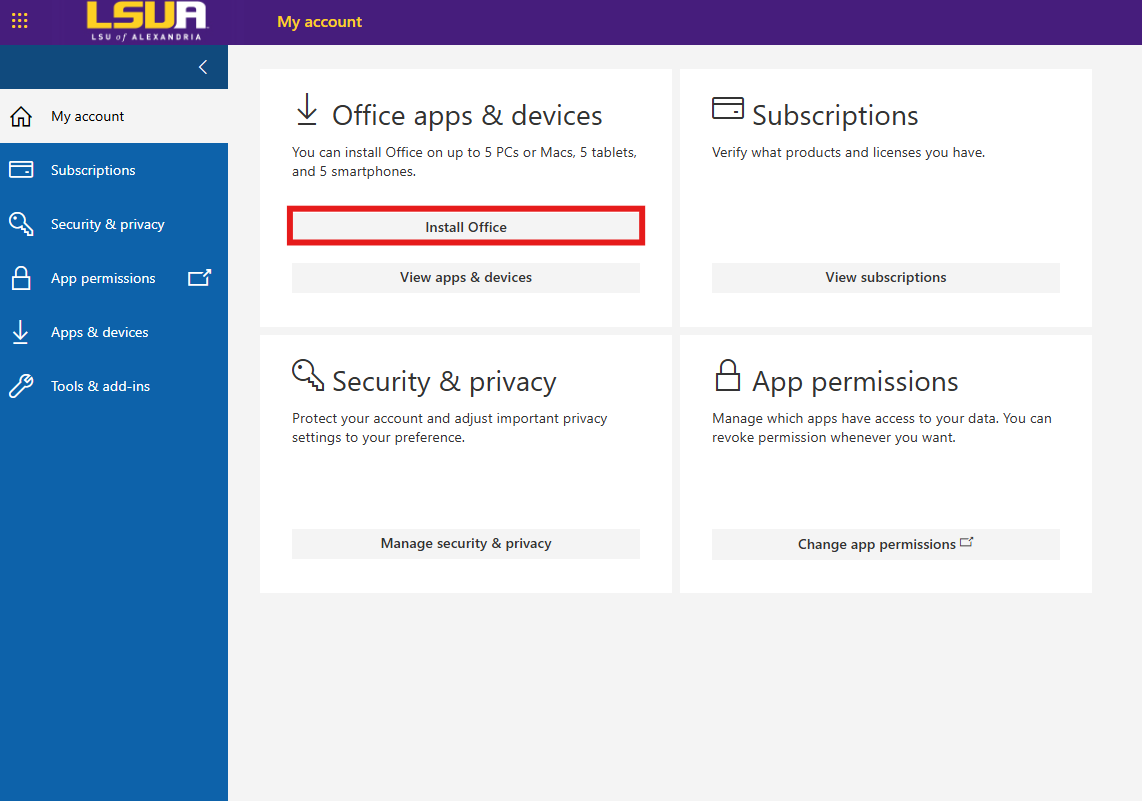
- A new window/tab will open, select Install Office.
Step 3: Download the Installer
- The installation file will begin downloading automatically and a window will pop up in the upper right corner of the screen.
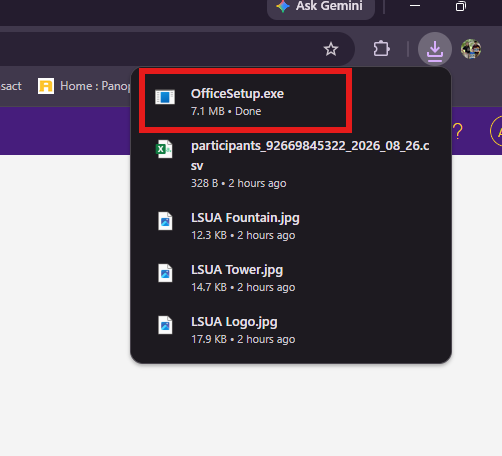
- Save the file if prompted.
Windows
- File name typically begins with:
OfficeSetup.exe
Mac
- File name typically begins with:
Microsoft_365_Installer.pkg
Step 4: Run the Installer
Windows
- Open your Downloads folder (you can search "Downloads" in the search bar of your taskbar).
- Double-click OfficeSetup.exe.
- Select Yes if prompted by User Account Control.
- Wait for the installation to complete.
Mac
- Open the downloaded installer package.
- Follow the installation prompts.
- Enter your Mac administrator password when requested.
- Select Install Software.
Step 5: Activate Microsoft 365
- Open Microsoft Word.
- Sign in with your LSUA email address if prompted.
- Accept the Microsoft license agreement.
Your Microsoft 365 applications are now activated.
Verify Installation
Open any Office application such as:
- Word
- Excel
- PowerPoint
Confirm that your name or LSUA email appears in the upper-right corner.
Install Microsoft 365 on Mobile Devices
iPhone/iPad
- Open the Apple App Store.
- Search for:
- Microsoft Word
- Microsoft Excel
- Microsoft PowerPoint
- Microsoft Outlook
- Install the desired applications.
- Sign in using your LSUA credentials.
Android
- Open the Google Play Store.
- Search for Microsoft Office applications.
- Install the desired apps.
- Sign in using your LSUA credentials.
Access Office Online
If you do not wish to install the desktop applications, you can use Microsoft 365 online.
- Go to:
- https://portal.office.com
- Sign in with your LSUA account.
- Select the Apps and more button from the upper left corner of the screen.
- Select any application from the launcher menu.
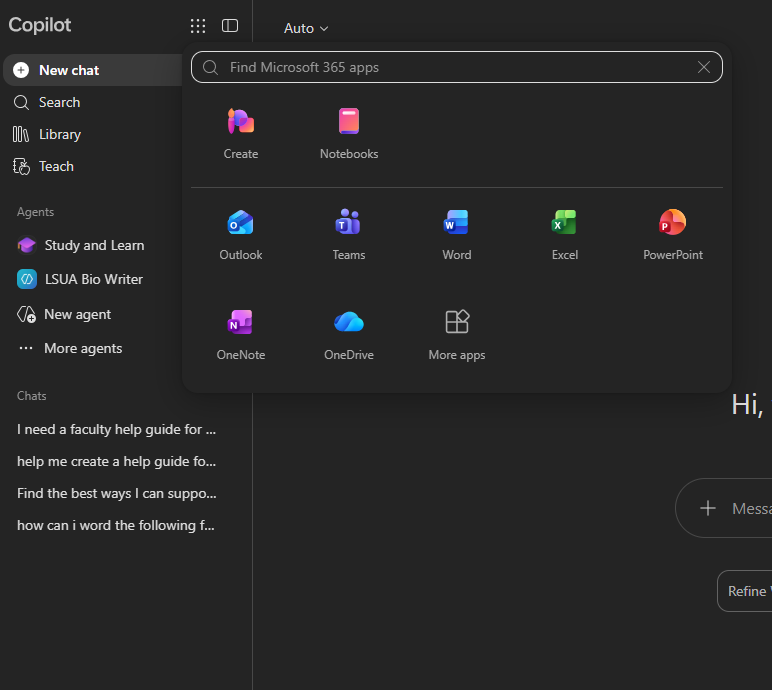
Applications available online include:
- Word
- Excel
- PowerPoint
- Outlook
- OneDrive
- Teams