Panopto Tutorial: https://support.panopto.com/s/article/How-to-Create-a-Video-Using-Panopto-Capture
In this documentation, you will learn how to record your first video using Panopto Capture.
1. Launching Capture
In the folder you want your video to record to, select the + Create button from the upper left corner of your Panopto site and then select Panopto Capture.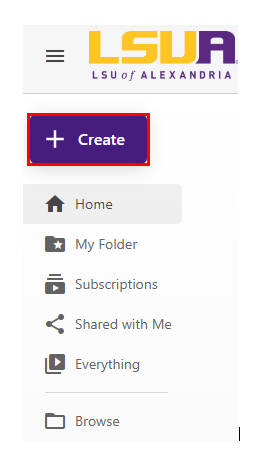
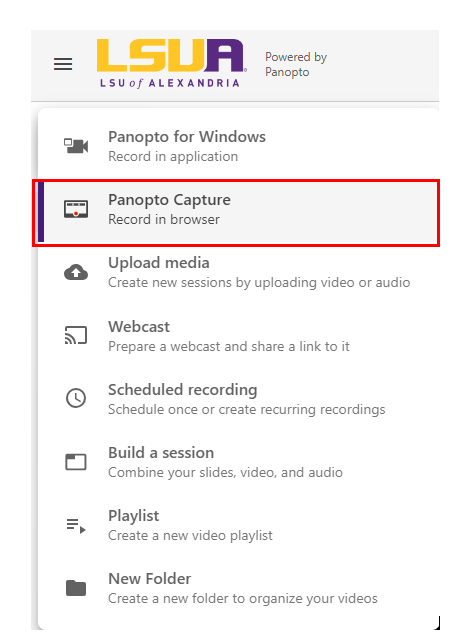 Panopto Capture launches in a new browser tab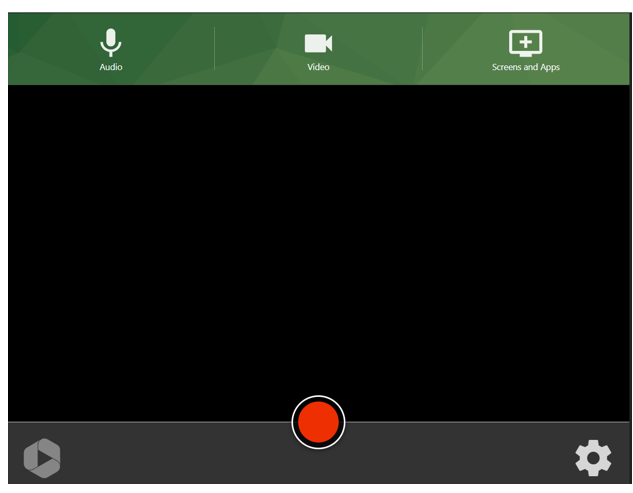
2. Select a Microphone
Note: You may be prompted by your browser to give Panopto access to your microphone(s).If you want to use a different microphone from the one automatically chosen, select the microphone icon from the top toolbar

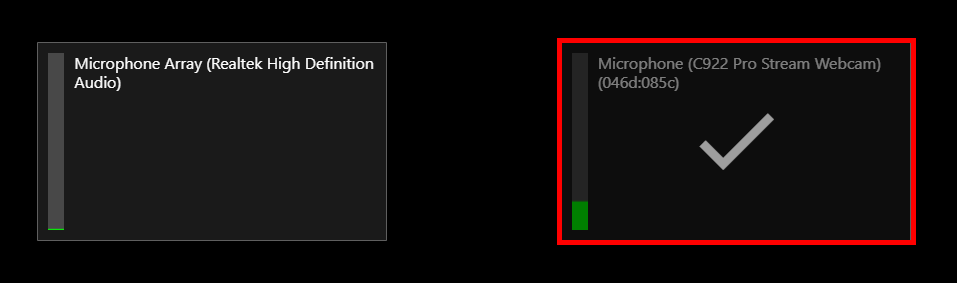
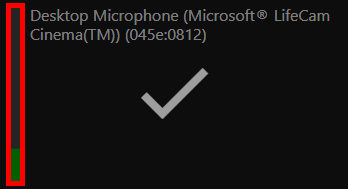
Each microphone connected to your computer will appear. Select the desired microphone, and a checkmark will appear over it Note: Test your microphone by speaking at a regular volume. The audio bar to the left of the microphone name should show green feedback as you speak. If yellow or red feedback appears, the video's audio may be distorted. If no feedback appears, the microphone is not picking up audio.
3. Select Camera Sources
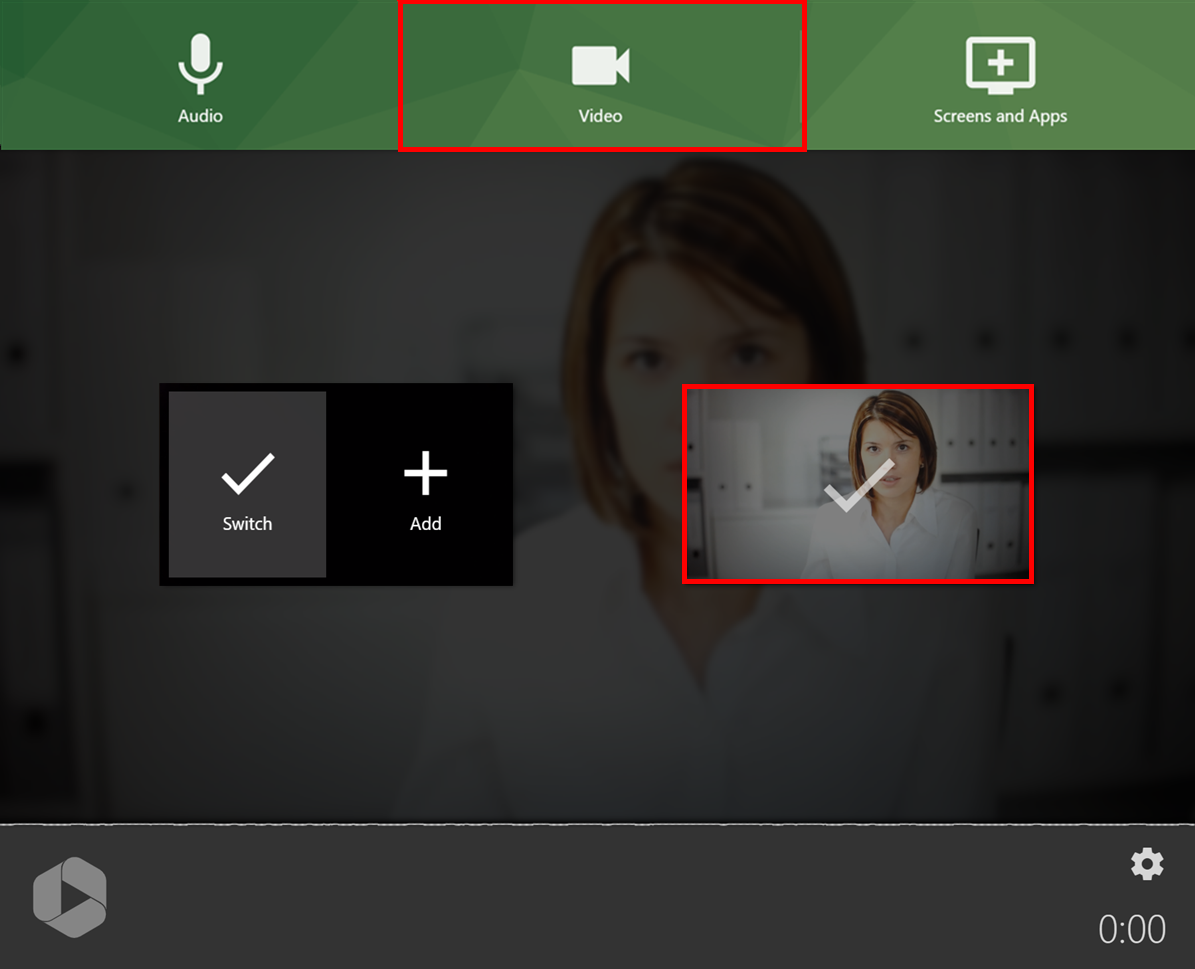
Note: You may be prompted by your browser to give Panopto access to your camera(s).If you want to use a different camera from the one automatically chosen, select the camera icon from the top toolbar.

Your connected cameras will appear and show a preview. Select the desired camera(s) and a checkmark will appear over the preview. Note: The first camera selected, automatically or manually, will be used as the presenter (primary) video source. Additional cameras will appear with the option to either switch to them for the recording, or to add them in as a secondary video source.
4. Capturing Screens and Applications
To record a screen, application window, or individual browser tab, select the monitor icon.
Chrome or Edge (Chromium-based) users: a pop-up window will appear that allows you to select between a screen, application, or browser tab:
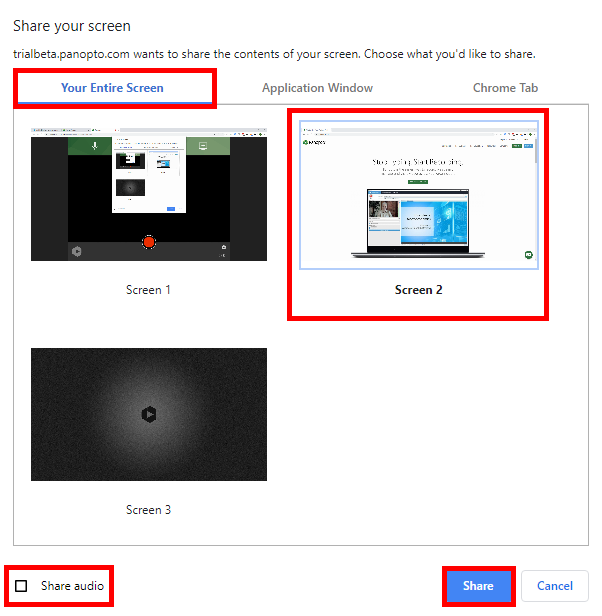
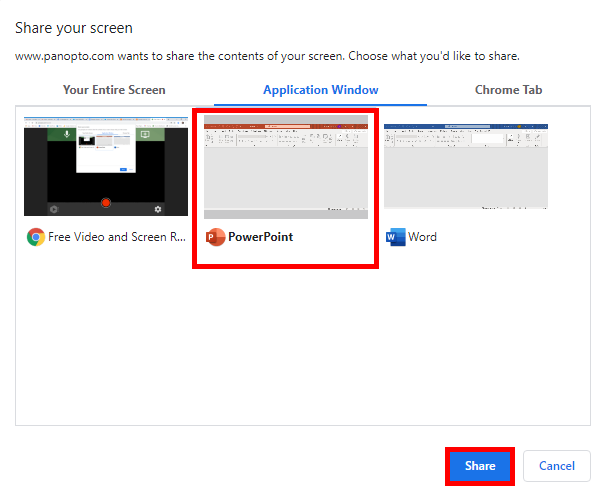
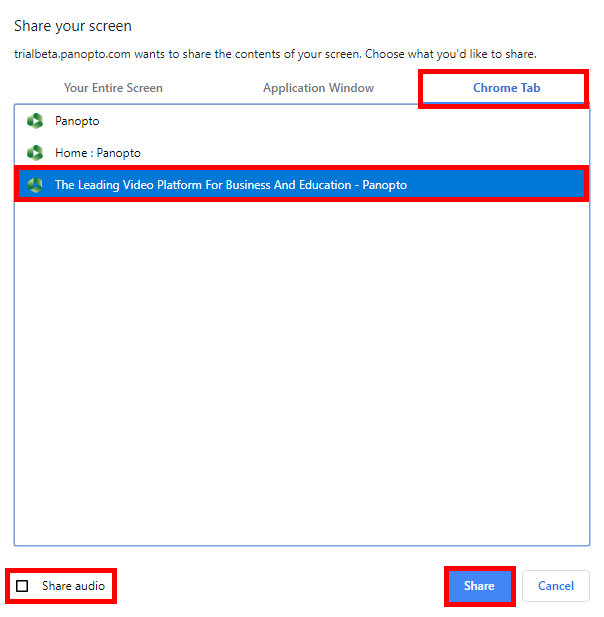
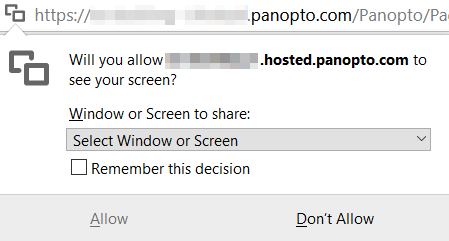
Select the drop-down menu Select Window or Screen to pick the window, application, or screen you want to share. Note: To display a specific browser tab, you will need to make sure that the tab is open in a separate browser window in order for it to appear as an option. To update the list of windows or screens that appear, refresh Firefox. Firefox does not allow for audio capture from windows or screens. 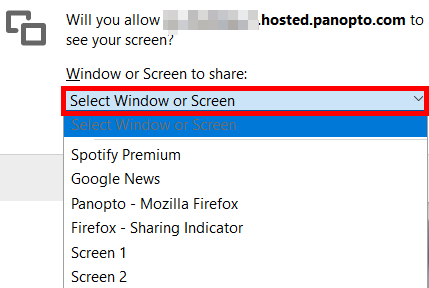
After choosing one screen or application source, you may add additional sources by selecting the monitor icon again.
5. Recording the Video
To begin recording your video, click the red circle button at the bottom center of Panopto Capture. If enabled, you will see a 5 second countdown on screen, and then the recording will begin. During the countdown, you will also see the options to start recording immediately by pressing Enter, or to cancel by pressing Escape (Esc). 
To stop recording, select the red square button at the bottom center of Panopto Capture. The video will immediately begin to upload.
Do not close the Panopto Capture browser tab until the upload is complete.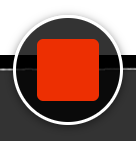
6. Video Upload and Processing
Please note: Panopto Capture uses failsafe recording, where your captured media is stored on the local file system using a database within the web browser.
This means that even if your browser crashes or your computer turns off, your video will finish uploading next time you launch Capture.
Once you stop the recording, a new page will load that shows the video’s progress. Do not close this page until you see the message Getting your video ready for editing: It's safe to close your browser window in the top left corner.
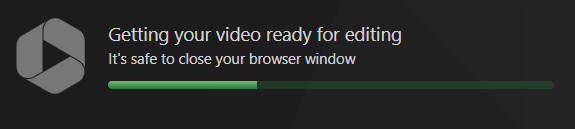
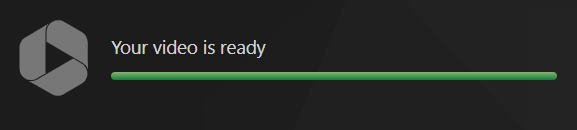
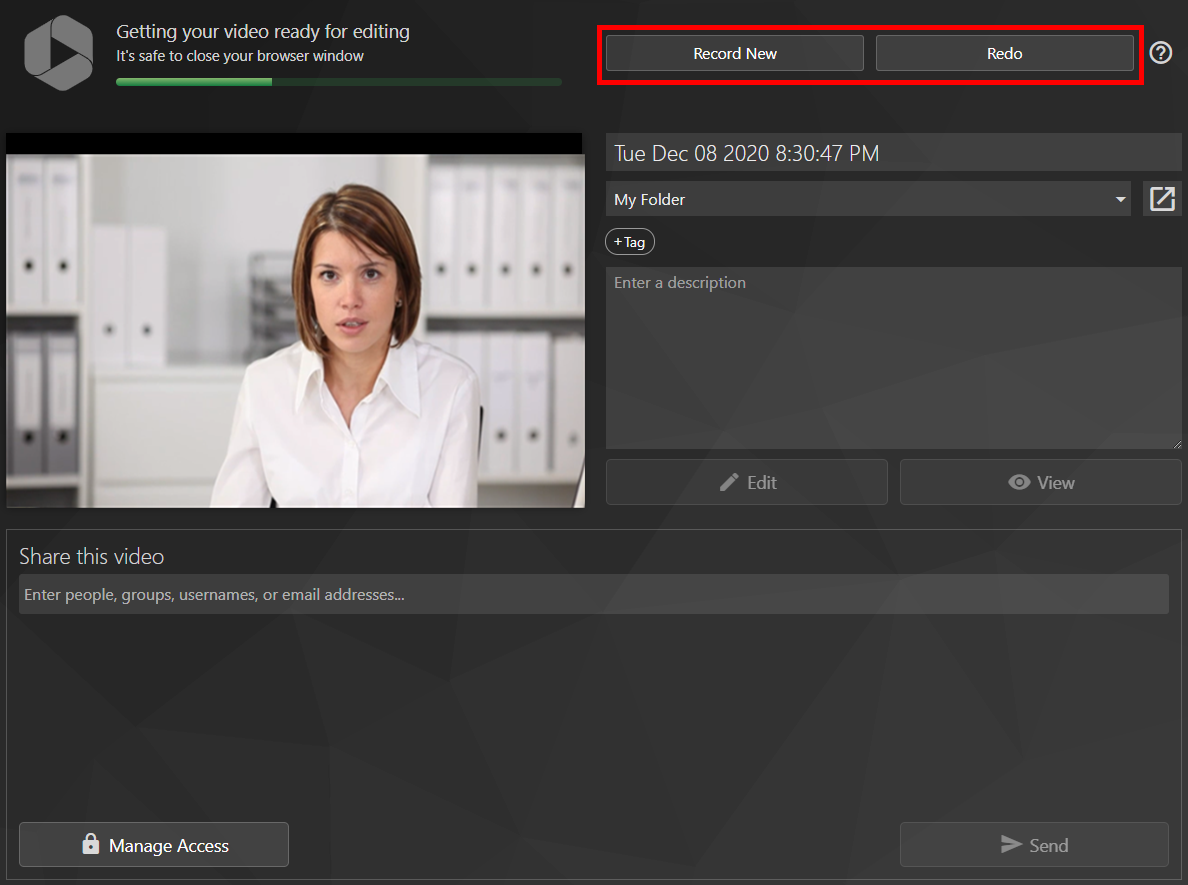
On the right side of the top toolbar, you can select Redo if you are not happy with the video you have produced and want to return to Panopto Capture to re-record or select Record New to film another video using Capture.
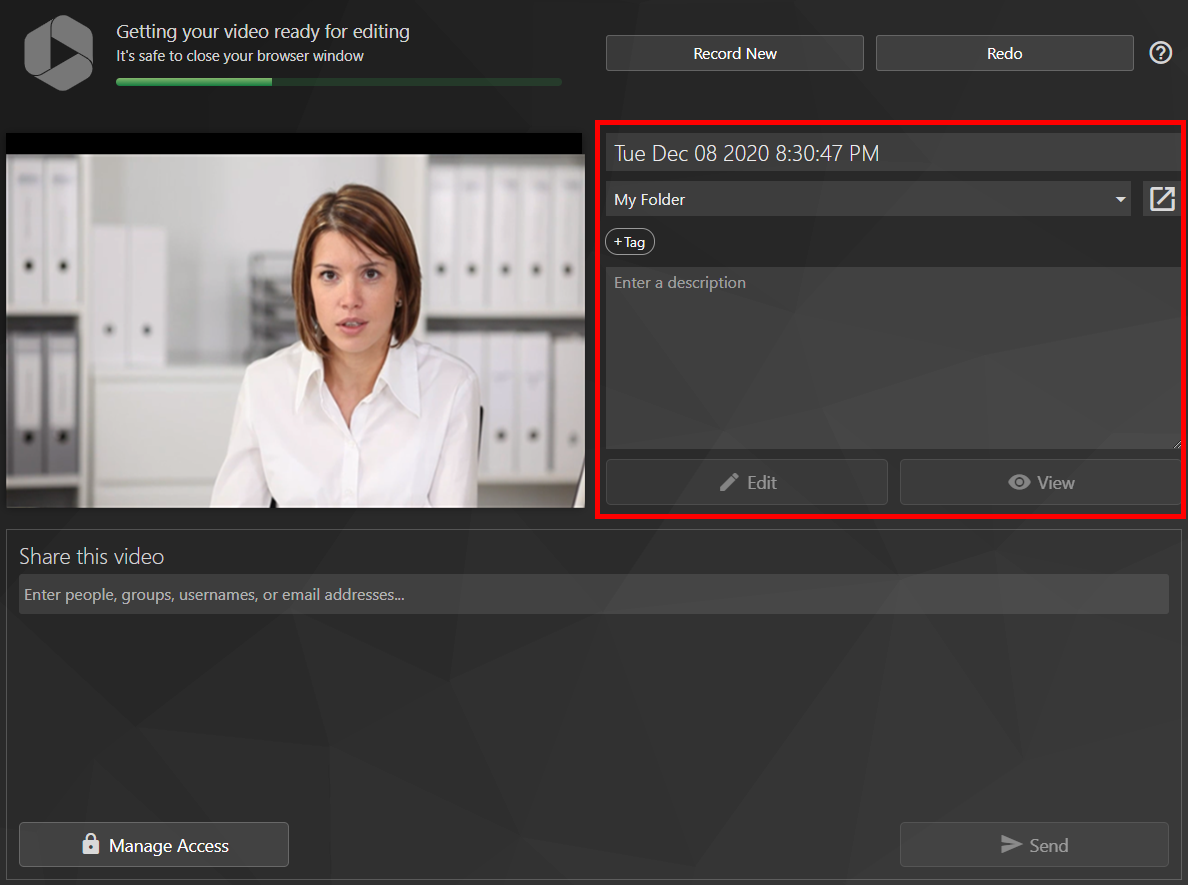
In the video details box, you can edit the video’s name, which automatically uses the date and time the video was recorded as a placeholder, change the video’s folder location, add tags to the video, enter the video’s description, and open the video in the Panopto editor by selecting Edit or view it in the Panopto viewer by selecting View.
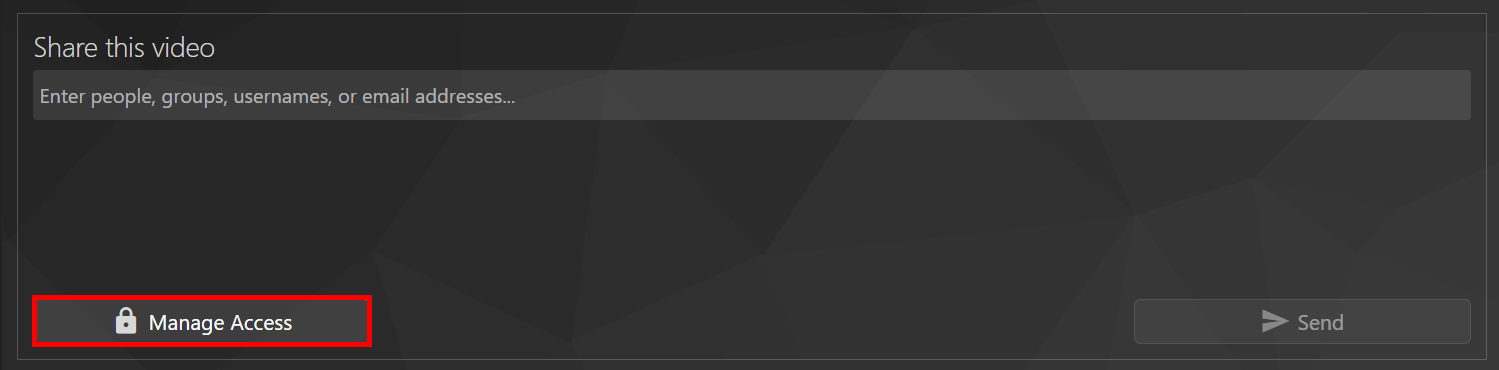
 In the text box underneath Share this video, start typing the name, group name, username, or email address of the person or people with whom you would like to share your video. Once you are done, select Send.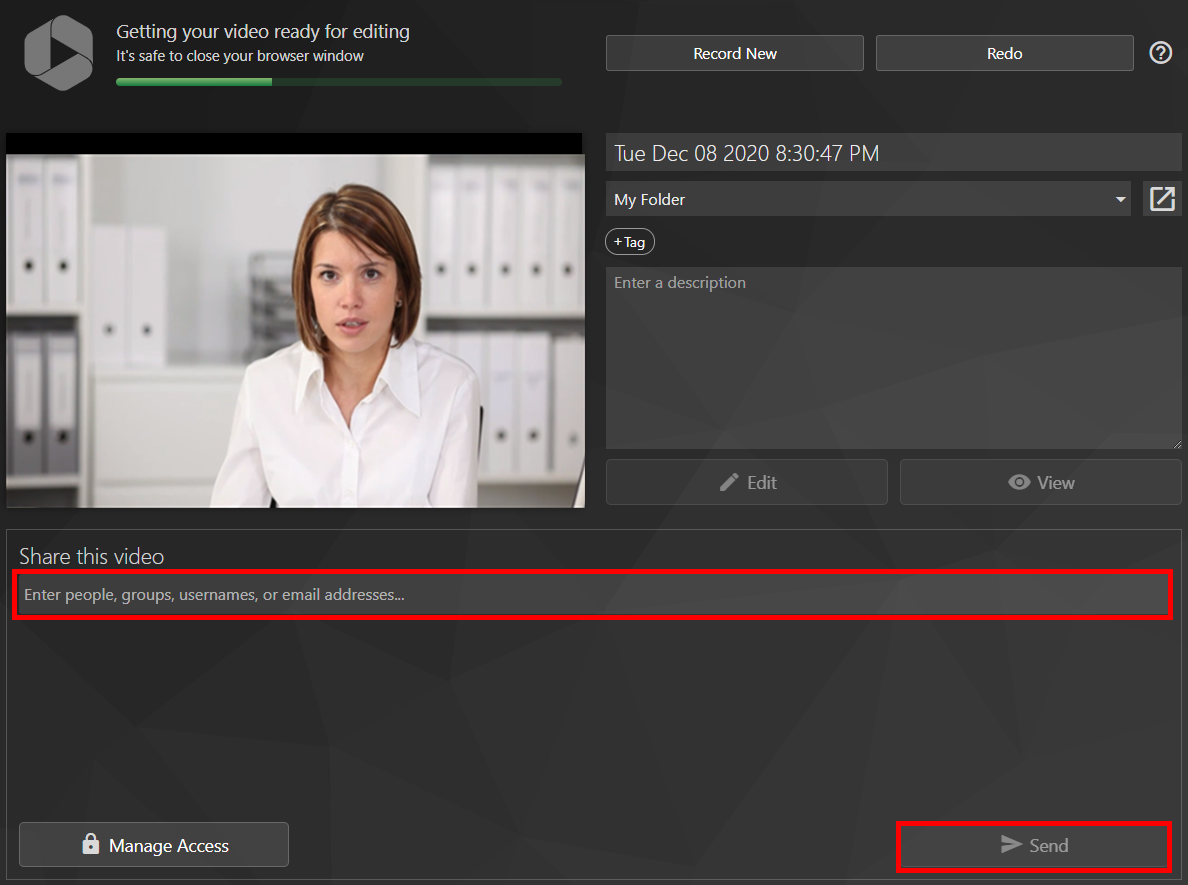
You can also share your video if you select Manage Access.
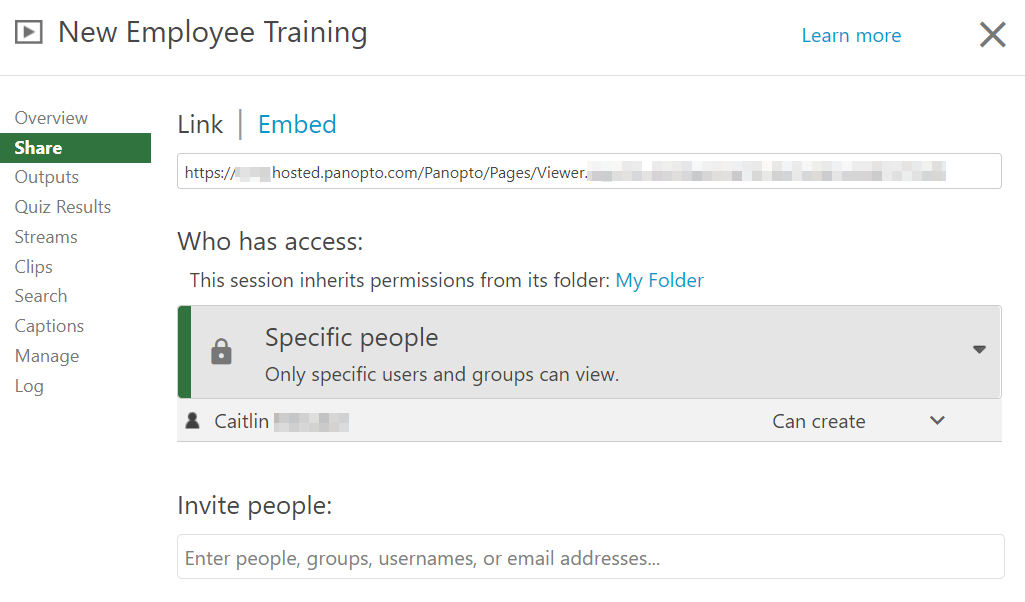
Once selected, your Panopto site will open to the video's settings Share tab.