
Purpose
This guide explains how to set up modules (activities or resources) in Moodle 4.5 so they open automatically on a specific date and time using Moodle’s Availability settings. This is useful for weekly releases, pacing content, or coordinating with a syllabus schedule.
Key Concept: Availability Settings
In Moodle, Availability controls when students can see or access a module.
You can:
Hide content until a specific date/time
Show content but restrict access until a date/time
Step-by-Step: Schedule a Module to Open Automatically
Step 1: Turn Editing On
Go to your course.
Select Edit mode (top right of the course page).
Step 2: Add or Edit a Module
To add a new module:
Click Add an activity or resource.
Choose the activity or resource type (e.g., Page, Assignment, Quiz).
To edit an existing module:
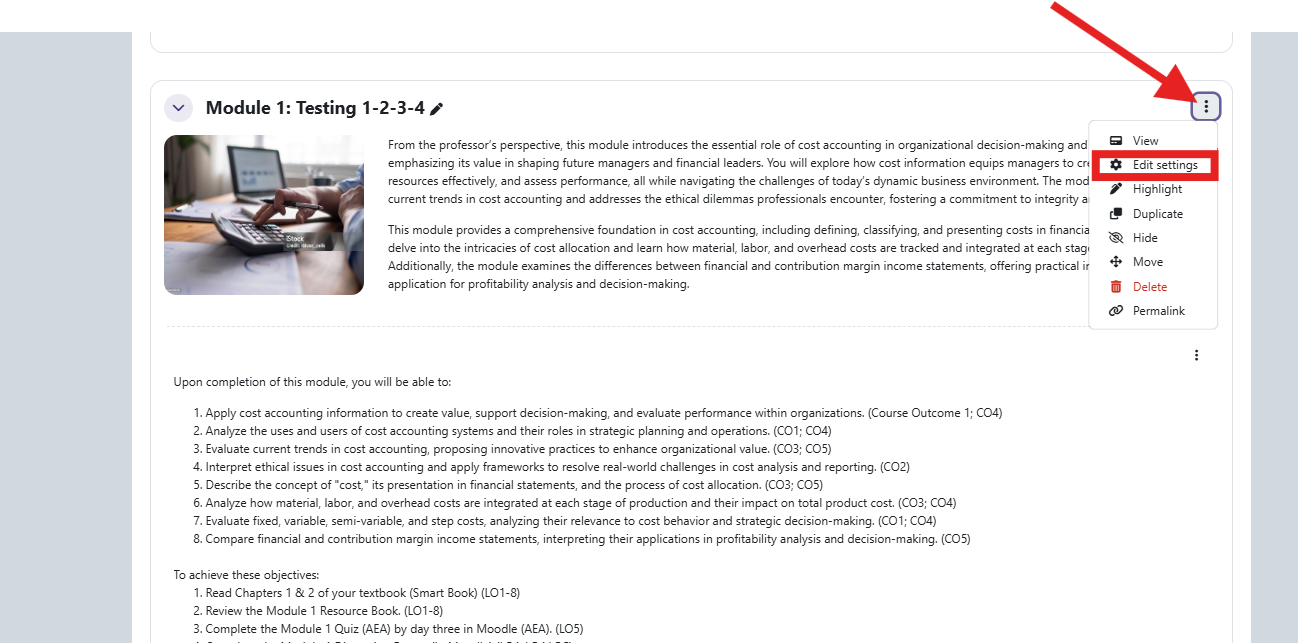
Select the three dots (⋮) next to the module.
Choose Edit settings.
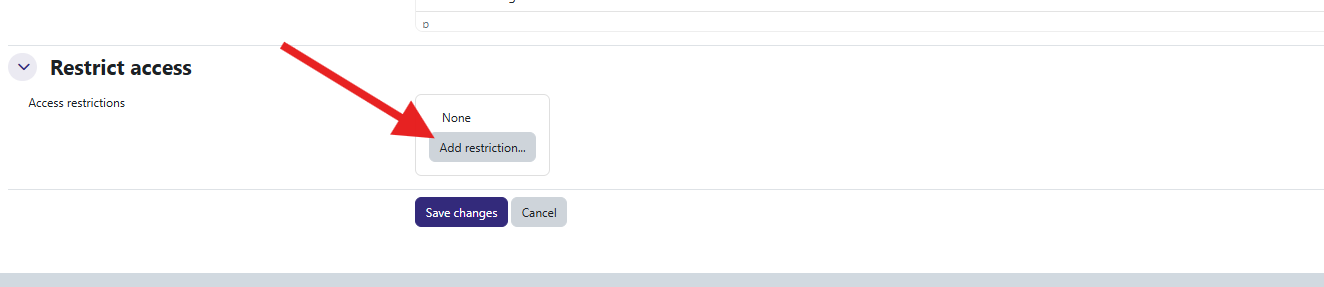
Step 3: Locate the Availability Section
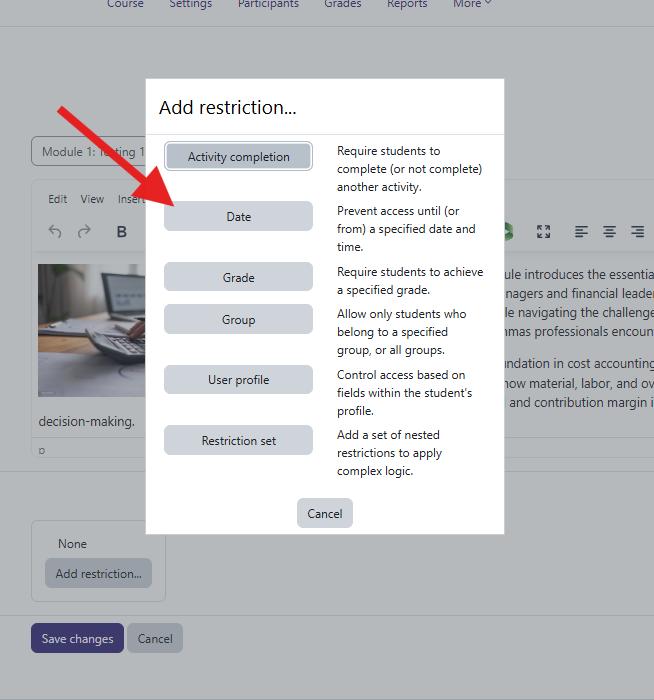
Click Add restriction.
Select Date.
Step 4: Set the Release Date and Time
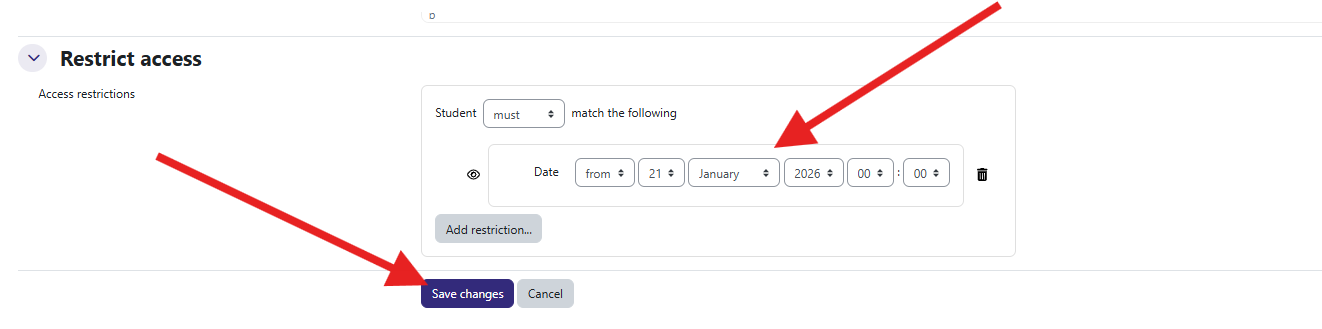
Choose from (this means the module opens at the specified date/time).
Select the date and time you want students to gain access.
Confirm the restriction.
✅ Tip: Moodle uses the course time zone. Double-check your course settings if timing is critical.
Step 5: Choose Visibility Behavior (Important)
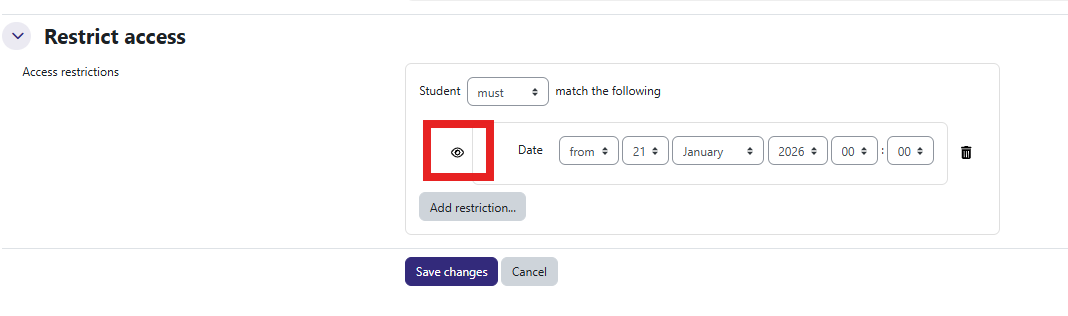
Next to the date restriction, you will see an eye icon:
Open eye – Students can see the module but cannot open it until the date/time.
Closed eye – Students cannot see the module at all until the date/time.
Click the icon to toggle your preferred behavior.
Step 6: Save Your Changes
Click Save Changes
Your module will now open automatically based on the schedule you set.
Optional: Scheduling an Entire Section (Weekly Release)
If your course is organized by topics or weeks, you can schedule a whole section:
Turn Edit mode on.
Select the three dots (⋮) next to the section name.
Choose Edit section.
Use the Availability section to add a Date restriction.
Save changes.
All modules inside that section will follow the section’s availability rules.
Best Practices for Faculty
- Match your syllabus: Align availability dates with your published schedule.
- Use “Show but restrict access” to help students plan ahead.
Test with Switch role to → Student to confirm behavior.
⏰ Set release times consistently (e.g., Mondays at 8:00 AM).