
If you have imported course content that includes a Turnitin 2 Assignment/Activity, there is a possiblility you will see a NOTICE when this assignment is clicked into. The Notice explains a duplication error.

If you see this NOTICE - your Turnitin Assignment 2 will not function as designed and students will NOT be able to submit work to this assignment.
____________________________________________________________________________________________________________
More Information on Turnitin Assignment 2 Notice:
What the Duplicate Notice Means
You imported a Turnitin Assignment that still references the original Turnitin assignment from the source course.
Moodle sees that the assignment exists already in Turnitin’s system and warns about duplicates.
That can create submission or inbox confusion (e.g., submissions might appear across duplicates).
? Will It Happen Every Time?
Yes — unless you break the Turnitin link during or after import, the duplicate warning will likely appear each time you import a course that includes Turnitin Assignment 2 activities.
?️ How to Avoid/Resolve It
Here are a couple of ways to deal with this. Always keep in mind if you have Groups (with AA's) in your course; having Groups will determine which Turnitin Tool to choose (see Option B, step 2 - below).
1. Delete & Recreate the Imported Turnitin Assignment (see steps below)
After import, delete the imported assignment that shows as duplicated and create a fresh Turnitin assignment in the new course.
This makes the new assignment point to a new Turnitin activity rather than the old one.
2. Duplicate the Imported Assignment Then Delete the Original Copy (see steps below)
Duplicate the imported activity within the new course, then delete the original imported copy.
The duplicated version gets a fresh internal ID in Moodle, which breaks the link back to the original Turnitin assignment.
____________________________________________________________________________________________________________
Options to Resolve this Issue:
A. Duplicate the Turnitin Assignment:
1. Toggle Edit Mode On
2. Go into each Turnitin Assignment (within your course) and look for the Notice (snip at top of this guide)
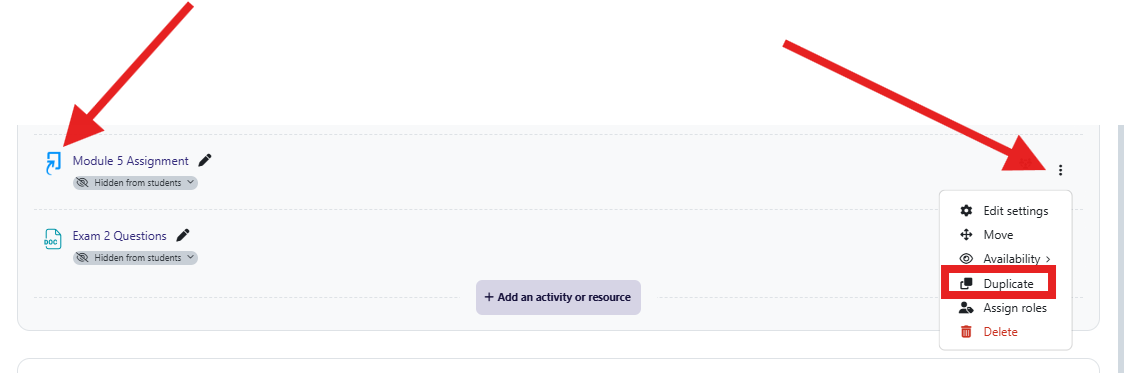
3. If the Notice is present, you will go back to Main Moodle page, find the Assignment again, click the three dots to the right of the Assignment name
4. You will have a dropdown menu, select DUPLICATE (snip 1)
5. You will see a "COPY" of the assignment below the orginal (snip 2)
6. Click into the "COPY" to ensure the Notice is not present
7. If the Notice is NOT present, the original Turnitin Assignment must be deleted
8. The "COPY" assignment can be renamed (remove "copy" from name)

B. Recreate & Replace the Assignment:
1. As soon as you see the notice - Hide the assignment; so not to cause further panic with your students.
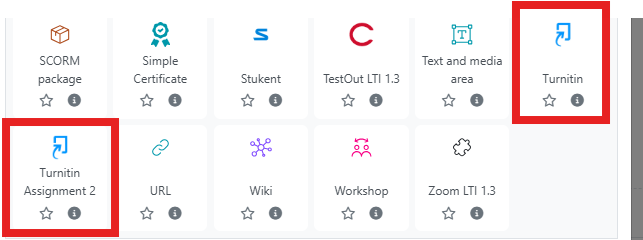
2. Create a NEW "Turnitin" Assignment (toggle on Edit Mode, find the Module, Add Activity or Resource, select Turnitin tool):
A. If you have Groups & AA's within your course choose : Turnitin Assignment 2
B. If you DO NOT have Groups choose: Turnitin
3. Copy & paste the content from the hidden assignment into the new Turnitin assignment.
A. Set the correct dates & times
B. Set appropriate points
C. Adjust any other preferred settings.
D. Save
4. Save and Return to course. Double check your Newly created Turnitin for any ERRORS or NOTICES
5. If there are no errors or notifications you can delete the non-working original Turnitin assignment.
Please Note: If you received a NOTICE on a Turnitin assignment within your course, this means any other Turnitin Assignments within your course WILL have the same issues. Please check ALL Turnitin assignments within each Module of your course and make the appropriate adjustments.
___________________________________________________________________________________________________________
If you experience any further issues please contact Michelle Ducote @ mcloud@lsua.edu.