
Moodle 4.5 Faculty Help Guide
Creating & Using the H5P Tool
What is H5P?
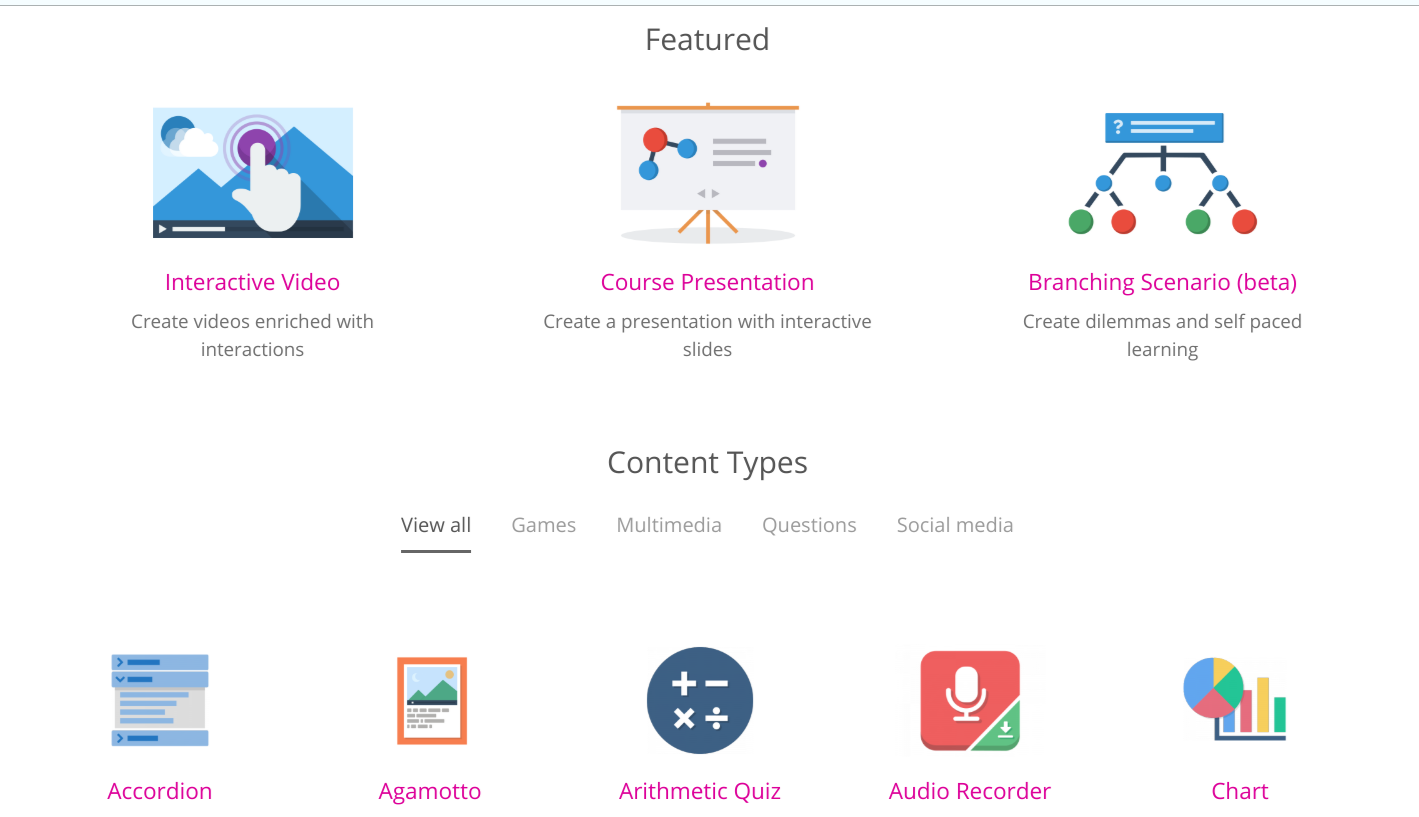
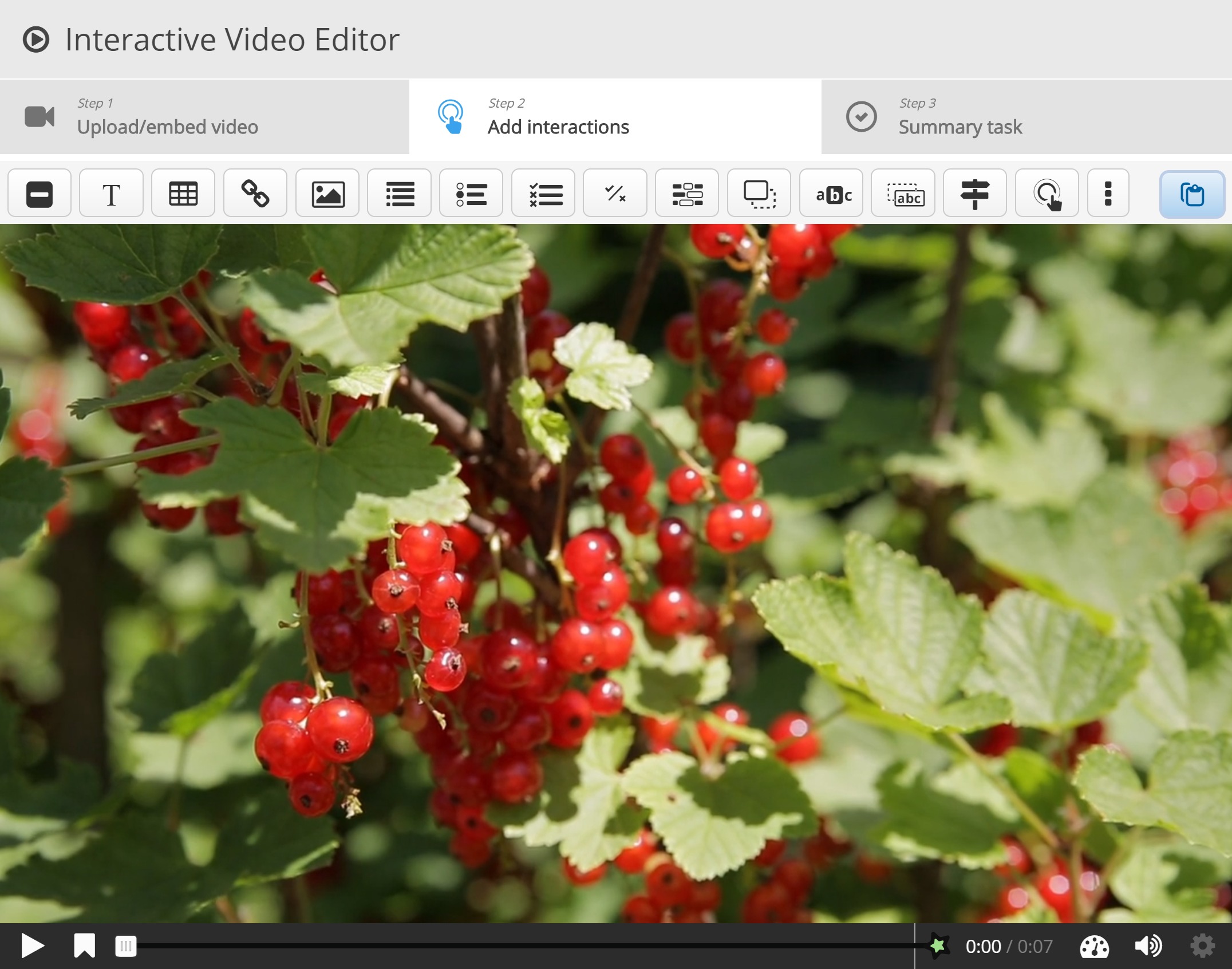
H5P (HTML5 Package) allows faculty to create interactive learning content such as:
Interactive videos
Quizzes & knowledge checks
Drag-and-drop activities
Flashcards & presentations
Interactive books
H5P content is created in the Content Bank and added to a course as an H5P activity or embedded inside other Moodle activities.
Part 1 — Create H5P Content (Content Bank)
Step-by-Step
Open your course
click Content bank
Click Add
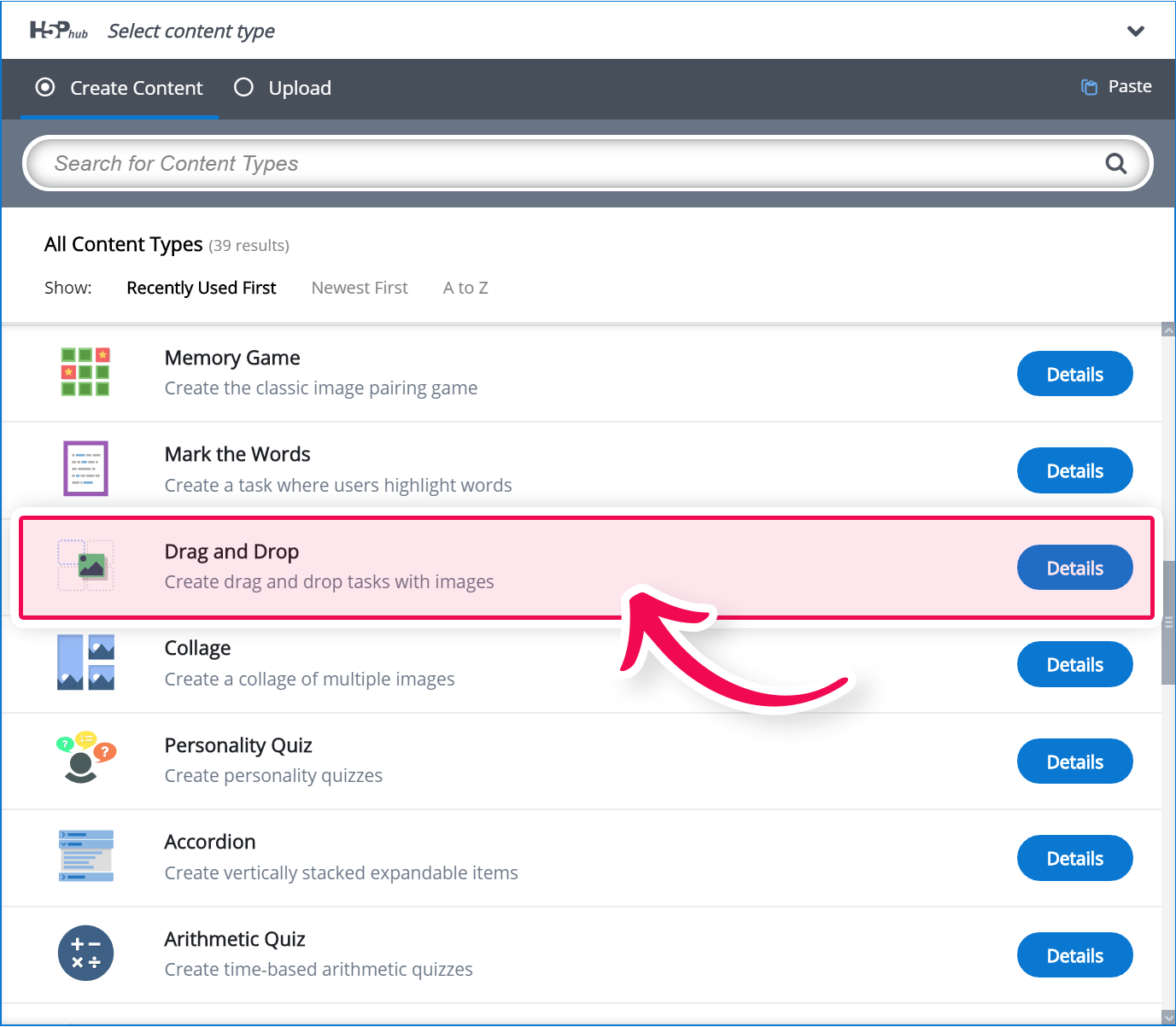
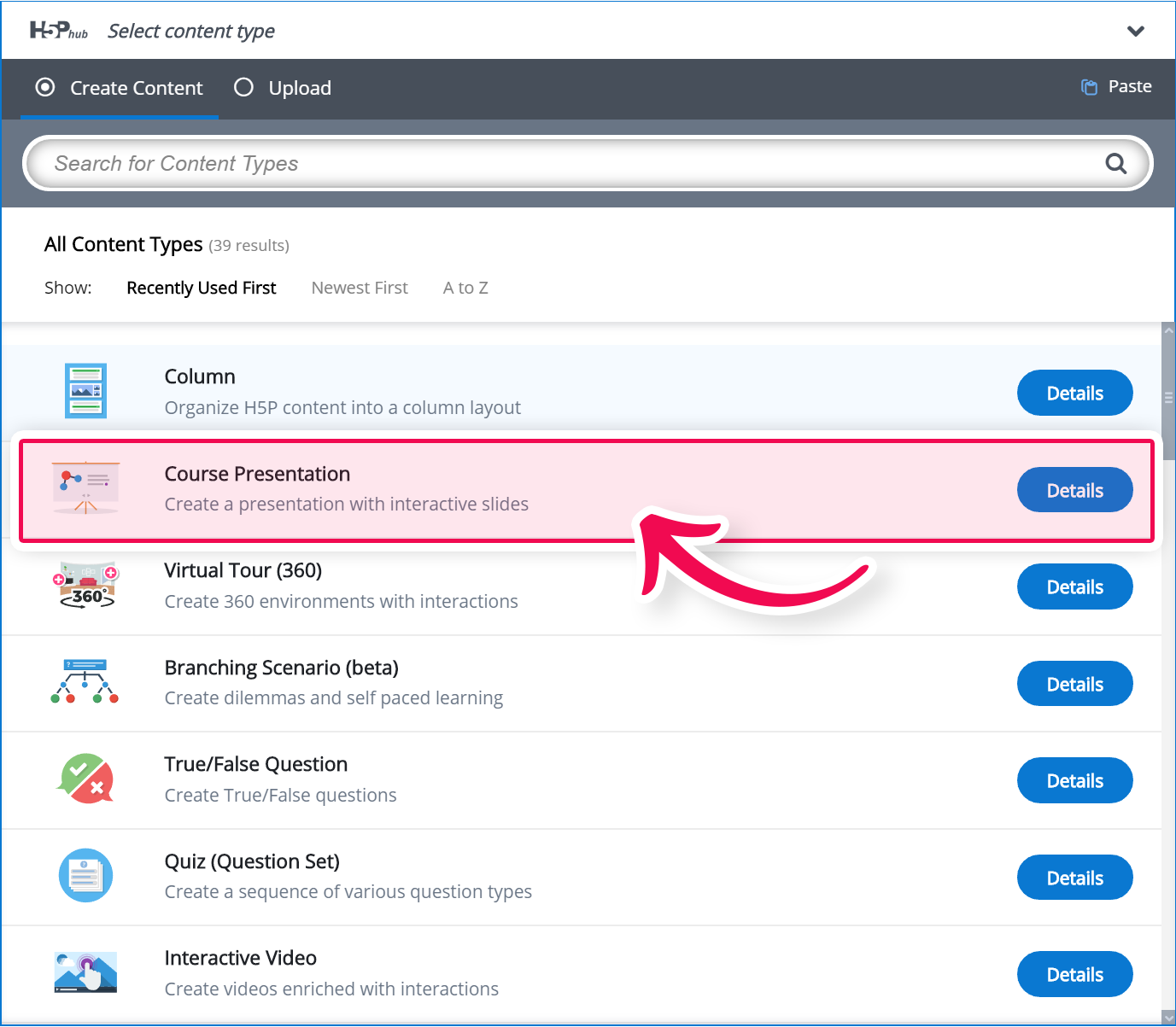
Choose a content type (ex: Interactive Video, Quiz, Column, etc.)
Build your activity using the editor
Click Save
Your H5P activity is now stored in the Content Bank and reusable across the course.
Part 2 — Add H5P to Your Course (As an Activity)
Step-by-Step
Turn Edit mode ON
Click Add an activity or resource
Select H5P
Enter:
Activity name
Description (optional)
Under Package file, choose: Content Bank (recommended)
Adjust settings (grading, attempts, completion)
Click Save and return to course
Students click the activity and interact with the content directly in Moodle.
Important:
An H5P activity = interactive and trackable
Part 3 — Embed H5P Inside Other Activities
You can place H5P inside:
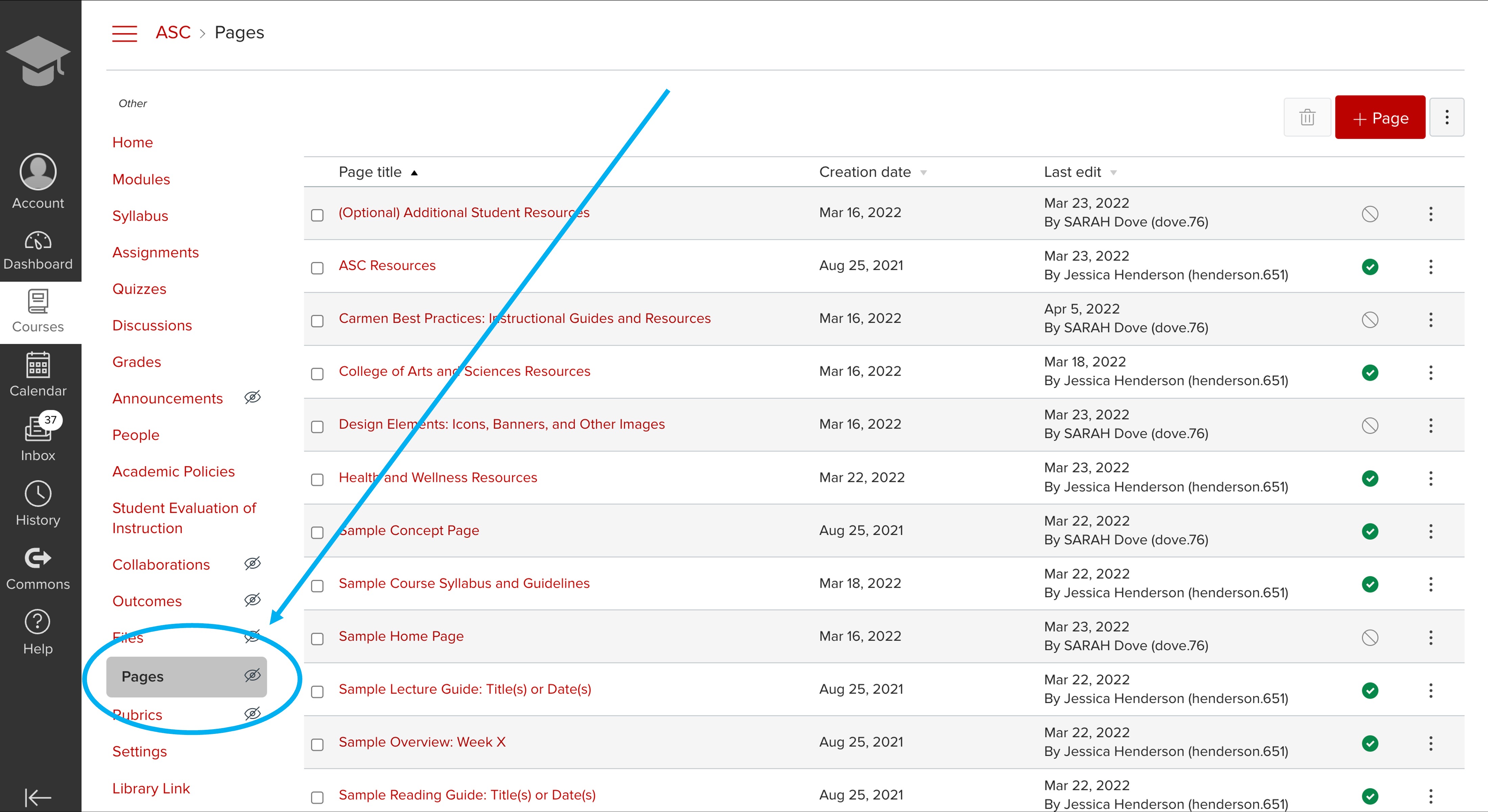
Pages
Books
Lessons
Labels
Forums
Assignments
Steps
Open the activity/resource editor
Click the H5P button in the toolbar
Choose Browse repositories
Select your file from Content Bank
Insert H5P
Part 4 — Grading & Tracking
H5P activities can be graded automatically
Scores feed directly into the Gradebook
Teachers can view attempts and completion data
Grade updates when students finish the activity
Tip: Use the Quiz activity (not H5P) for high-stakes exams.
Best Practices for Faculty
Use H5P for:
Engagement
Practice
Knowledge checks
Interactive learning
Avoid using H5P for:
Major exams
High-security assessments
Design Tips
Keep activities short
Provide feedback in questions
Use multiple content types together (Column, Interactive Book)
Add completion tracking
Common Issues & Fixes
| Issue | Solution |
|---|---|
| Students cannot interact | Make sure you added H5P activity, not file resource |
| Grades not appearing | Ensure grading is enabled in activity settings |
------------------------------------------------------------------------------------------------------------------------------------------------------------------------------------------------------------------------------------------------------------------------------------------------------
Moodle 4.5 — H5P Interactive Content Guide
How Each Interactive Activity Works (Faculty View)
Interactive H5P content requires student action (click, drag, answer, explore, speak, or interact). Most can be graded and tracked in Moodle when added as an H5P Activity.
Interactive Video & Presentation
Interactive Video

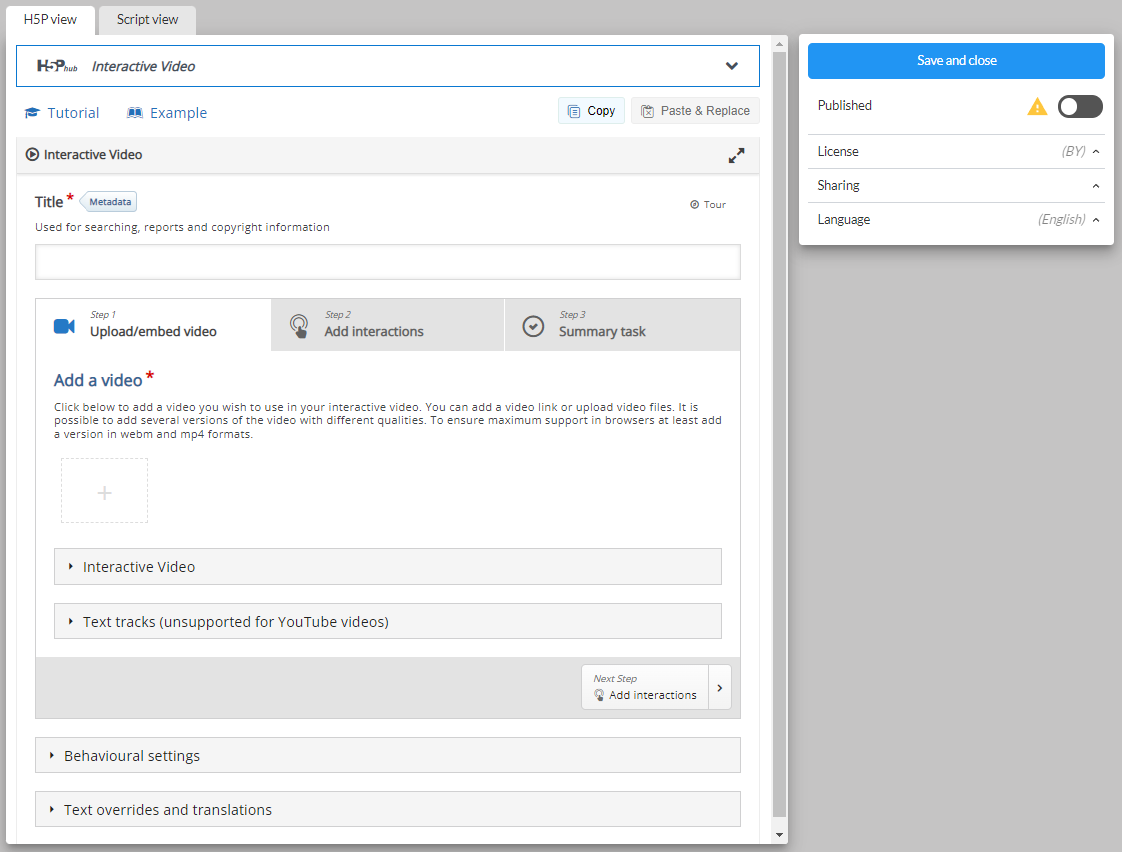

How it works for students
Students watch a video
The video pauses automatically for questions, labels, or prompts
Students must respond to continue
Feedback appears instantly
Score recorded (optional)
Instructor uses
Guided lectures
Flipped classroom
Video-based learning checks
Key interaction types
Multiple choice
Drag and drop
Fill in blank
Links, text, images
Summary quiz
Course Presentation
How it works for students
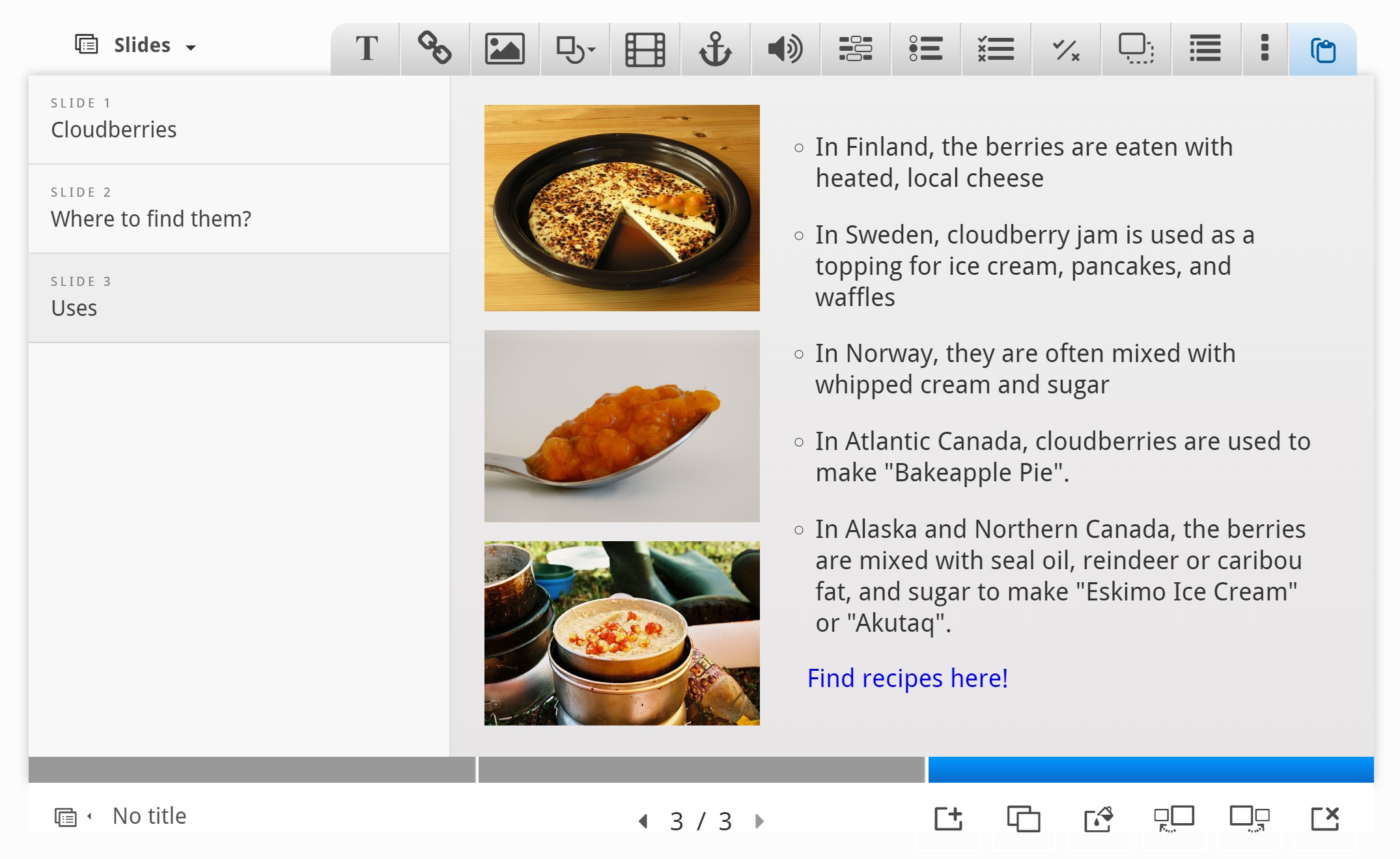
Students click through slides
Interactive questions appear within slides
Instant feedback given
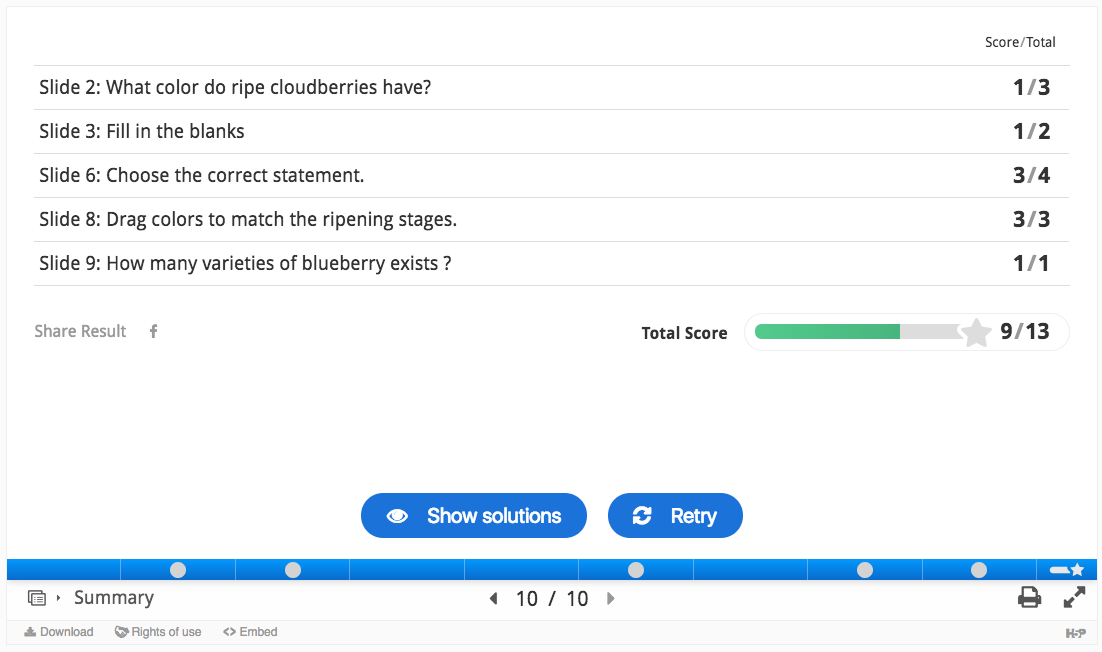
Summary quiz at the end (optional)
Instructor uses
Interactive lecture slides
Self-paced learning
Module instruction
Interactive Book
How it works for students
Students move through chapters/pages
Each page may contain:
Video
Quiz
Drag/drop
Text
Final score combines all activities
Instructor uses
Full online lessons
Guided learning modules
Self-paced course units
Interactive Quiz & Knowledge Checks
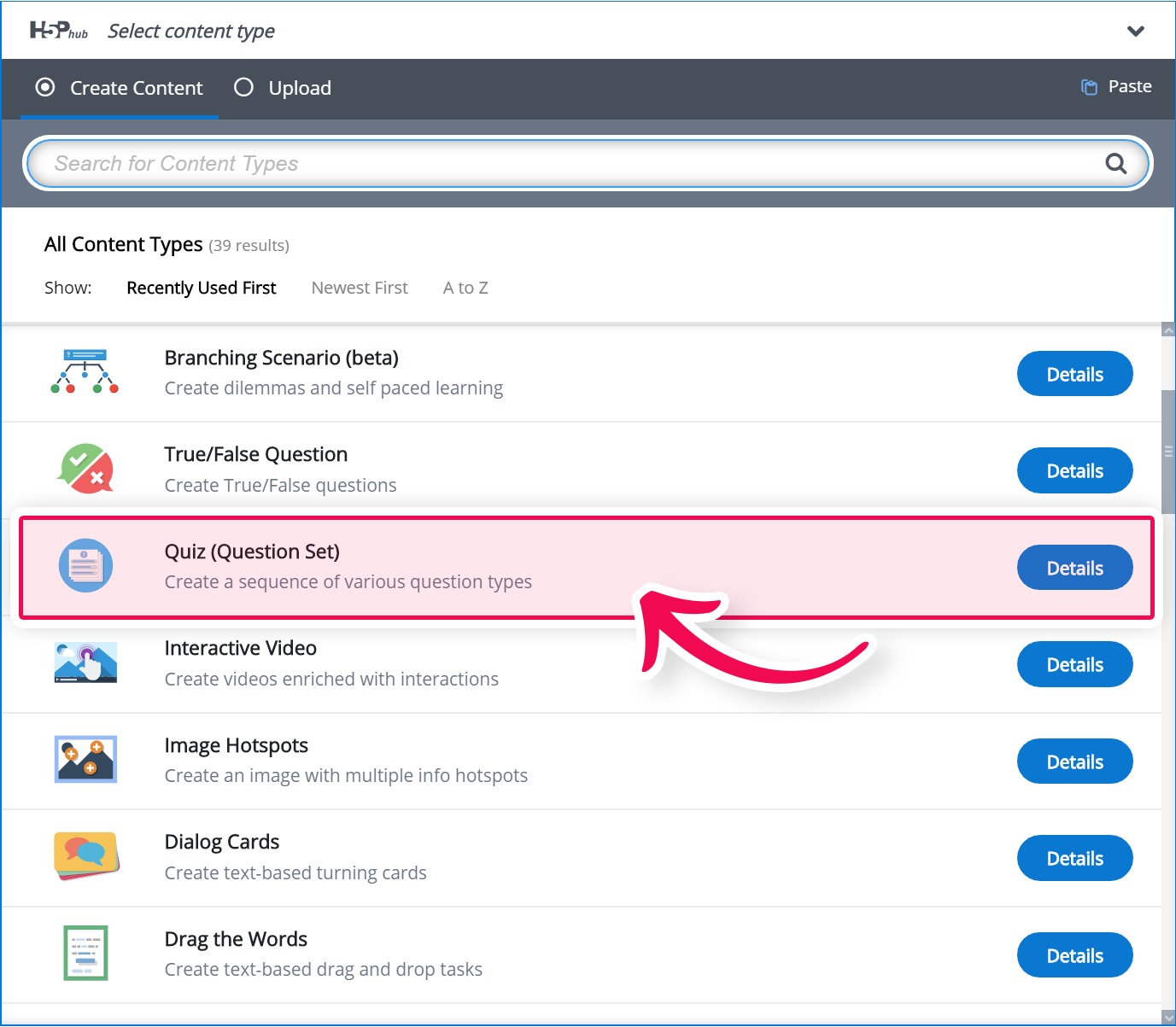
Question Set (Interactive Quiz)
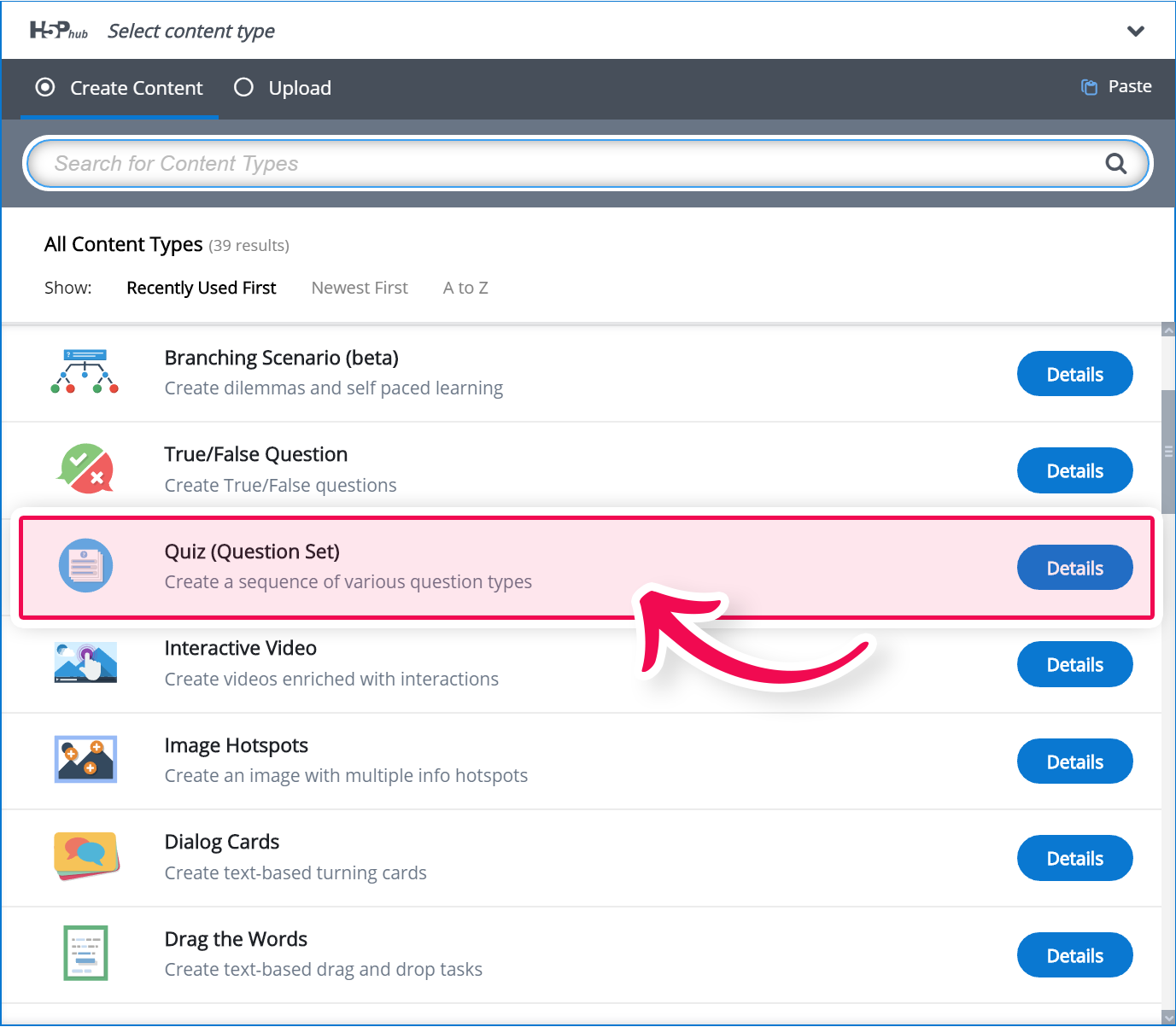
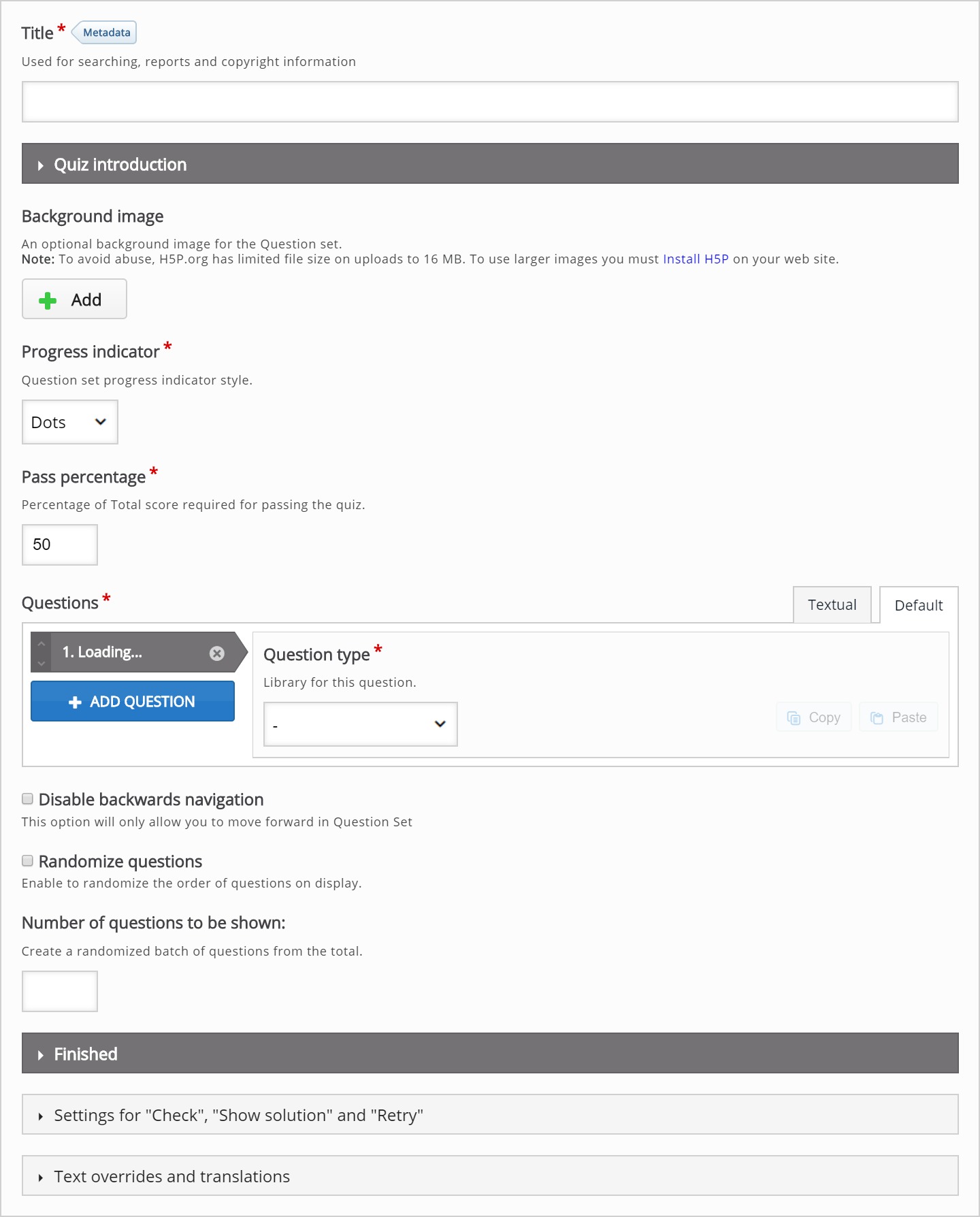
How it works
Students answer a sequence of questions
Immediate feedback
Score shown at end
Can retry (if enabled)
Best for
Practice quizzes
Knowledge checks
Exam review
Multiple Choice
Student interaction
Select answer → instant feedback → score recorded
Use for
Quick checks
Concept understanding
Fill in the Blanks
Student interaction
Type missing word(s)
Auto-graded
Feedback shown
Use for
Vocabulary
Definitions
Formula recall
Mark the Words
Student interaction
Highlight correct word(s) in a passage
Use for
Reading comprehension
Key term identification
Drag the Words
Student interaction
Drag words into sentence blanks
Use for
Language learning
Concept structure
Essay (Interactive)
Student interaction
Type response
May be auto-evaluated (keyword scoring) or instructor graded
Use for
Reflection
Short responses
Written thinking
Interactive Practice Activities
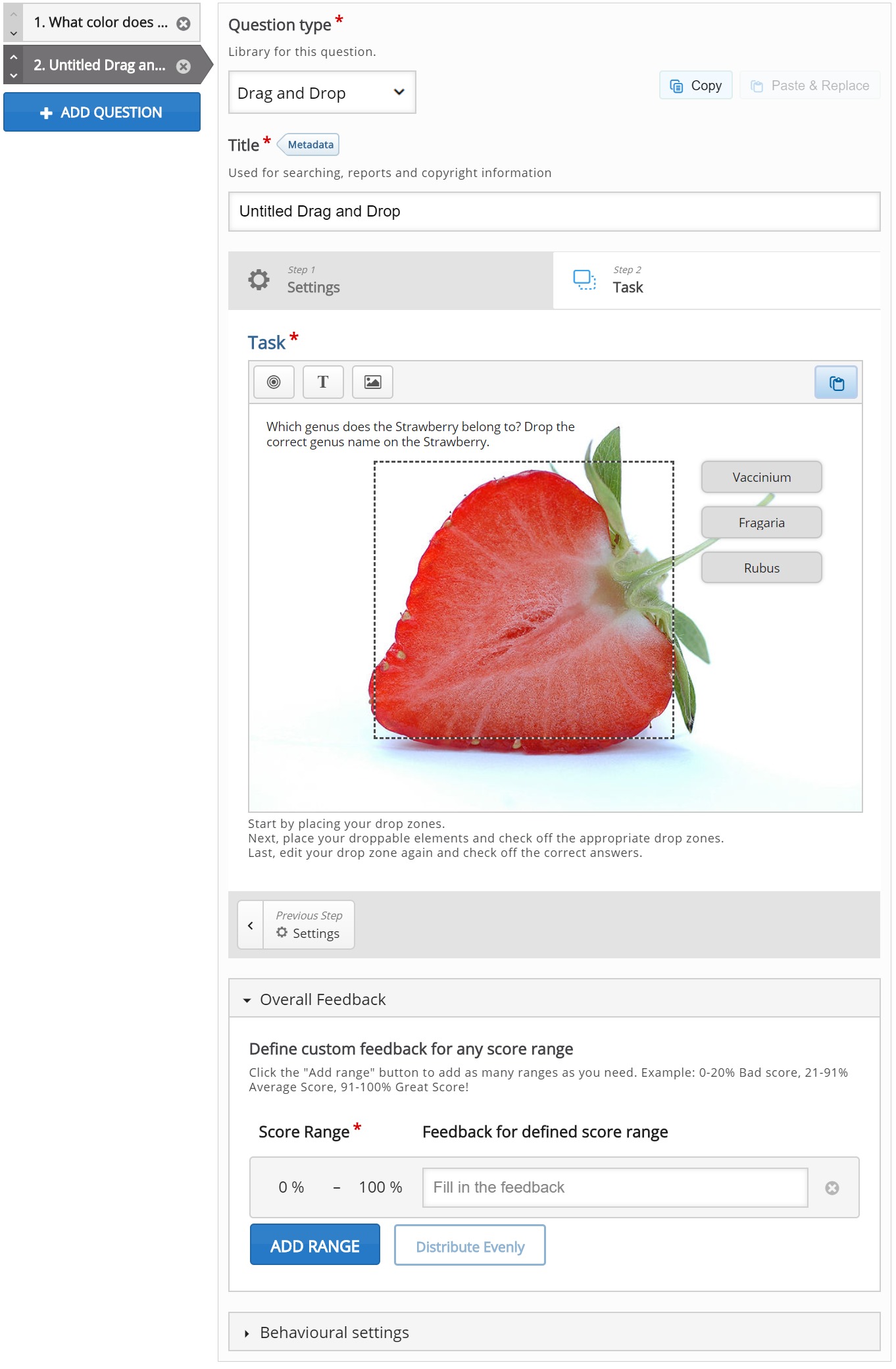
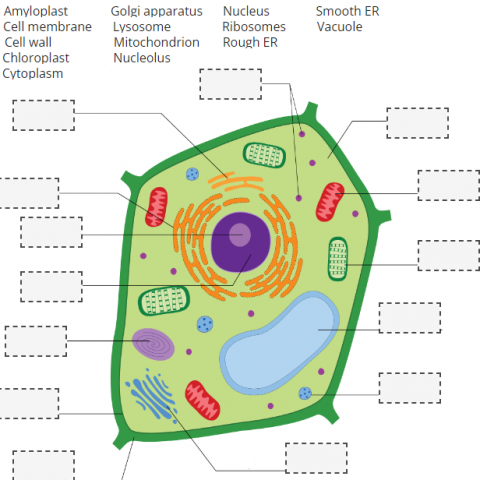
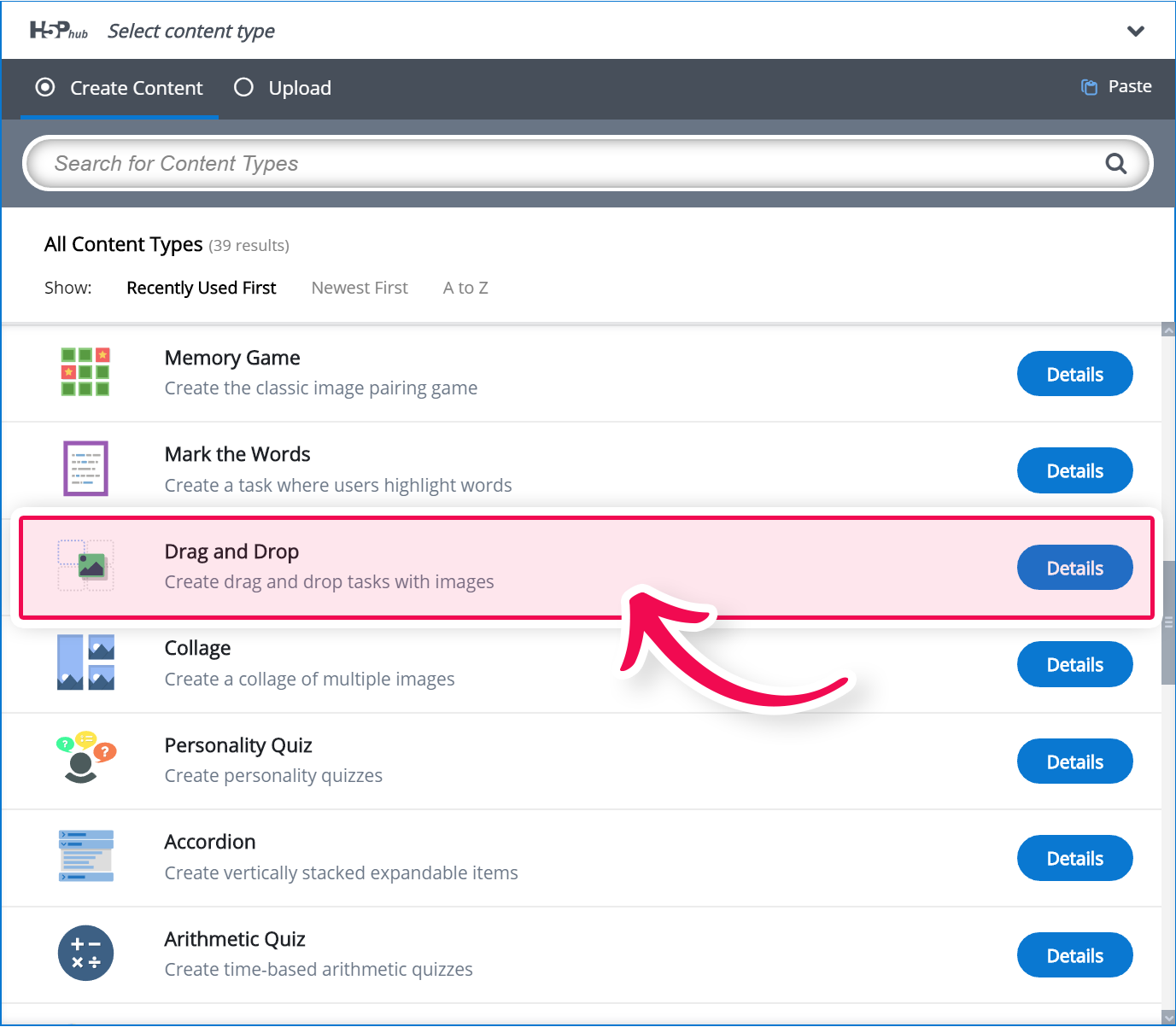
Drag and Drop

Student interaction
Drag objects onto correct area
Immediate feedback
Score recorded
Use for
Labeling diagrams
Matching concepts
Visual learning
Matching
Student interaction
Match pairs (term → definition, image → label)
Use for
Memorization
Terminology
Concept relationships
Flashcards
Student interaction
Flip card → answer → self-check → continue
Use for
Review
Memorization
Practice learning
Memory Game
Student interaction
Flip cards to find matching pairs
Use for
Visual recall
Intro-level learning
Interactive Exploration Activities
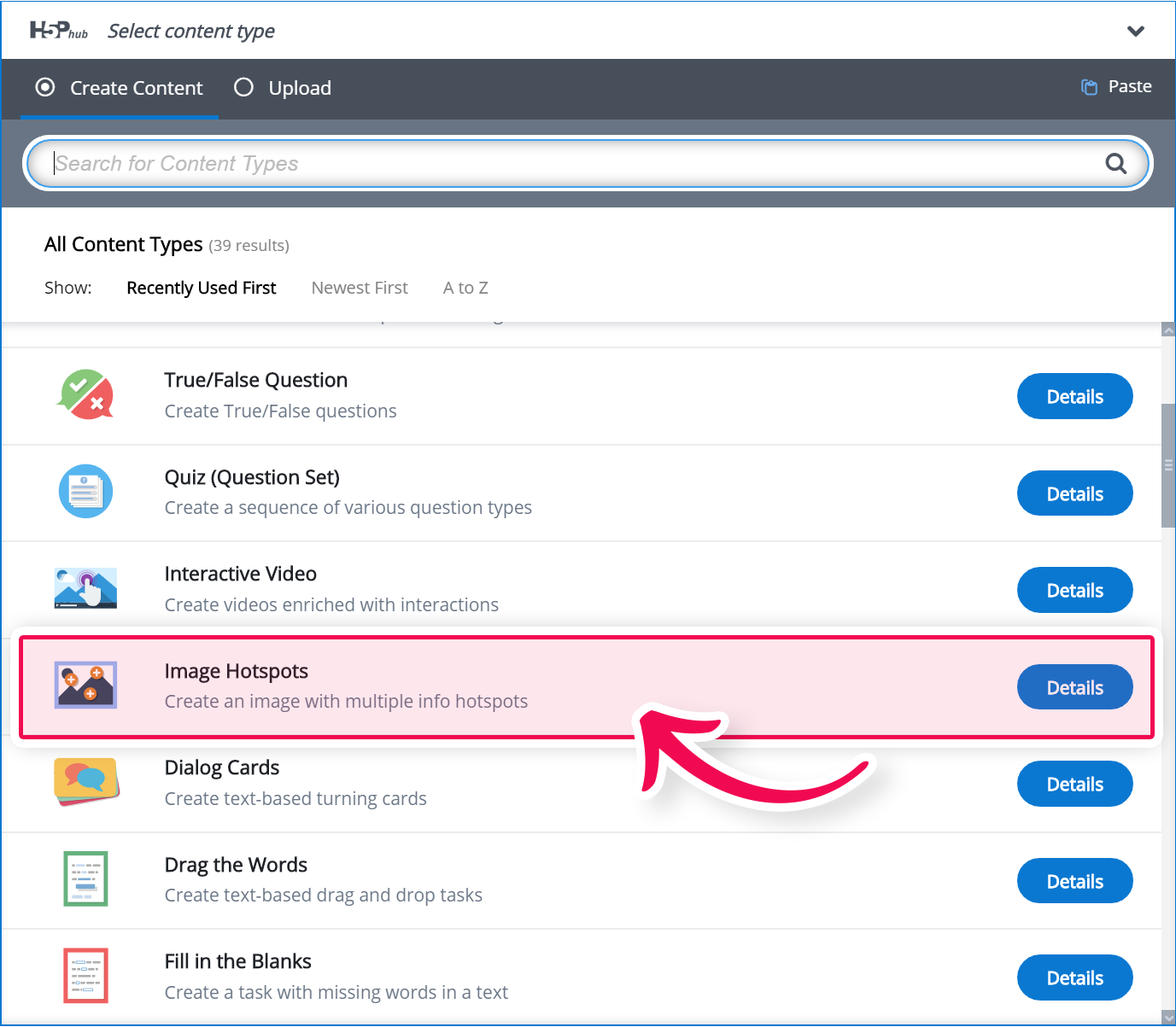
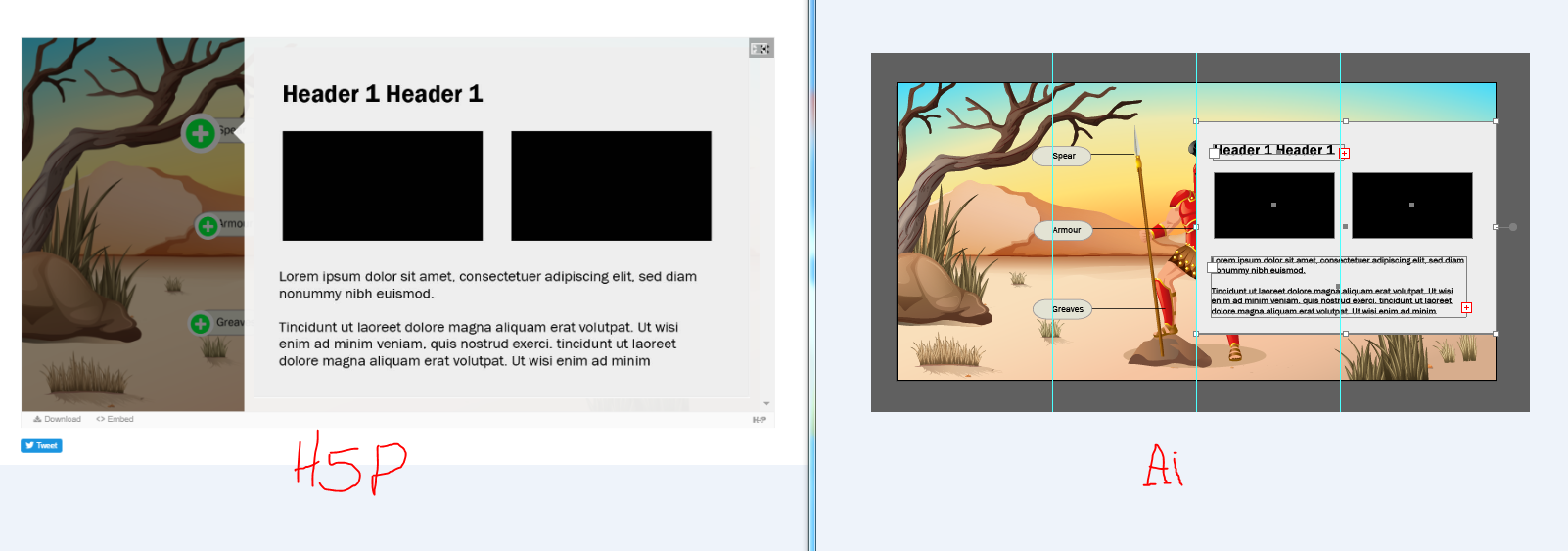
Image Hotspots

Student interaction
Click hotspots on image
Information, media, or questions appear
Use for
Diagrams
Virtual tours
Exploratory learning
Image Sequencing
Student interaction
Arrange images in correct order
Use for
Processes
Timelines
Procedures
Timeline (Interactive Exploration)
Student interaction
Scroll through chronological events
Click to expand details
Use for
History
Case progression
Project stages
(Usually informational, not graded)
Interactive Learning Containers
Column (Stacked Interactive Activities)
Student experience
Multiple H5P activities stacked vertically
Students complete in sequence
Combined score possible
Use for
Mini lessons
Learning sequence
Practice module
Documentation Tool
Student interaction
Guided reflection form
Students submit responses
Use for
Journals
Projects
Portfolio evidence
Speak the Words (Speech Interaction)
Student interaction
Students speak into microphone
Speech recognition checks pronunciation
Use for
Language learning
Speech practice
How Grading Works
Graded automatically:
Interactive Video (with questions)
Question Set
Drag & Drop
Matching
Fill in Blank
Most quiz-type tools
Manual or mixed:
Essay
Documentation Tool
Not usually graded:
Timeline
Accordion (content display)
Quick Faculty Decision Guide
Use Interactive Video → When teaching with lecture videos
Use Course Presentation → Interactive slideshow lesson
Use Interactive Book → Full self-paced module
Use Question Set → Practice quiz
Use Drag & Drop / Matching → Practice learning
Use Image Hotspots → Diagram exploration
Use Column → Mini lesson sequence