
More helpguides found here: https://help.mentimeter.com/en/
The Mentimeter LTI tool is now visible in the Activity/resource modal
Navigate to your Course.
Toggle on "Edit Mode" and find the Module you want to add the Menti activity. Click Add Activity or Resource and find Mentimeter.
Step 2: Adding and publishing a Menti
Once you've found the tool, and added it, you will now be able to able to add your Mentimeter content.
Click Select Content to add your Menti.
Note: you can access all Mentis that you have access to in Mentimeter.
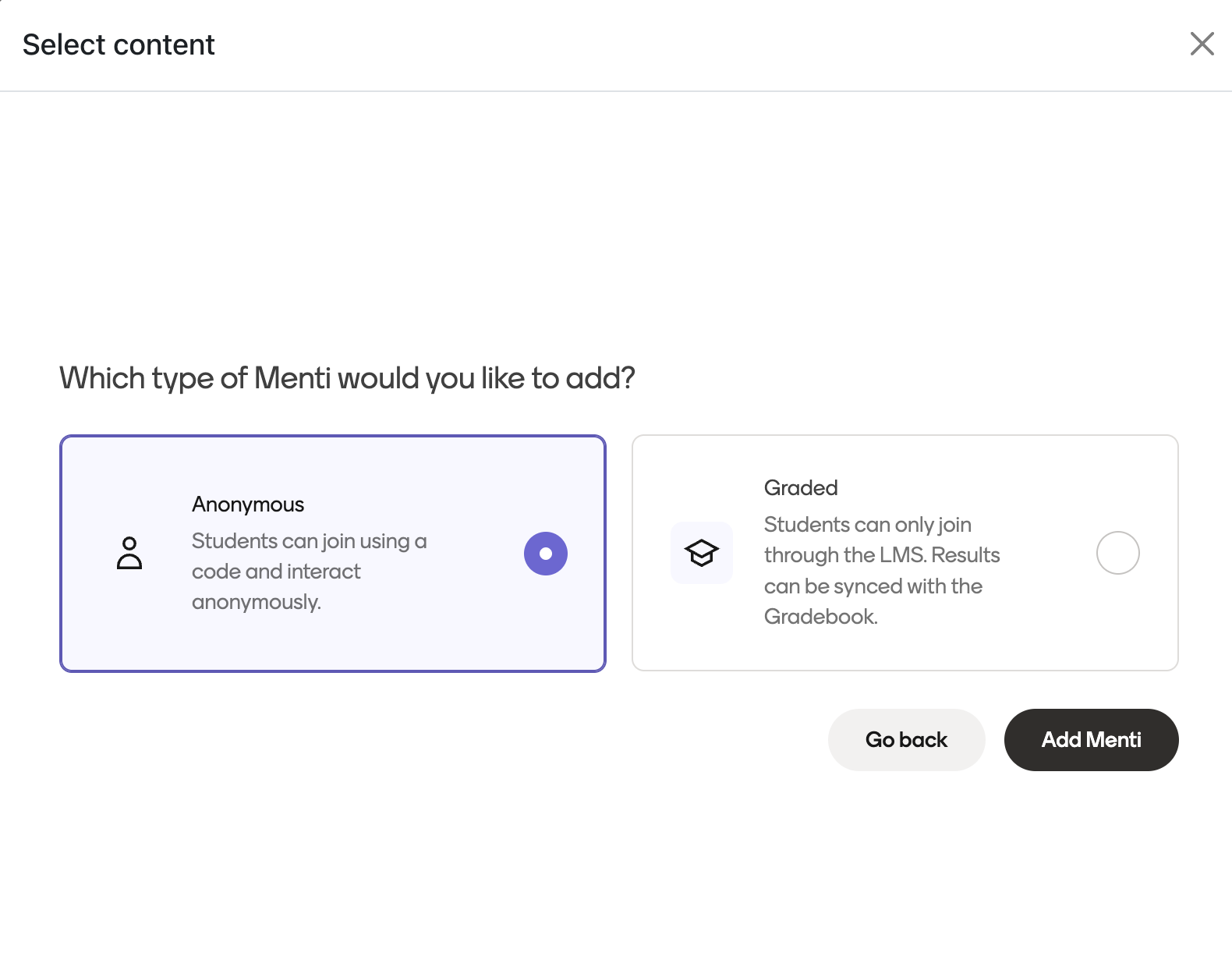
You will be asked to choose whether the Menti should be anonymous or graded.
If you select Graded, students will only be able to join through the Moodle and the results can be synced with the Gradebook.
If you select Anonymous, students can join using a code and interact anonymously.
Set points as per usual. We will sync grades based on the maximum points assigned. See below in step 3 for more info.


Step 3: Present your Menti from Moodle
Open the Menti from the course view. This will take to you the Mentimeter editor - now in your LMS. From here you can:
Edit content or settings
Preview
Invite collaborators
And Present
Click Present to start presenting the Menti to your audience. They will join the Menti by finding the assignment in their LMS view, and opening it. Read more about the Participant or Student experience here.
Should you wish to test the student experience, use the "Switch role to..." function in the top right corner of the Moodle interface.

Step 4: Sync grades to the LMS Gradebook
Once your class, session or survey has ended, you can sync results from Mentimeter to your LMS gradebook.
First, go to the Menti you used, and go to the "results" tab.
On the right hand side, you will see "Sync to LMS"
Click this option and leave the tab open until you see that the sync is completed. Once completed, go to your LMS gradebook, and you will see a new entry for the session.
If you and students have notifications enabled for grades, notifications will be sent automatically once these grades have been synced.

Note: You can edit grades, or add weightings, as per usual in your LMS gradebook. However, should you re-sync the results from Mentimeter, those changes will be overridden.
(Optional) Step 5: Share results with your students
While this isn't part of the LMS integration itself, it is common for instructors to use Mentis as reading materials for students to refer to at a later time.
To share a read only version of the slides, you can use our embed slides functionality to simply embed the completed slides on a page for students to use as reading materials. To do so, following the instructions in this support article.
For students to see the embedded slides, you will need to ensure the Menti isn't "Private". Graded Mentis are by default "Private", you can change this to "Public" by clicking Share and scrolling to the bottom of the modal.
