
Platform: InScribe | App: InScribe Mobile
Step 1: Download the InScribe Mobile App
Install the free InScribe Mobile app on your device before setting up your account.
- Android: Search "InScribe Mobile" in the Google Play Store, or use the Android link provided on the Mobile App Access page.
- iPhone/iPad: Search "InScribe Mobile" in the Apple App Store, or use the iOS link provided on the Mobile App Access page.

Step 2: Generate Your Mobile Sign-In Code
You will not use a password to log in to the app. Instead, you will generate a one-time Sign-In Code from the desktop version of Generals Connect.
- Log in to Generals Connect at https://inscribe.education/main/lsua/6754110229507740/home from a desktop or laptop browser.
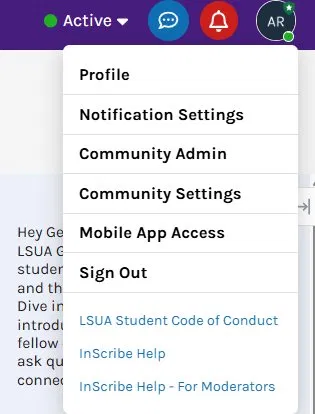
- Click your profile avatar in the upper-right corner of the screen.
- Select Mobile App Access from the dropdown menu.
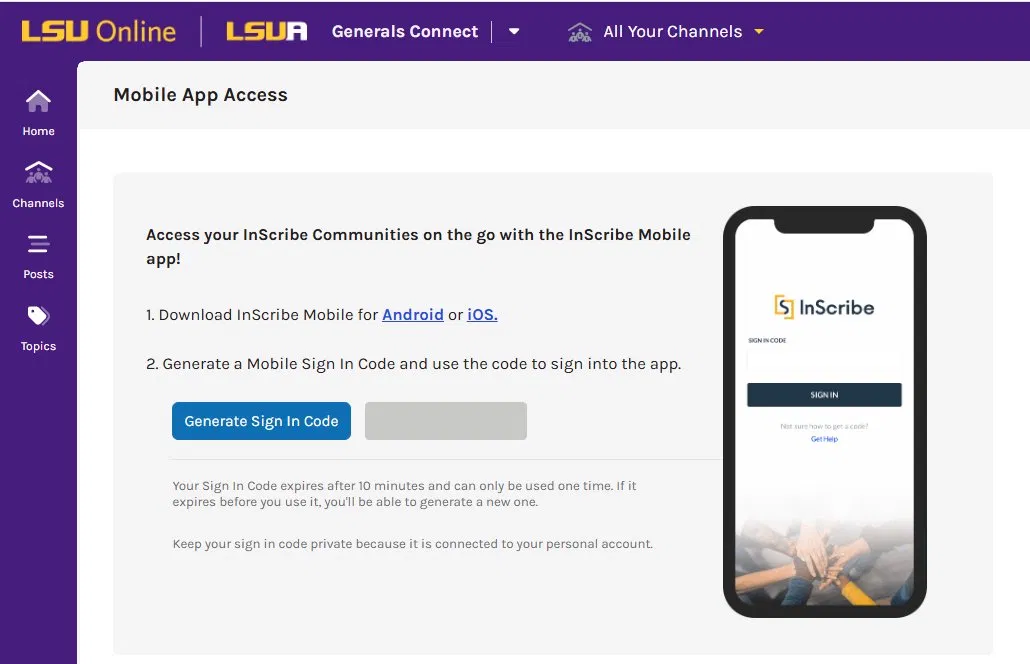
- Click the Generate Sign In Code button.
- A unique code will appear on screen. Copy or note it immediately — it expires in 10 minutes and can only be used once.
Step 3: Sign In to the Mobile App
- Open the InScribe app on your mobile device.
- On the Sign-In screen, enter the code you generated in Step 2.
- Tap Sign In.
You will now have full access to your Generals Connect community from your mobile device.