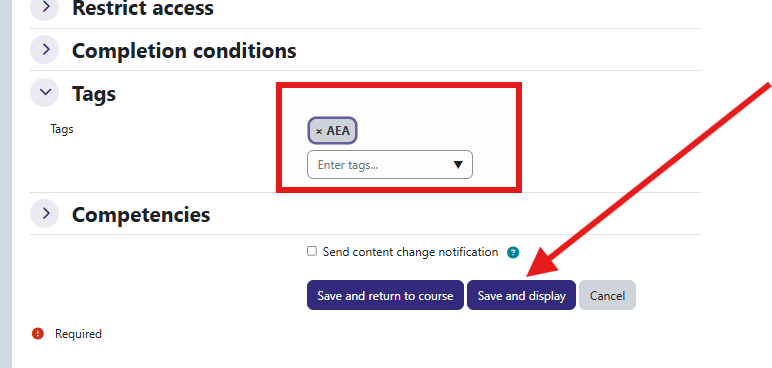
Adding the AEA Tag to Academic Engagement Activities in Moodle
AEA (Academic Engagement Activities) tags identify which Moodle activities count as academic engagement in your course. Applying the AEA tag takes just a few clicks in the activity's settings. This guide walks you through it.
How to Add the AEA Tag
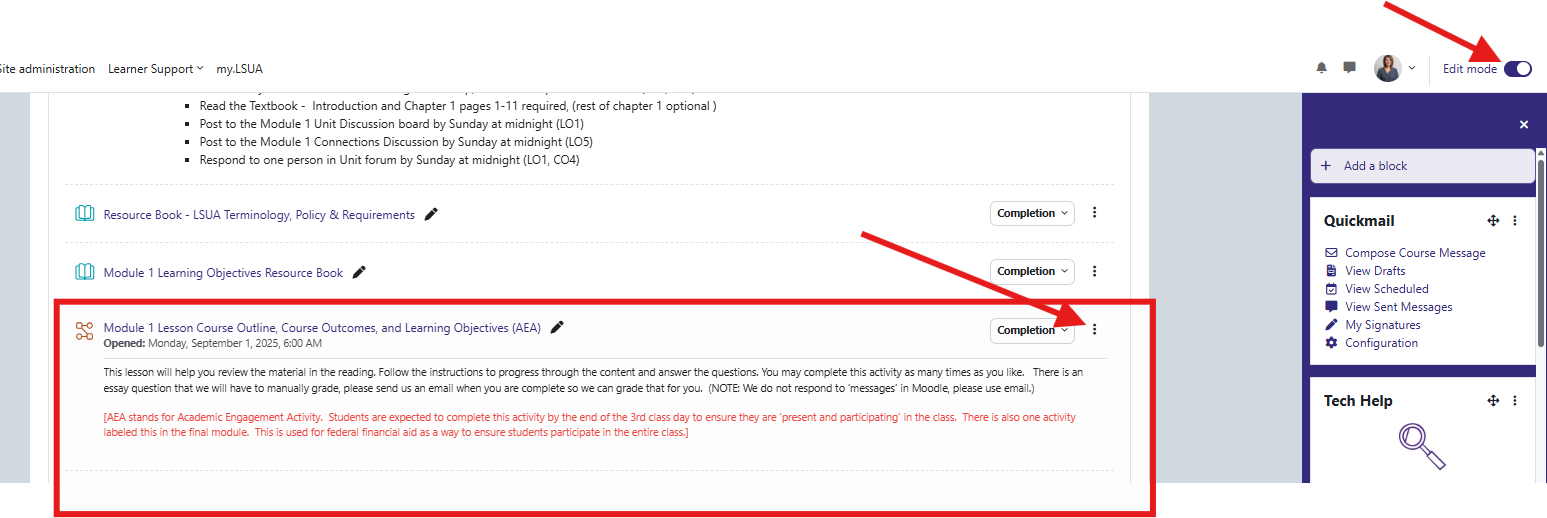
Step 1: Turn editing on — Open your Moodle course and toggle on Edit Mode (top right of the course page)
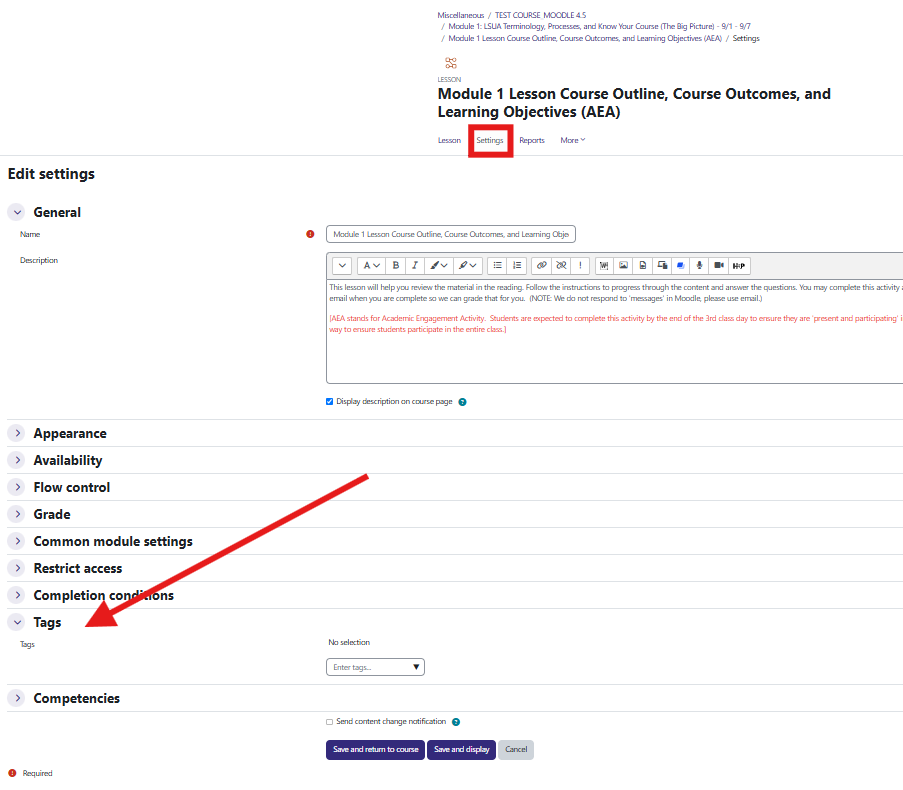
Step 2: Open the activity's settings — Find the activity you want to mark as an AEA (assignment, quiz, forum, etc.). Click the three-dot menu next to it and select Edit settings, or click directly into the activity and choose the Settings tab.
Step 3: Scroll to the Tags section — On the activity settings page, scroll down until you reach the Tags field. This is usually near the bottom of the page, under the Common module settings area.
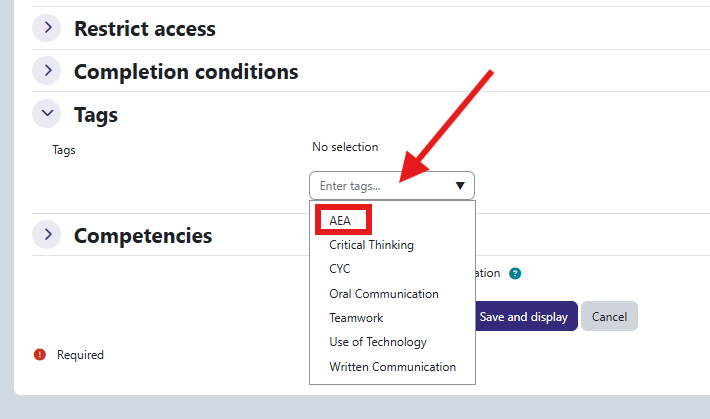
Step 4: Select AEA from the tag menu — Click into the Tags field and choose AEA from the dropdown list of existing tags. You can add other tags to the same activity if needed — AEA doesn't have to be the only one.
Step 5: Save your changes — Scroll to the bottom of the page and click Save and return to course (or Save and display) to apply the tag.