
What Is Clarity?
Clarity is Turnitin's process-visibility tool. Instead of only checking a finished paper for similarity or AI use, Clarity shows how a student's writing developed over time — drafting activity, revision history, and time spent composing — directly within your Moodle assignment.
Before You Start
Clarity is now live sitewide in Moodle 4.5 through the Turnitin LTI 1.3 integration. No separate login or account setup is required — access is enabled automatically when you use the Turnitin LTI tool in your course.
Setting Up a Clarity-Enabled Assignment
1. In your Moodle course, turn editing on and select “Add an activity or resource."

2. Choose “Turnitin LTI” from the activity list (this is the LTI 1.3 tool, not the legacy Turnitin Assignment 2 plugin).
3. Name the assignment and set your standard due date, points, and submission settings as usual.
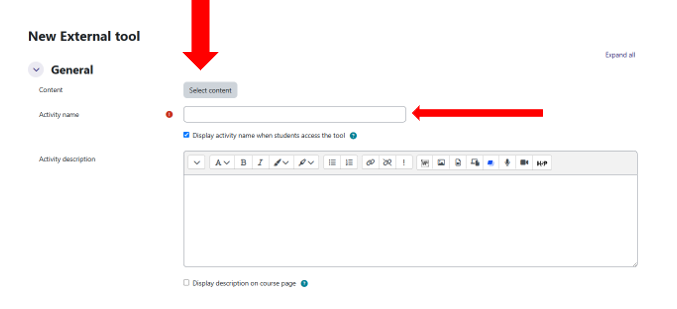
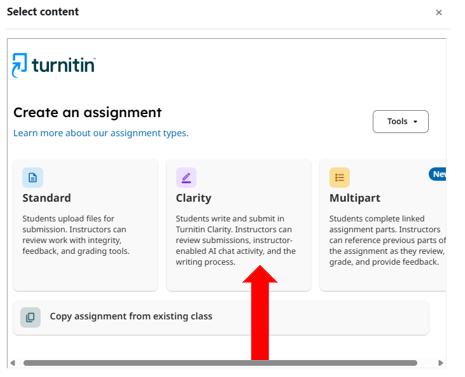
3. Under the assignment settings, confirm similarity/AI writing detection is enabled as needed for your course.
4. Save and return to course. Student submissions made through this activity will automatically generate Clarity data — no extra toggle is required.
5. To view Clarity, open a student's submission from the Turnitin LTI activity and select the Clarity tab alongside the similarity and AI writing reports.
Reading the Clarity Report
- Writing Timeline — shows when and how long a student worked on the submission.
- Revision View — lets you scrub through draft versions to see how the text changed.
- Composition Patterns — flags unusual activity (e.g., large blocks of text pasted in at once) for context, not automatic accusation.
Tips
- Use Clarity as a conversation starter with students, not a standalone verdict — pair it with the similarity and AI reports for full context.
- Clarity data only populates for submissions made through the Turnitin LTI activity, so update older assignment shells if you want the feature available.
- Questions or issues? Contact the Distance Learning team iethelp@lsua.edu
Rubrics in Turnitin Clarity - click for the helpguide