
Learners have access to the learner help center, which has all the FAQ necessary to answer the most common questions.Please find a useful help article on the subject of where to locate their certs on their account : https://www.coursera.support/s/article/learner-000001329?language=en_US#viewPlease prioritize sending them to this dedicated resource to solve their common questions.Share your Coursera certificates
Ongoing issue with missing certificate
Some learners might be experiencing an issue where a certificate they recently earned is missing from their Certificates tab. If you are missing a recent certificate, it should be visible in your Certificates tab within 24-48 hours.
If your certificate is missing from this page for more than 48 hours, please contact our Support Team for help. Please note it may take us 1-2 days to manually issue your certificate. Thank you for your patience.
Reading time: 2 minutes
After you earn a certificate on Coursera, you can download or share it from your Certificates tab.
These instructions will work for all types of accomplishments on Coursera, including Course Certificates, Specialization Certificates, Professional Certificates, and Coursera Badges.
What’s listed on your certificate
Your certificate will display the following public information:
- The name of the learning content you completed.
- Your full verified name.
- The month and year that your certificate was issued.
- The approximate time you spent learning.
View your certificates
You can view all the certificates and badges you’ve earned in your Certificates tab.
To view your certificates:
- Log into Coursera.org
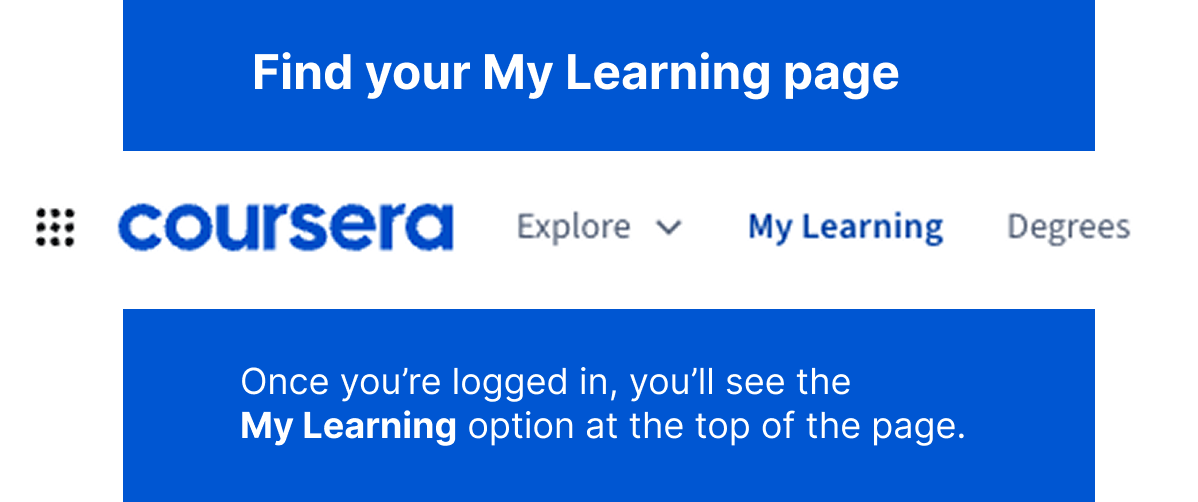
- Click My Learning at the top of the page
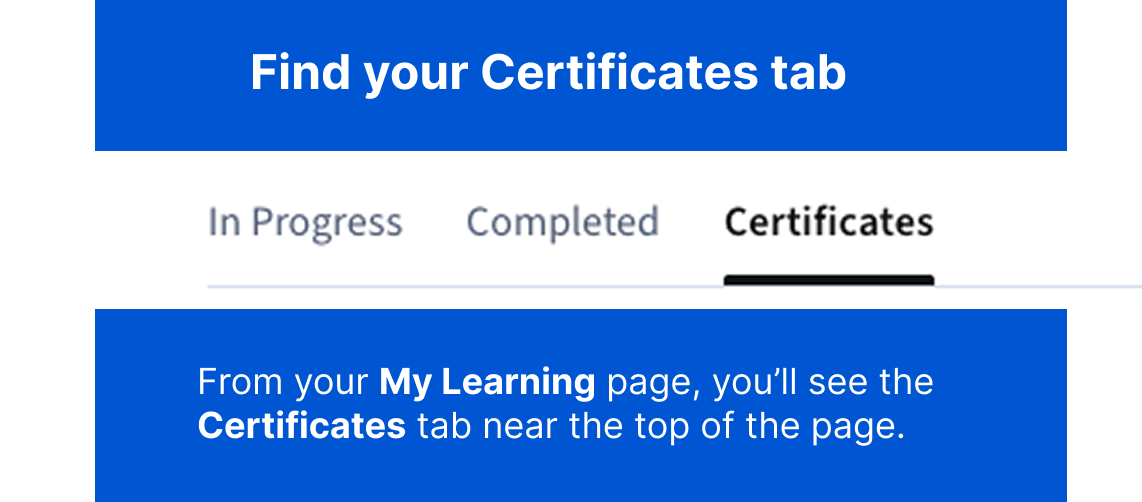
- Click Certificates.
If you’re already logged in, you can get to this page by clicking this link: Certificates tab
You can expand the section below if you need help finding the My Learning page and Certificates tab.
Find your My Learning page and Certificates tab
After you log in, go to your My Learning page. This option is found near the top of the page.
From here, click the Certificates tab to view your certificates.
Download or print your certificate
You can view your certificates and Coursera Badges in the Certificates tab of your My Learning page.
To view your certificates:
- Log into Coursera.org
- Click My Learning at the top of the page.
- Click Certificates.
If you’re already logged in, you can also get to this page by clicking this link: Certificates tab
Can I have a physical certificate mailed to me?
Coursera doesn’t provide physical certificates through the mail. If you need a physical copy of your certificate, you can download and print it using the steps above.
Share your certificate on LinkedIn
You can add your Coursera certificates to the licenses & certifications section of your LinkedIn profile.
To add your certificates to LinkedIn:
- Log into Coursera.org
- Click My Learning at the top of the page
- Click Certificates.
- Find the name of the learning content you completed.
- Click Add to LinkedIn (listed under the title).
- Sign in to LinkedIn (if required).
- Follow the steps on-screen to add the certificate to your LinkedIn profile.
When someone clicks on the certificate from your LinkedIn profile, they’ll be shown the full certificate details.
Share your certificate using a URL
You can easily share your certificates by using a secure Coursera URL.
To share your certificate using a URL:
- Log into Coursera.org
- Click My Learning at the top of the page
- Click Certificates.
- Find the name of the learning content you completed.
- Click View certificate (located under the title).
- Click the Share Certificate button (located under the image of your certificate).
- Copy the URL, or select one of the sharing options.
This URL is a publicly accessible link that can be accessed by anyone. This allows anyone to quickly verify that you’ve earned the certificate on Coursera. This link never expires.
You can copy and paste this link to share it anywhere. Here are some helpful ways you can share your certificate by using the URL:
- Send it to an institution or employer via email.
- Share it on social media.
- Add it to your digital portfolio or website.
Coursera Helpguides - Receiving your certificate & other information Print
Modified on: Thu, Aug 27, 2026 at 3:55 PM
Did you find it helpful? Yes No
Send feedbackSorry we couldn't be helpful. Help us improve this article with your feedback.