
Overview
Turnitin Multipart Assignments allow instructors to break a large assignment into multiple stages, such as an outline, draft, revision, and final submission. Each part has its own instructions, due dates, and feedback settings, allowing students to receive guidance throughout the writing process. Multipart Assignments can include both Standard and Clarity assignment types. [guides.turnitin.com], [guides.turnitin.com]
Video Tutorial: https://lsua.hosted.panopto.com/Panopto/Pages/Viewer.aspx?id=3372bde3-97c0-4372-8cb0-b4b801553271
Turnitin Guides:
Introduction to Multipart assignments
Creating a Multipart assignment
Reviewing a Multipart assignment
Using Turnitin Clarity in Multipart assignments
Step 1: Access Your Moodle Course
- Log in to Moodle 4.5.
- Open the desired course.
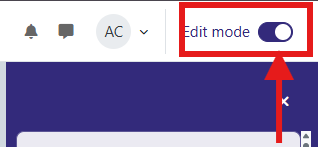
- Click Edit Mode (top-right corner) to turn editing on.
Step 2: Add a Turnitin Assignment
- Navigate to the topic or week where you want to place the assignment.
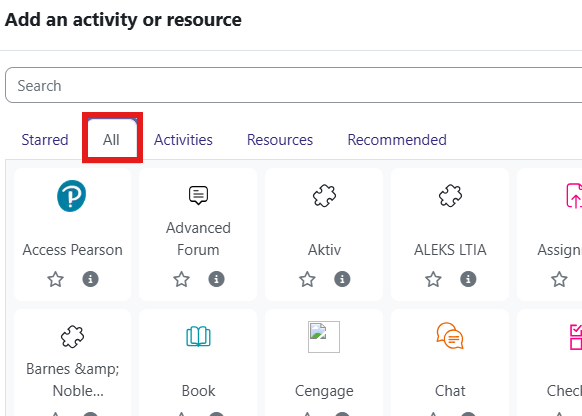
- Click Add an activity or resource.
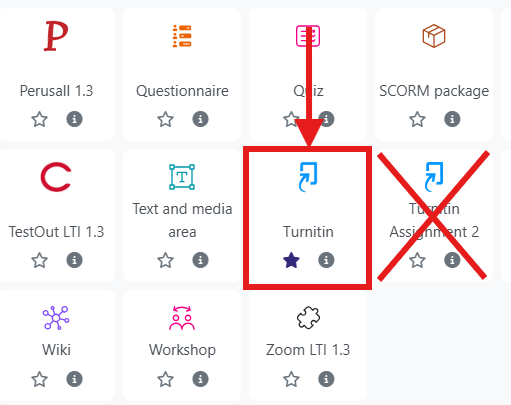
- Select Turnitin (if you do not see it immediately, select the All tab, then scroll down to Turnitin).
Step 3: Create the Multipart Assignment
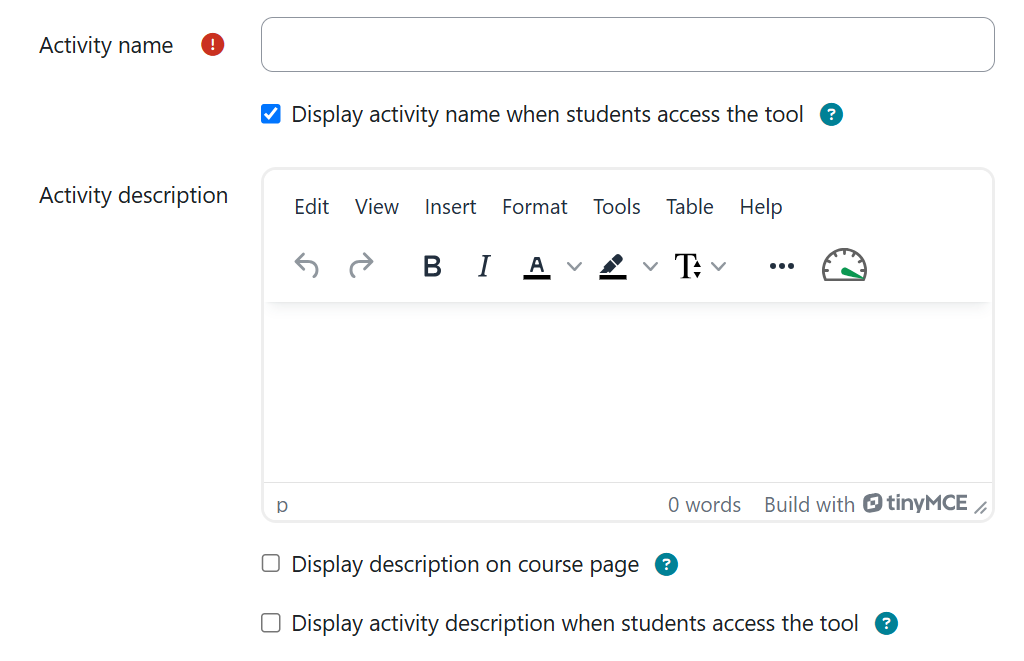
- Start by entering Activity name and Activity description (Optional) for the Turnitin assignment.
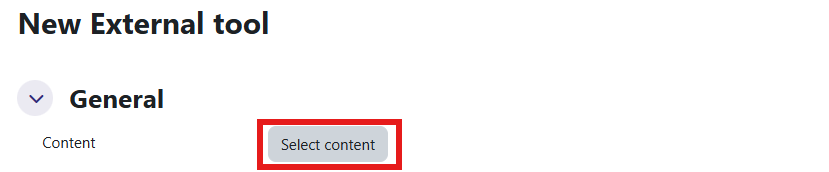
- Click on Select content.
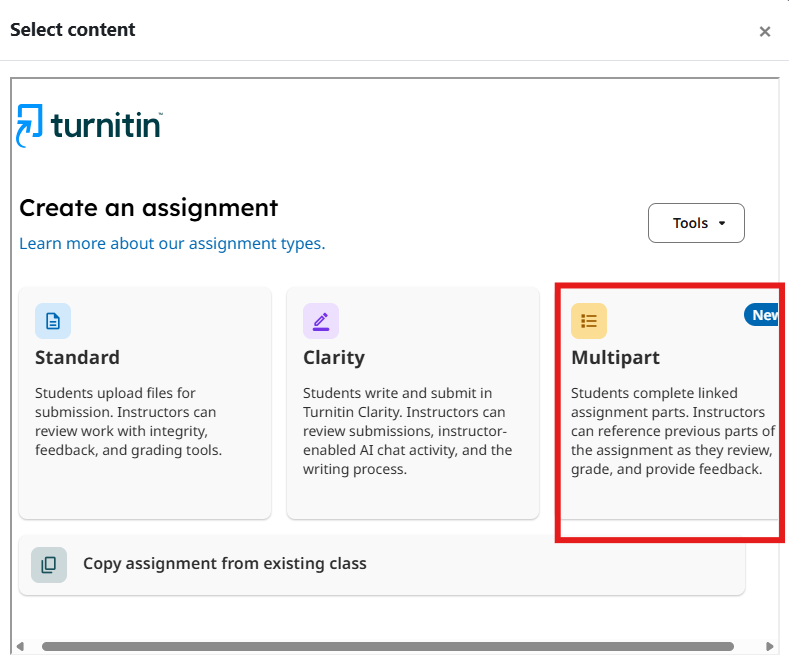
- Click on Multipart.
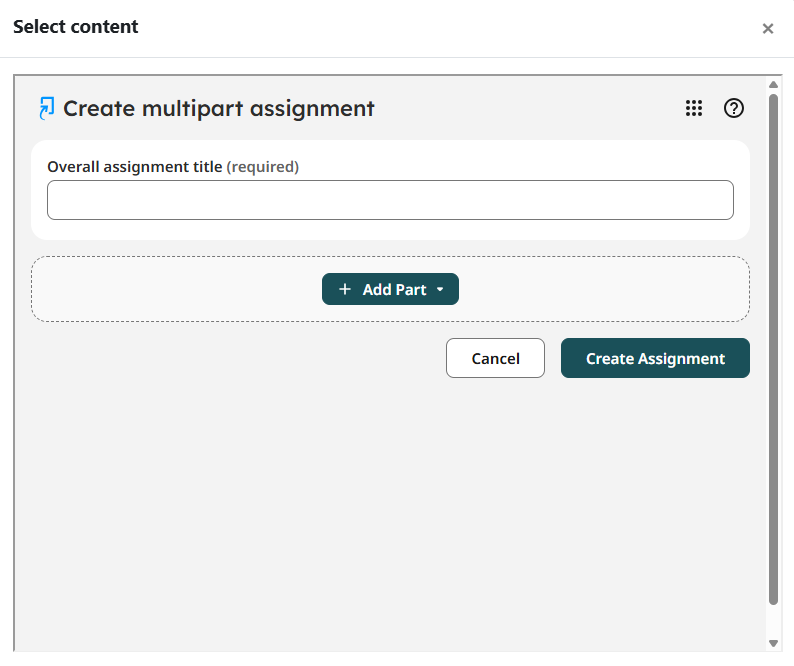
- Enter an Overall Assignment Title.
- Example: Research Paper Development Project
- Example: Research Paper Development Project
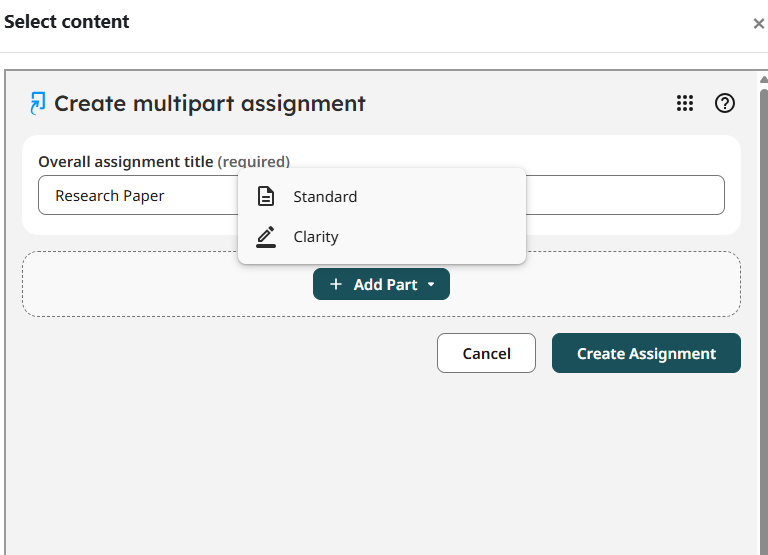
- Click on Add Part and select Standard or Clarity. (Note: Turnitin Standard Assignments focus on the final submitted document, while Turnitin Clarity Assignments provide insight into the writing process, including drafting, revisions, and writing activity. Clarity is ideal for monitoring student growth, while Standard is best for evaluating completed work.)
Configure Each Assignment Part
Each part requires its own settings.
Part 1 Example: Outline
Title
Ex. Brainstorm and Outline
Instructions
Students submit:
- Thesis statement
- Outline
- Preliminary sources
Dates
- Start Date
- Due Date
- Feedback Release Date
Continue to scroll down and enter/update all settings for Part 1.
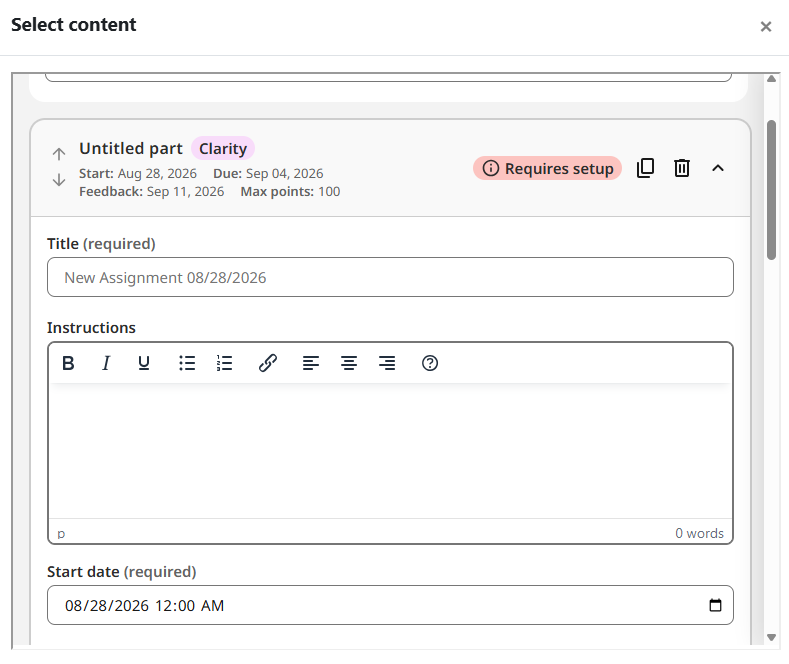
Follow the steps above for the desired number of parts for the overall assignment.
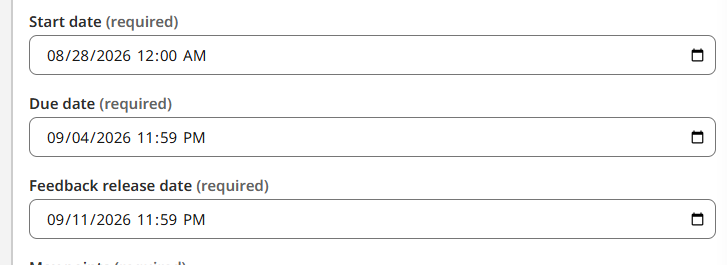
Understanding Assignment Dates
Start Date
The date and time students can begin accessing the assignment.
Due Date
The deadline for student submissions.
Feedback Release Date
The date and time students can view:
- Instructor comments
- Rubric scores
- Grades
- Feedback
Faculty can grade submissions before the Feedback Release Date, but students will not be able to view that feedback until the release date arrives. [guides.turnitin.com]
Enable Turnitin Features
Within each assignment part, configure the desired settings:
Similarity Report Options
- Generate Similarity Reports
- Allow students to view reports (optional)
Rubric Settings
- Attach an existing rubric
- Create a new rubric
Grading Options
- Maximum grade
- Grade display options
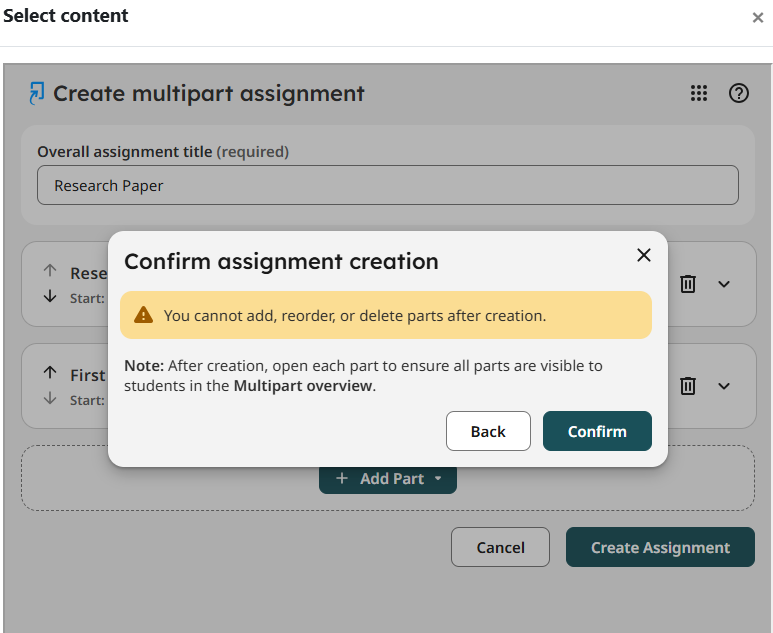
Save the Assignment
- Review all assignment settings.
- Click Create Assignment. Once you click Create Assignment, you will be asked to confirm creation.
Your Multipart Assignment will now appear in Moodle for students.
Viewing Student Submissions
- Select the Turnitin assignment from your course page.
- Open the appropriate assignment part.
- View:
- Submission status
- Similarity Reports
- Feedback
- Grades
Each assignment part maintains its own submission area and grading workflow. [guides.turnitin.com], [guides.turnitin.com]
Benefits of Multipart Assignments
Multipart Assignments help faculty:
✅ Break large assignments into manageable stages
✅ Provide feedback throughout the writing process
✅ Encourage revision and reflection
✅ Track student progress over time
✅ Support draft-to-final submission workflows [turnitin.com], [guides.turnitin.com]
Best Practices
- Create clear instructions for each assignment part.
- Schedule Feedback Release Dates before the next part begins.
- Use draft and revision stages to provide formative feedback.
- Attach a rubric to maintain consistent grading.
- Encourage students to review feedback before advancing to the next stage. [turnitin.com], [guides.turnitin.com]
Sample Multipart Workflow
- Outline Submission
- First Draft
- Revised Draft
- Final Paper
This structure gives students multiple opportunities to improve their work while allowing instructors to monitor growth throughout the assignment process.
Learn more about creating a Multipart assignment here: https://guides.turnitin.com/hc/en-us/articles/47177303073677-Creating-a-Multipart-assignment