Managing Large-Course Grading with Groups in Turnitin LTI 1.3
Overview
In large Moodle courses, instructors may divide students into groups so that multiple instructors, graders, or Academic Assistants (AAs) can share grading responsibilities.
When using Turnitin LTI 1.3 in Moodle, Moodle groups are not currently available as a group filter within the Turnitin Assignment Inbox. This means that when an AA opens the Turnitin assignment, they may see submissions from all students enrolled in the course, rather than only the students assigned to their Moodle group.
To make grading easier, faculty can use the following workflow:
- Require students to include their Group Number in their submission title/file name when submitting to Turnitin.
- AAs use the Moodle group roster and the group number included in the submission title to quickly identify the submissions they are responsible for grading.
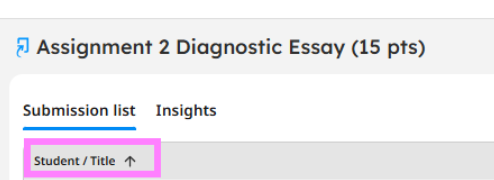
- Students can be sorted alphabetically within the Clarity submission page.
Part 1: Student Submission Naming Requirement
Faculty should instruct students to include their assigned Moodle Group Number when naming their file/submission.
Example:
Group 2 – Research Paper
Students should also name the file they upload using the same format when possible:
Group2_ResearchPaper.docx
The group number provides the grader with an immediate visual indicator of which AA is responsible for the submission. Students will name their submission at the top left corner, next to the Clarity icon. They will click on Untitled and rename. (see snip below).
Important
Students should verify their assigned group number on the Participants list of the Moodle course page before submitting their assignment.
If a student is assigned to Group 3, the submission should begin with:
Group 3 –
Do not use another student's group number.

Part 2: Pull your Group participant list
When grading:
- Open the Moodle course.
- Select Participants.
- Filter the Participants list by your assigned Group and Apply Filters.
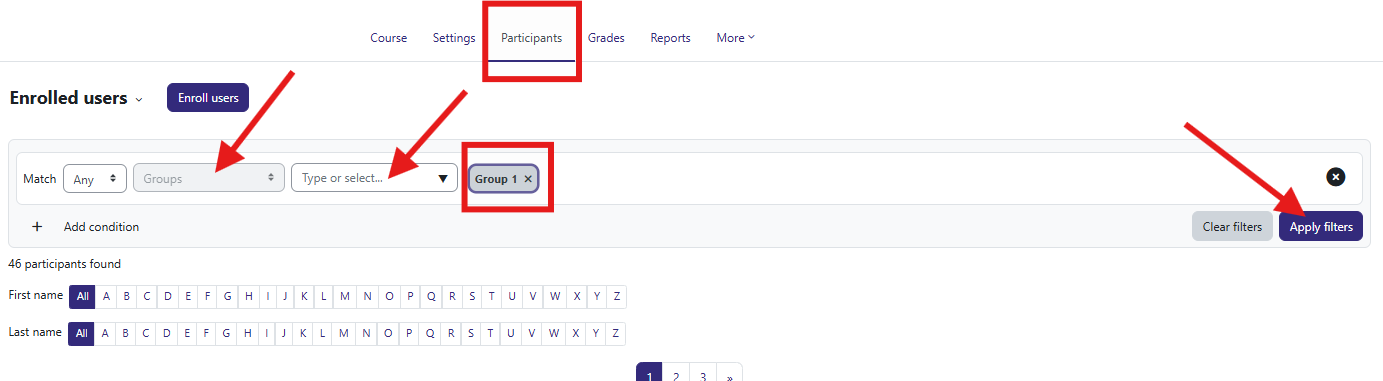
- Check the Box near First name/Last name to select all students in your group.

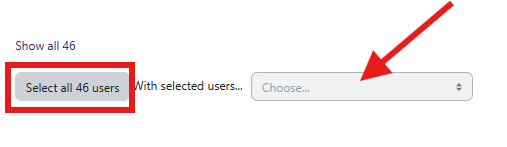
5. Scroll down to the bottom of the page and click on the grey Select all # users
6. In the dropdown, next to "With selected users..." select PDF or Excel and SAVE
7. Keep this group roster available while grading.
8. Open the Turnitin LTI 1.3 assignment.
9. Review the Turnitin Assignment Inbox.
10. Look for the Group Number included with the student's submission title.
11. Grade only the students assigned to your group.
For example:
Group 1 – Research Paper → AA assigned to Group 1
Group 2 – Research Paper → AA assigned to Group 2
Group 3 – Research Paper → AA assigned to Group 3
If you are unsure whether a student belongs to your group, verify the student's assigned group using the Participants page in Moodle before grading.
Part 3: Sorting students Alphabetically within Turnitin Clarity
When grading student names can be alphabetized by clicking on Student/Title.