
Overview
My Notes is a Zoom feature that allows meeting participants to create and save personal notes during a Zoom meeting. Notes are stored within the user's Zoom account and can be referenced after the meeting ends.
AI-Powered Meeting Notes and Transcripts
One of the most powerful features of Zoom Notes is its ability to work alongside meeting transcripts.
When a Zoom meeting is recorded with transcription enabled, Zoom can generate a transcript of the meeting conversation.
Note: Transcript and AI-generated notes features may vary depending on your Zoom account permissions and whether the meeting was recorded with transcription enabled.
Accessing My Notes During a Zoom Meeting
Step 1: Join Your Zoom Meeting
- Open your Moodle 4.5 course.
- Select the Zoom LTI activity.
- Join the scheduled Zoom meeting.
Step 2: Open Notes
Once you have joined the meeting:
- Locate the Notes button in the upper right hand corner of the Zoom meeting window.
- Select the pencil icon.
- Click on Start taking notes.
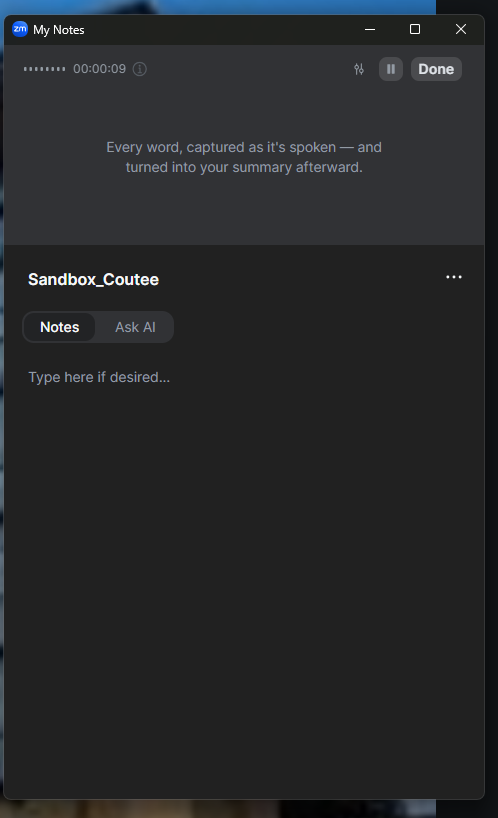
- The Notes panel will open on the side of the meeting window.

Creating Notes
Once the Notes panel is open:
- Click in the note area.
- Begin typing your notes.
- Continue adding notes throughout the meeting.
Your notes will save automatically while you work.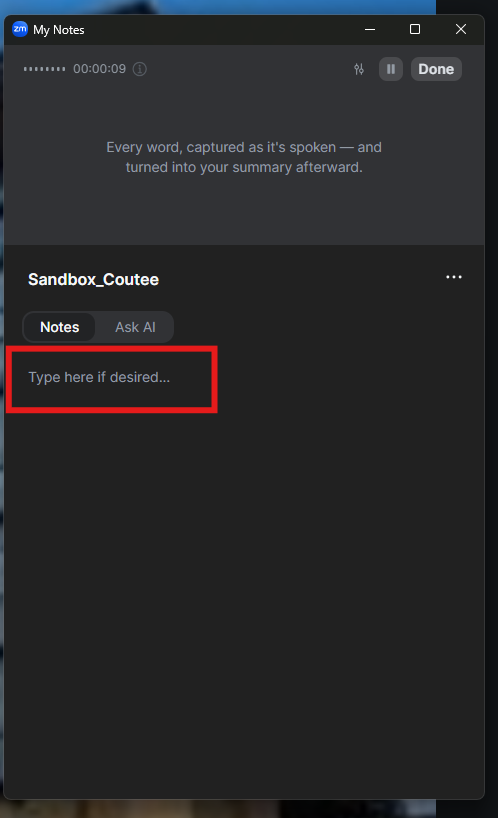
Accessing Notes After the Meeting
After class:
- Sign in to your Zoom account.
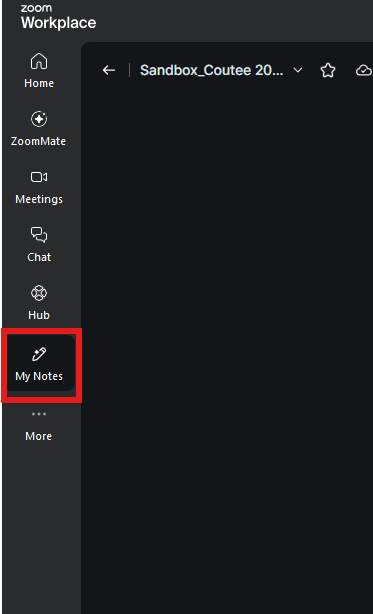
- Select My Notes from the menu on the left hand side of the screen (If you do not see My Notes, select the More menu).
- Locate the meeting notes.
- Open and review your saved notes.
Editing Notes After the Meeting
If available within your Zoom account:
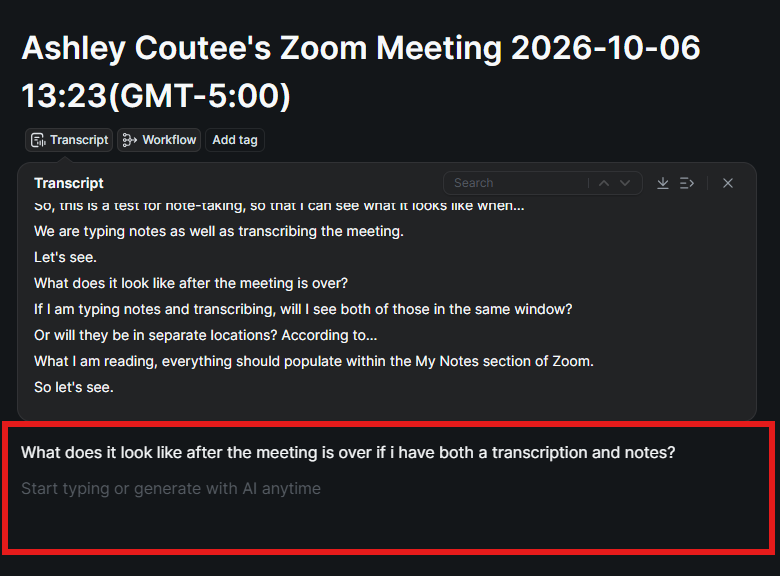
- Open the saved note (Notes will appear below transcript).
- Make any necessary changes.
- Save your updates.
Using Meeting Transcripts After Class
If the meeting was recorded with transcription enabled, Zoom may provide additional tools for reviewing the meeting.
Step 1
Open your saved meeting notes.
Step 2
Review the transcript and generated content.
Depending on your account settings, you may see:
- Meeting summaries
- Key takeaways
- Discussion highlights
- Action items
- Searchable transcript content
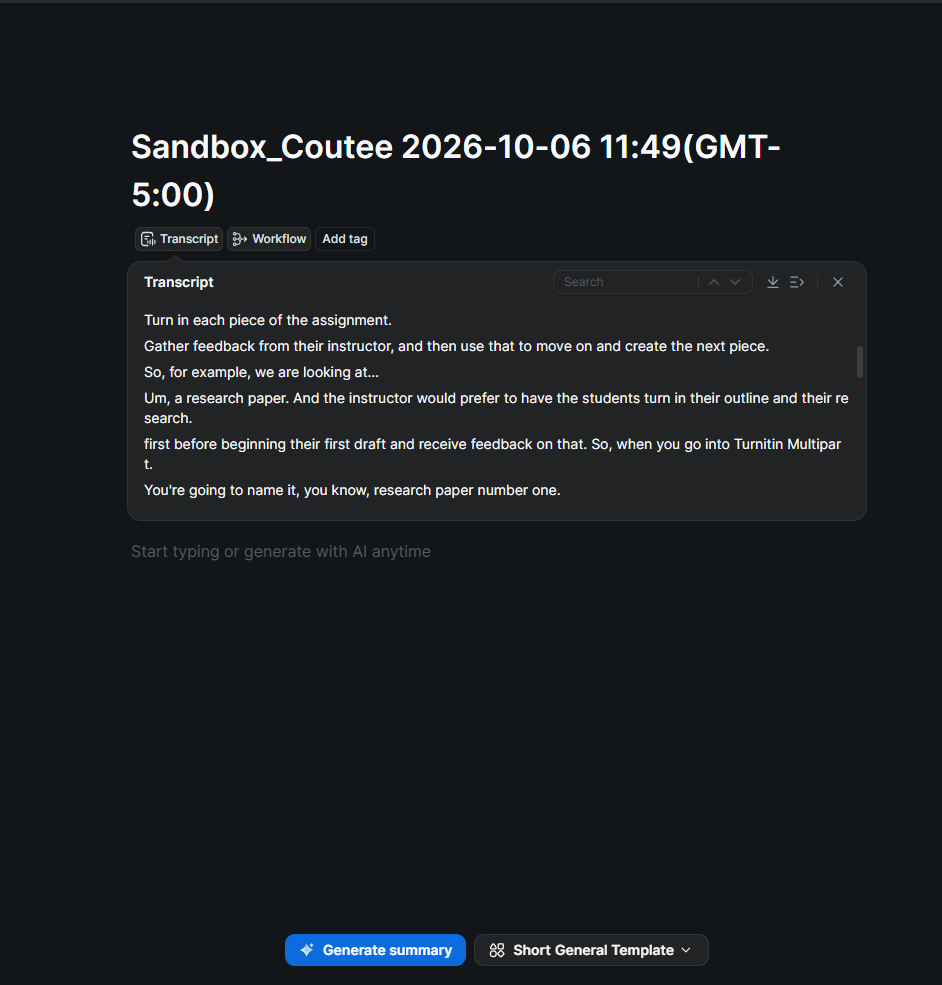
Step 3
Use the search feature to find specific information discussed during class.
Examples:
- Assignment due dates
- Project instructions
- Exam information
- Specific lecture topics
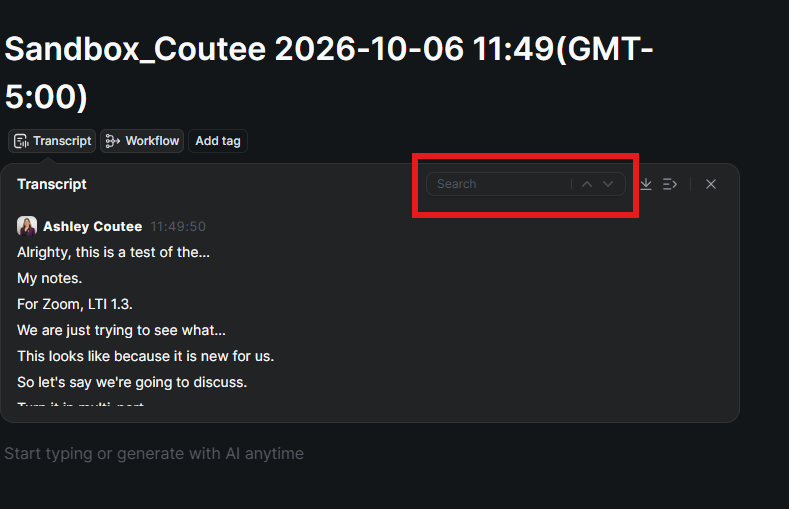
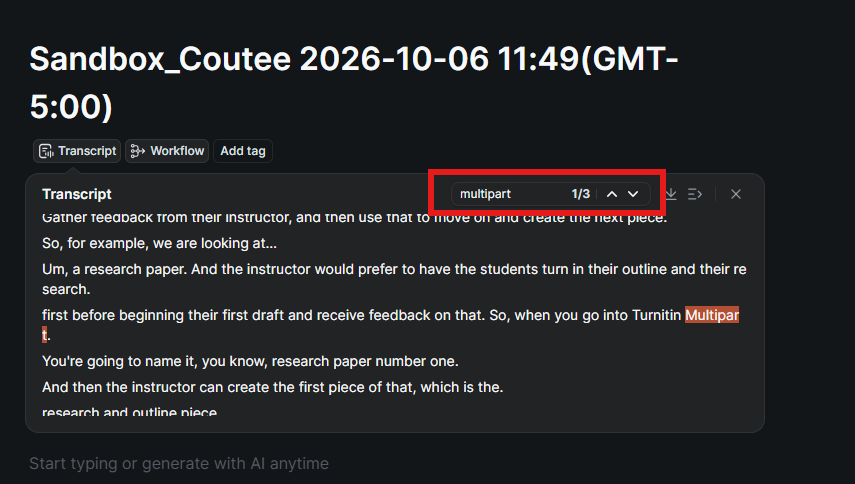
Accessing My Notes in Moodle
With the Zoom LTI 1.3 integration in Moodle 4.5, a new My Notes tab is available within the Zoom activity.
To access your notes:
- Open your Moodle course.
- Select the Zoom activity.
- Locate the My Notes tab near the other Zoom tabs (such as Meetings, Recordings, etc.).
- Select My Notes to view notes associated with your Zoom meetings.
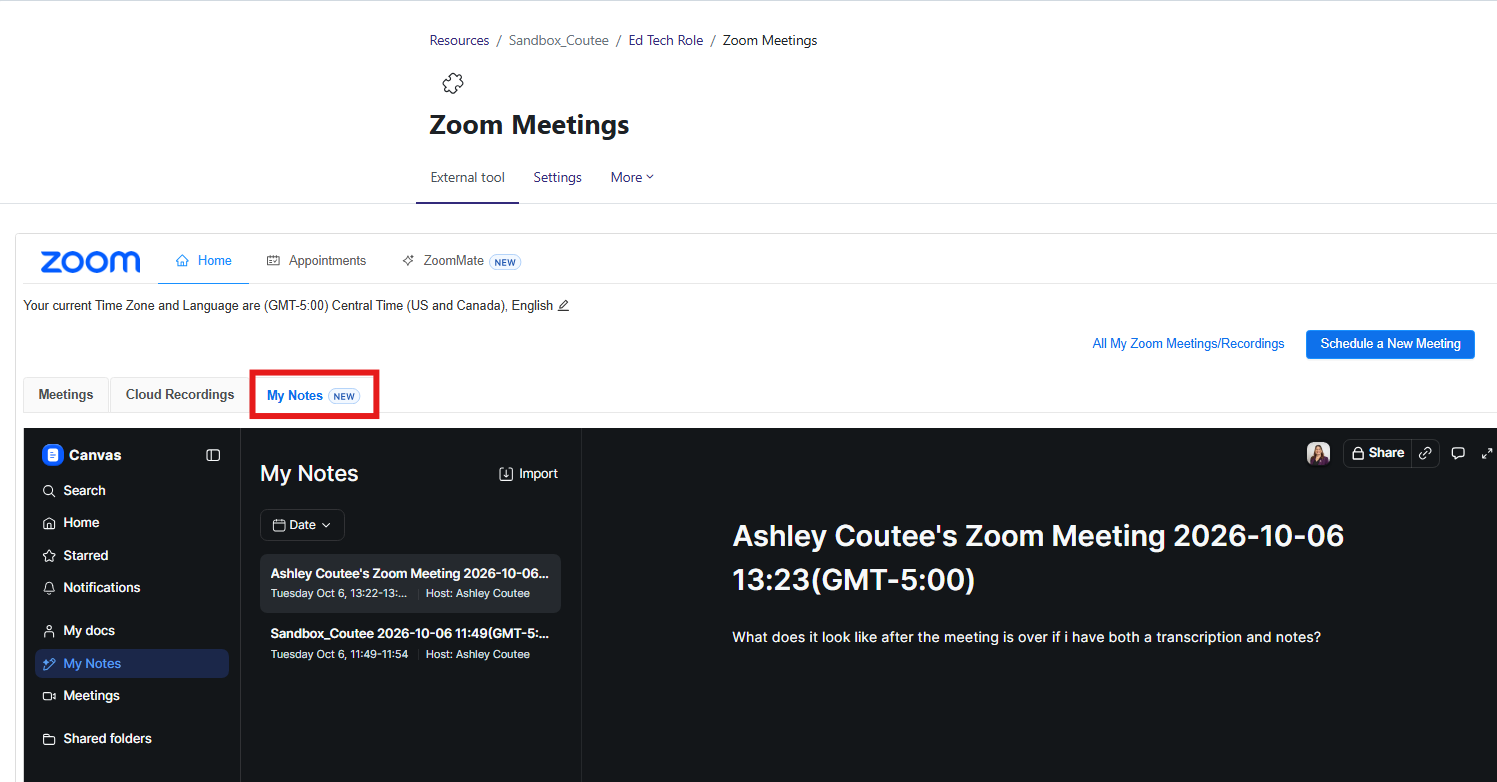
From this page, you can access notes created during Zoom meetings as well as AI-generated notes and summaries when available.