What is YuJa Panorama?
YuJa Panorama is an accessibility tool integrated with Moodle that provides students with alternative ways to access course documents. Depending on the document, Panorama can provide formats such as PDF, text, audio, EPUB, Immersive Reader, OCR-based formats, and other accessible options. [support.yuja.com], [yuja.com]
You can access these options directly from your Moodle course.
Accessing YuJa Panorama
Step 1: Log in to Moodle
Log in to LSUA Moodle and open the course containing the document you would like to access.
Step 2: Locate the document
Navigate to the module or section containing the document you would like to access.
Look for the Alternative Formats icon located to the right of the document's name. [support.yuja.com]
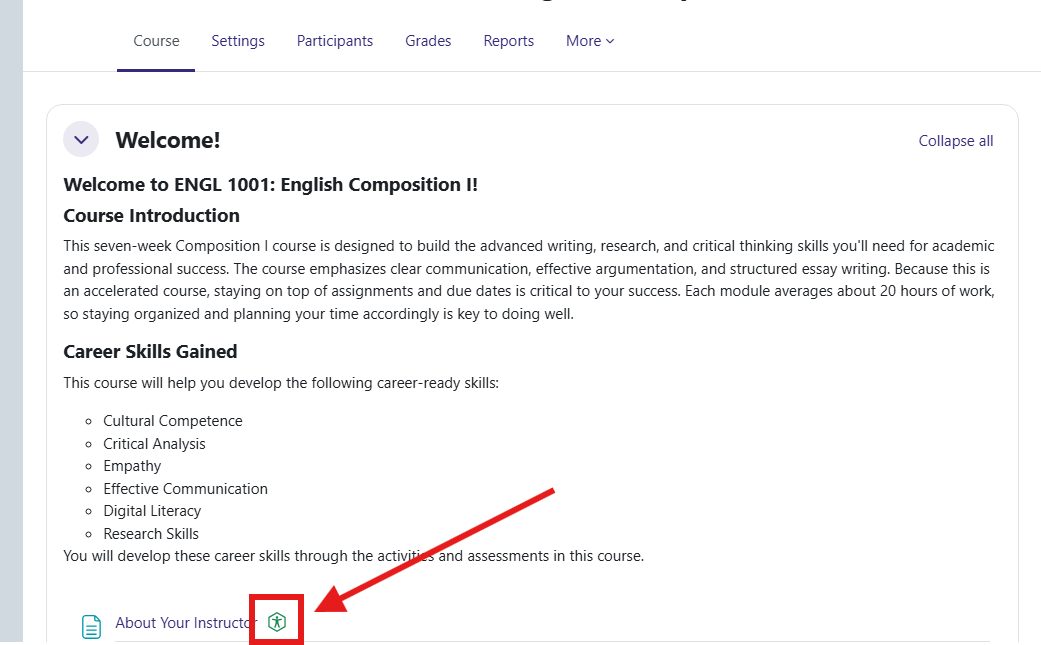
Note: Alternative Formats may not be available for every document. An instructor can disable Alternative Formats for an individual document, in which case a disabled Alternative Formats icon will appear. [support.yuja.com]
Step 3: Select an Alternative Format
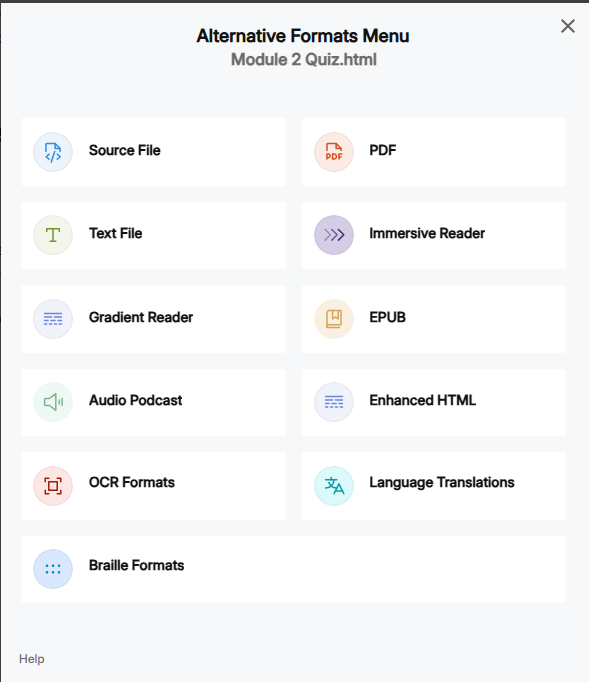
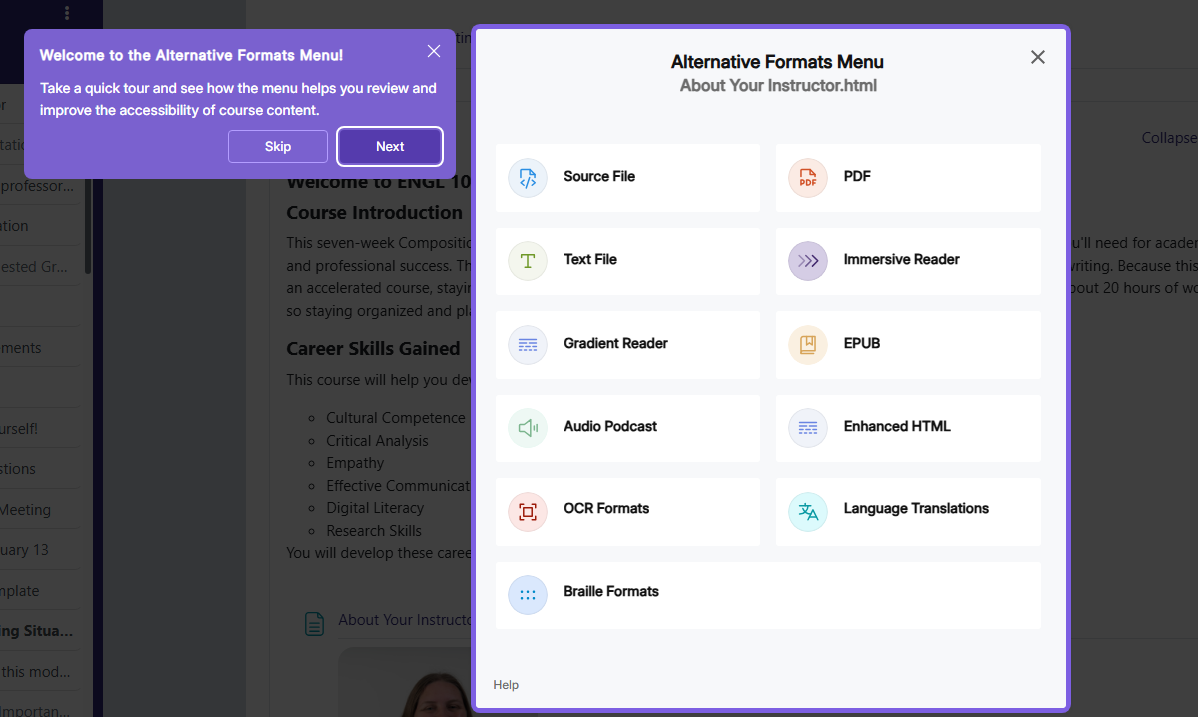
After selecting the Alternative Formats icon, Panorama will display the formats available for that document. [support.yuja.com]
Choose the format that works best for you.
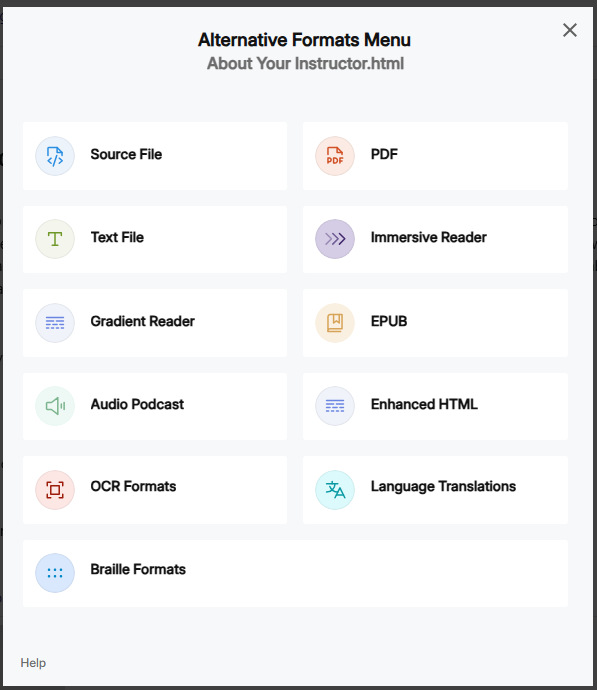
Choose your preferred format.
Available Alternative Formats
The options available can vary depending on the original document. YuJa lists formats including: [support.yuja.com]
- Source File – Access the document in its original format.
- PDF – Converts the document to PDF.
- Text File – Provides the document as plain text without formatting.
- Immersive Reader – Provides reading tools that include text, grammar, and reading preferences with audio playback.
- Gradient Reader – Uses a guiding color gradient to assist with visual word recognition.
- EPUB – Converts the document into an eBook format.
- Audio Podcast – Provides audio playback of the document.
- Enhanced HTML – Provides an HTML version that includes appearance customization options.
- OCR Formats – Panorama can extract text from scanned documents and images and provide several accessible text, PDF, HTML, DOCX, and audio options. [support.yuja.com]
- Language Translations – Translate the document in your selected language.
- Braille – Provides a Grade 2 Braille file for use with a Braille reader.
Using Immersive Reader
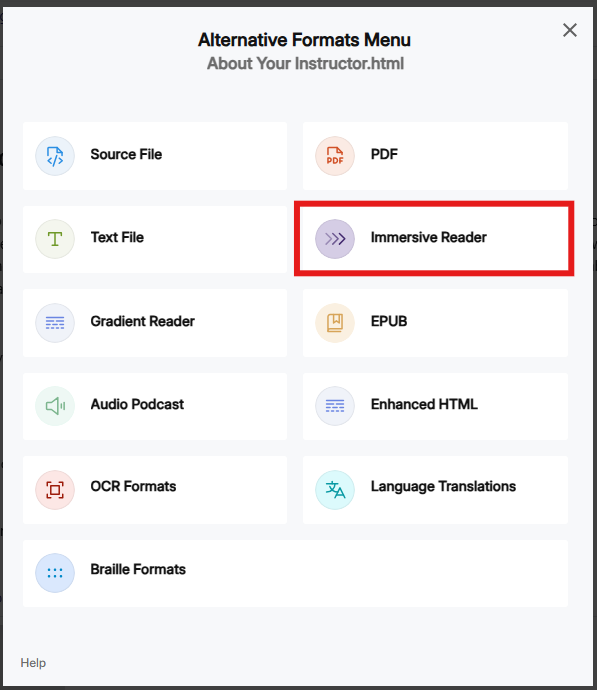
If Immersive Reader is available for the document, select it from the Alternative Formats menu.
YuJa describes Immersive Reader as providing customization for text preferences, grammar options, reading preferences, and audio playback. [support.yuja.com]
Listening to a Document
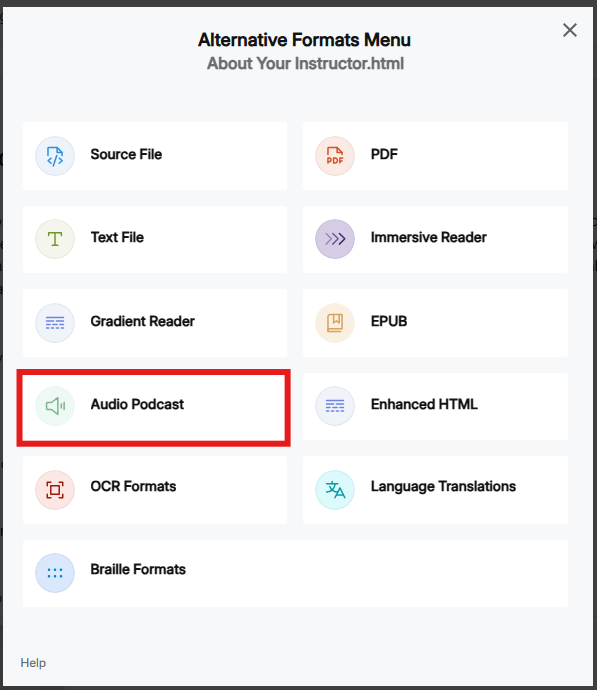
If you would prefer to listen to the course material:
- Select the Alternative Formats icon beside the document.
- Select Audio Podcast, if available.
- Follow the options presented by Panorama to access the audio version.
YuJa describes Audio Podcast as an audio-playback version of a document that can be used for online or downloaded listening. [support.yuja.com]
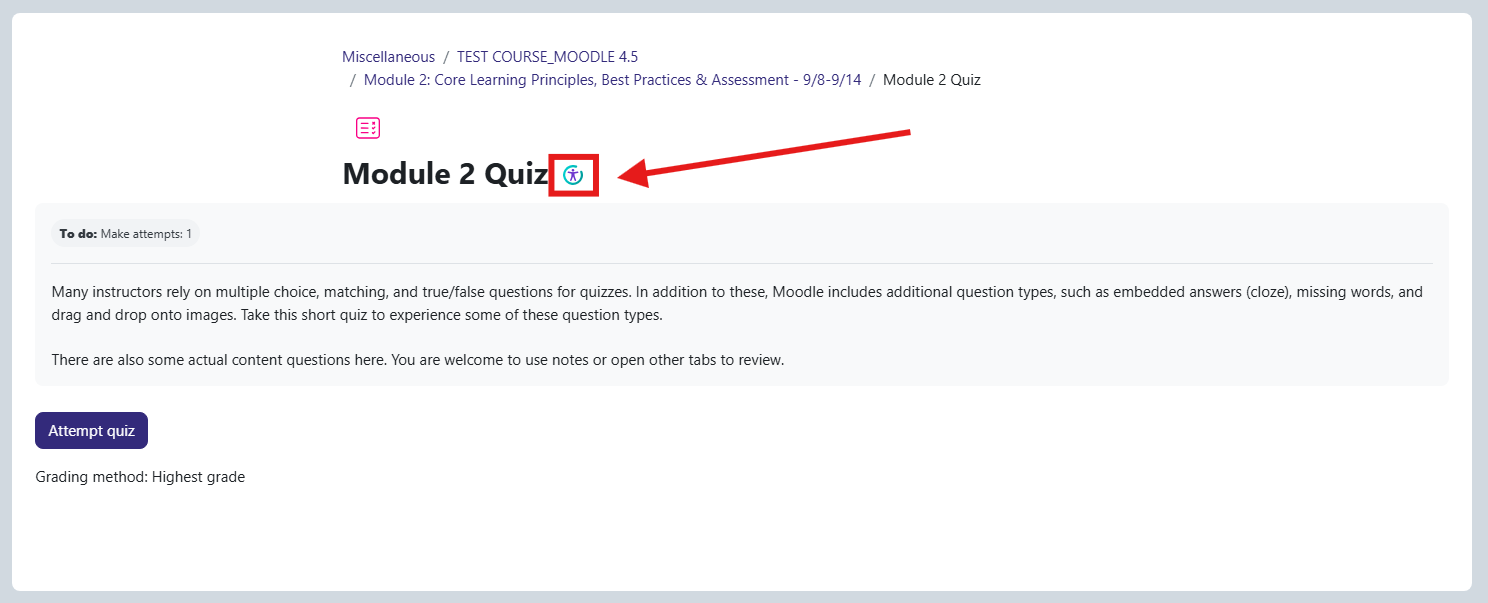
Using YuJa Panorama in a Moodle Quiz
- Select the quiz you would like to access.
- Selcet the Alternative Formats icon .
- Choose your preferred format.