Overview
Templates in Turnitin Clarity provide students with a structured starting point in the writing space. Templates can be used to provide essay outlines, reflection prompts, formatting requirements, instructions, or any content students should see when they begin their assignment.
Adding a Template to a Clarity Assignment
Step 1: Create a Clarity Assignment
- Create a new Turnitin Clarity Assignment.
- Complete the assignment details as needed.
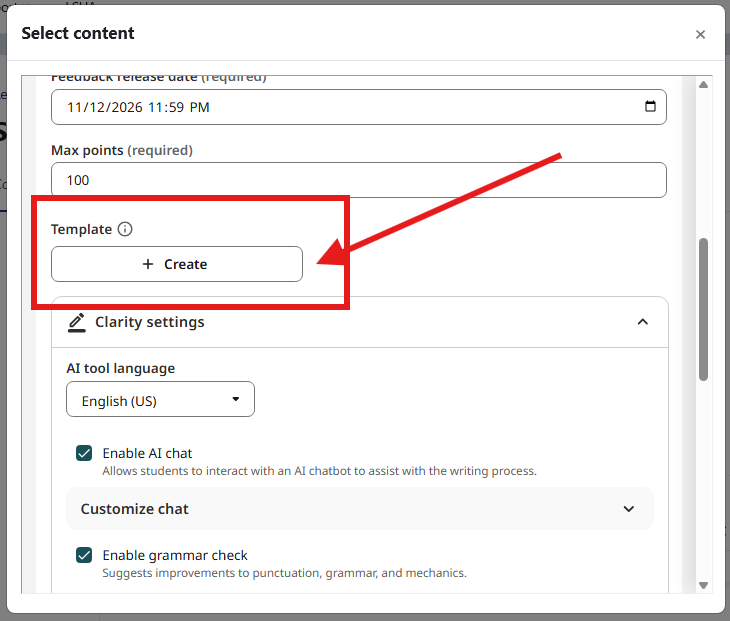
- Locate the Template section.
- Select Create.
Step 2: Build Your Template
- Enter the content you would like students to start with.
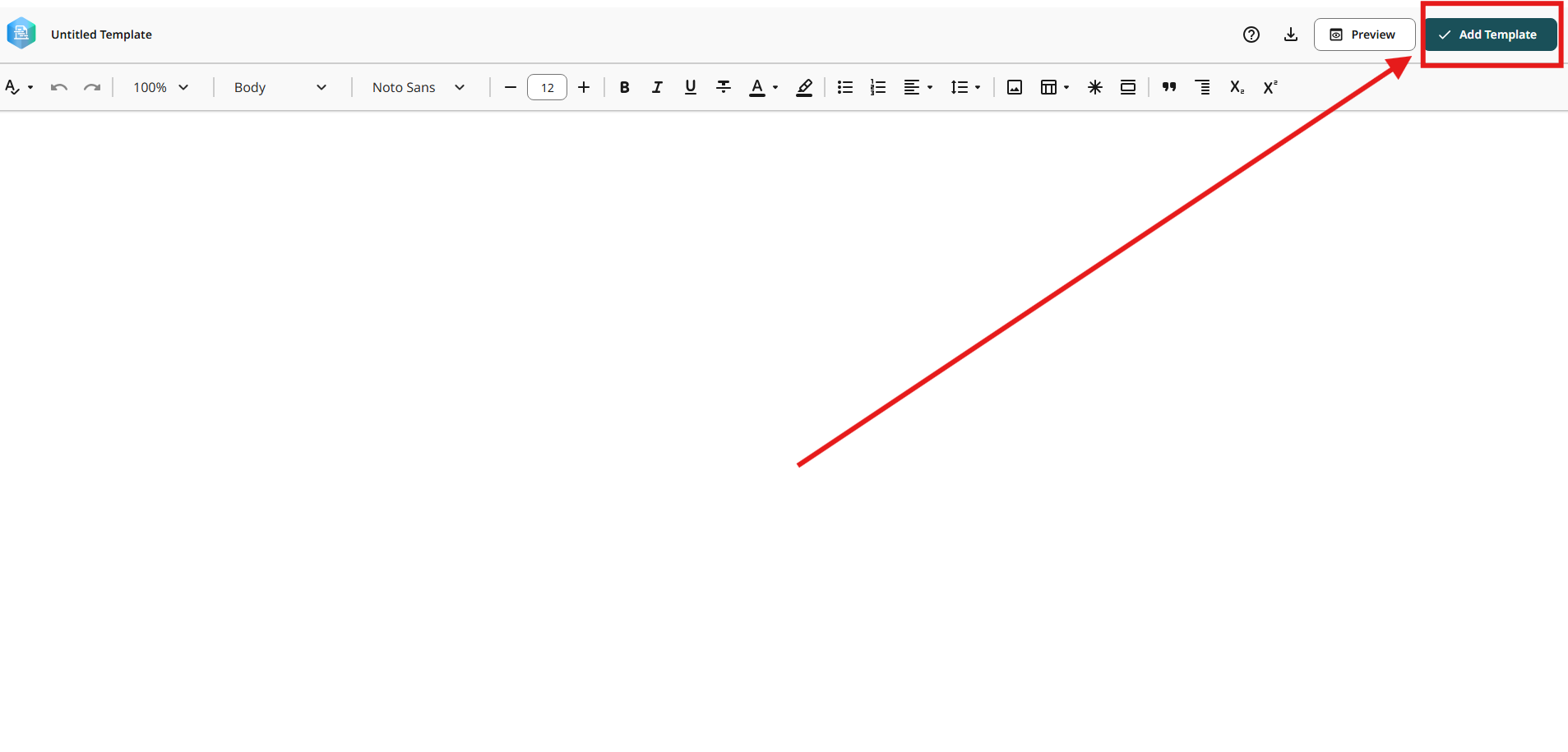
- Select Add Template to open the template editor.
- Name the template by selecting the template name in the upper-right corner.
Step 3: Format the Template
Use the toolbar to:
- Add headings
- Format text
- Create lists
- Insert tables
- Create assignment outlines
- Add writing prompts
Examples:
- Essay outlines
- Reflection prompts
- Research paper templates
- Lab report templates

Step 4: Preview Your Template
Before saving:
- Select Preview to review how students will see the template.
- If needed, download a PDF copy by selecting the Download icon.

Step 5: Save the Template
- Select Add Template.
- Return to the assignment settings.
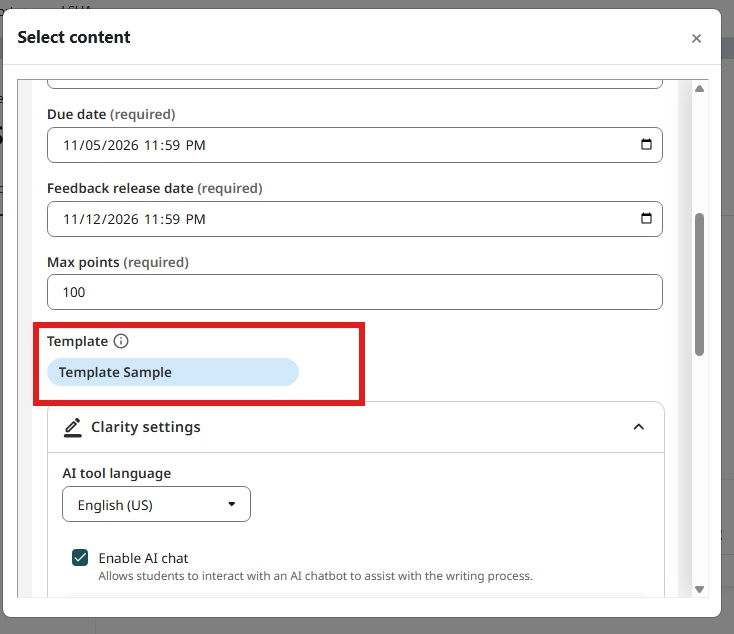
- Verify that the template name appears under the Template section.
Important Note
If a template is added after the assignment start date, Turnitin Clarity will display a confirmation message.
Only students who have not yet started the assignment will receive the newly added template.
Students who have already begun working will continue using the version that was available when they started.
Editing or Deleting a Template
Before the Assignment Start Date
You may:
- Edit the template
- Update the content
- Select Update Template to save changes
- Delete the template if needed

After the Assignment Start Date
When editing or deleting a template after students may have begun work:
- Turnitin Clarity will ask you to confirm the change.
- Updates apply only to students who have not started the assignment.
- Students who have already begun working will continue using their original template.
What Students See
When a template is attached to an assignment:
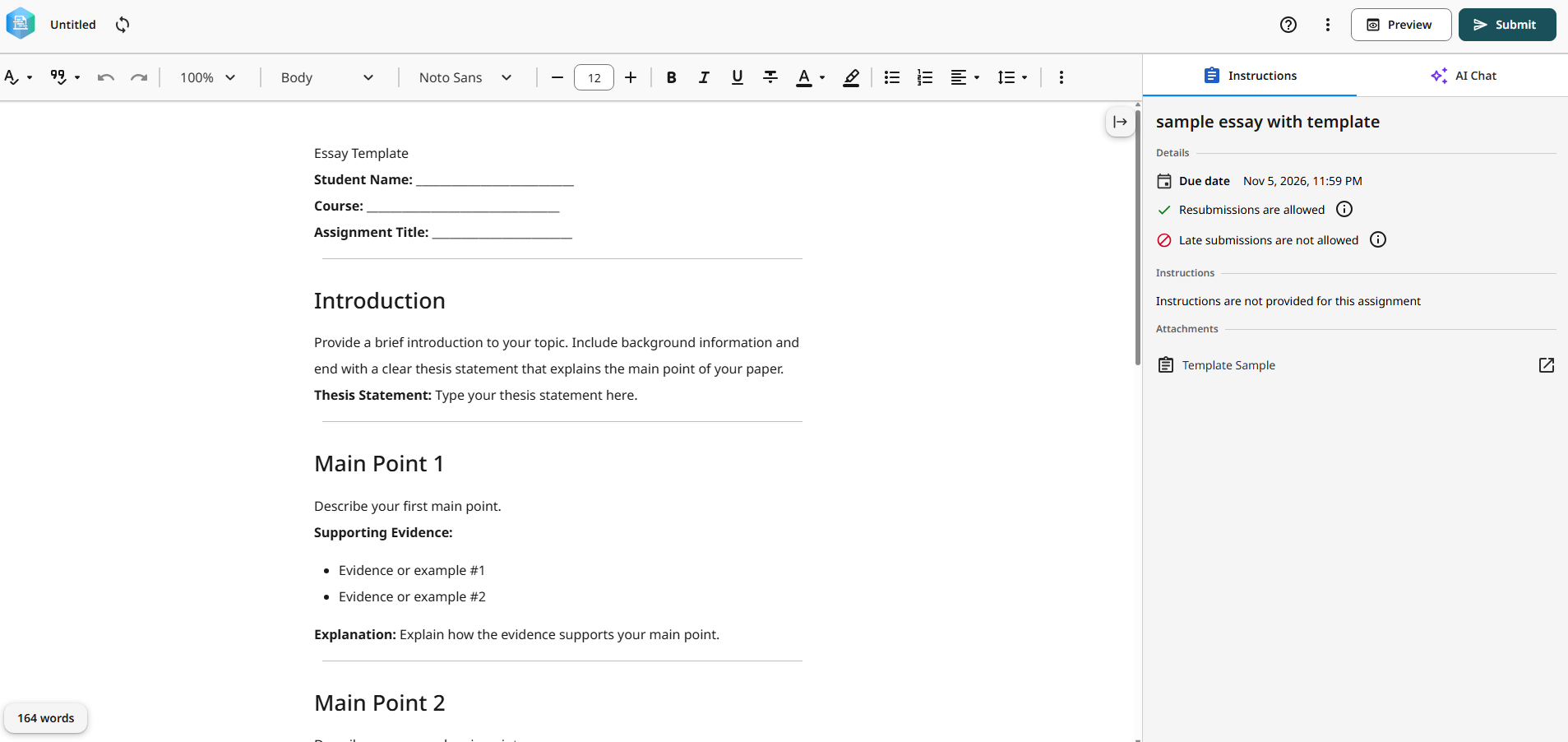
- The template automatically appears when students enter the Clarity writing space.
- Students can edit, modify, and remove template content as they complete their work.
Templates in the Writing Report
Templates are tracked separately from student-generated writing.
Writing Space Playback
During playback:
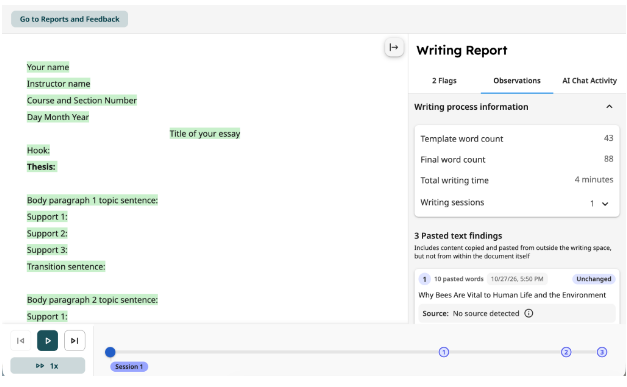
- Template content appears at the beginning of the writing process.
- Template text is highlighted in green.
This makes it easy to distinguish instructor-provided content from student writing.
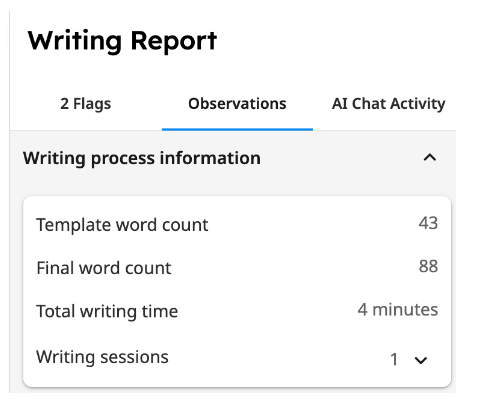
Template Word Count
Within the Observations section of the Writing Report:
- Turnitin displays the number of words included in the original template.
- This word count is separate from the student's own writing.