
The Zoom’s LTI plugin offers tight integration with Moodle which supports meeting creation and hosting all within your Moodle course. The Zoom LTI tool works best when you plan to host multiple Zoom meetings through out your course.
Note: You must have a Zoom account. If you do not have an LSUA Zoom account, request one by emailing the Zoom Administrator, iethelp@lsua.edu.
Once you have successful logged in to your account, follow the steps below to add the Zoom Tool to your Moodle course.
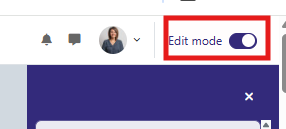
1. First, Toggle on Edit Mode. Top right of Moodle page, near your profile.
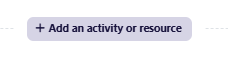
2. Scroll to the section/week you want to add the Zoom tool and click Add an Activity or resource. We recommended adding the tool in the Getting Started section of your course.
3. Select Zoom LTI 1.3 Tool from the pop-up window.
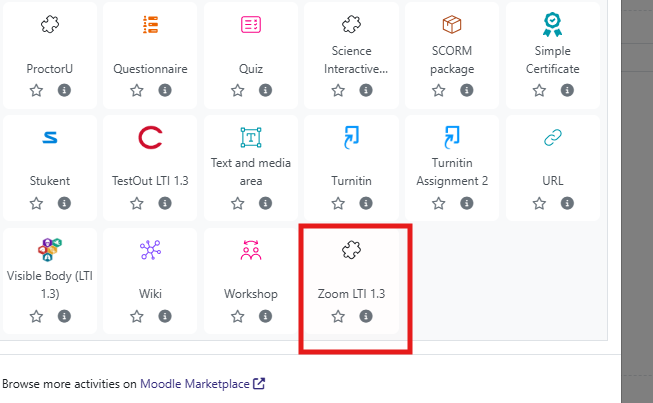 **if you notice that you do not have the Zoom LTI 1.3 tool , please refer to this help guide to add the tool.
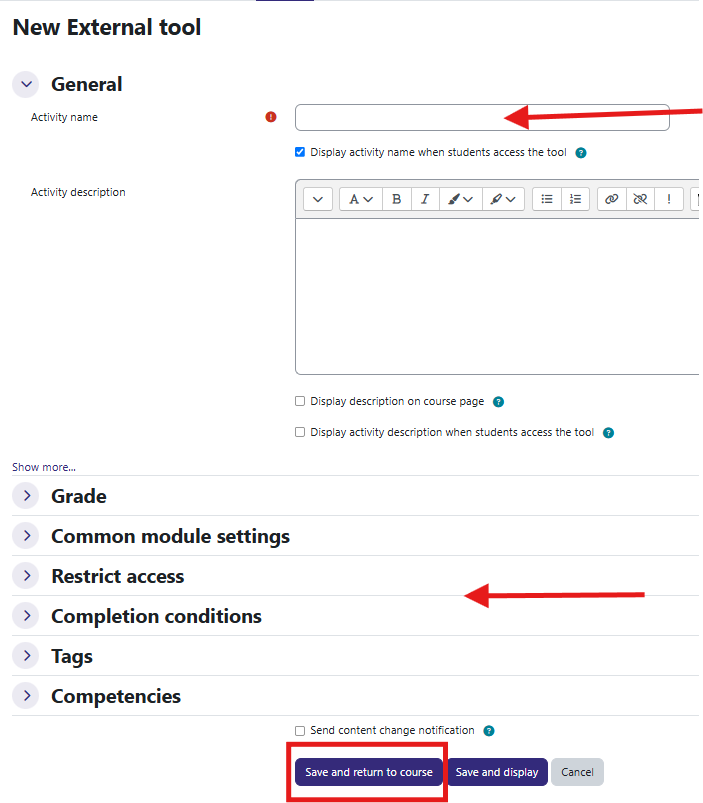
4. On the next page, add an activity name, adjust settings for the Zoom Meetings and click on Save and Return to Course. Click back into the Zoom tool you just created.
5. Under the Meetings tab, you can Schedule Meetings accessible to all students within your course.
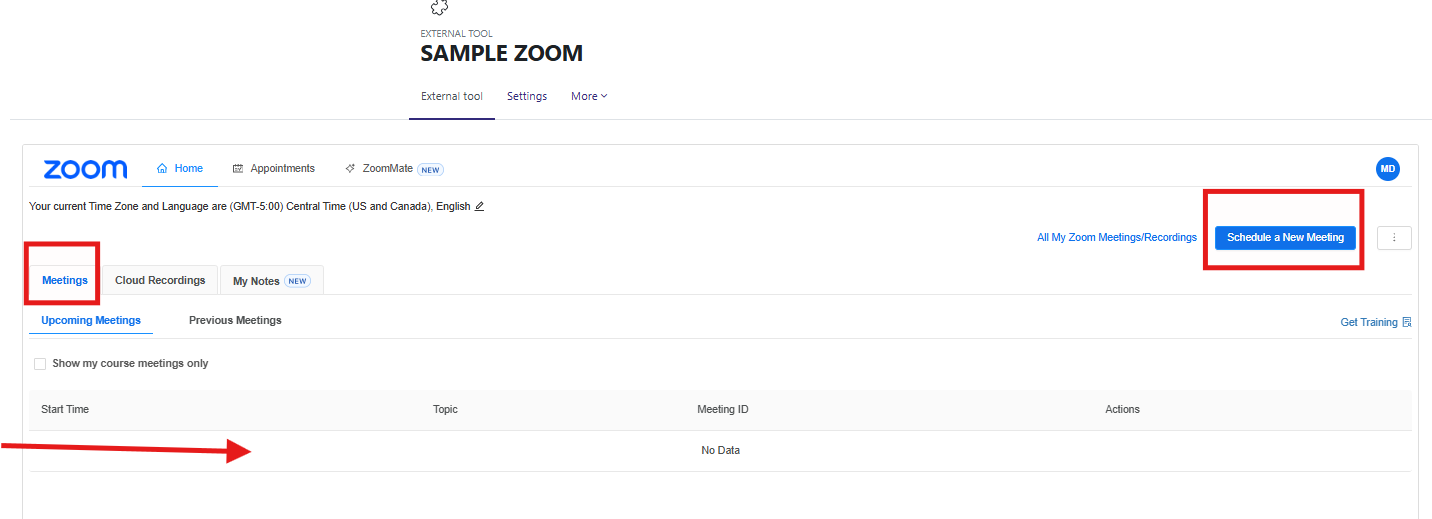
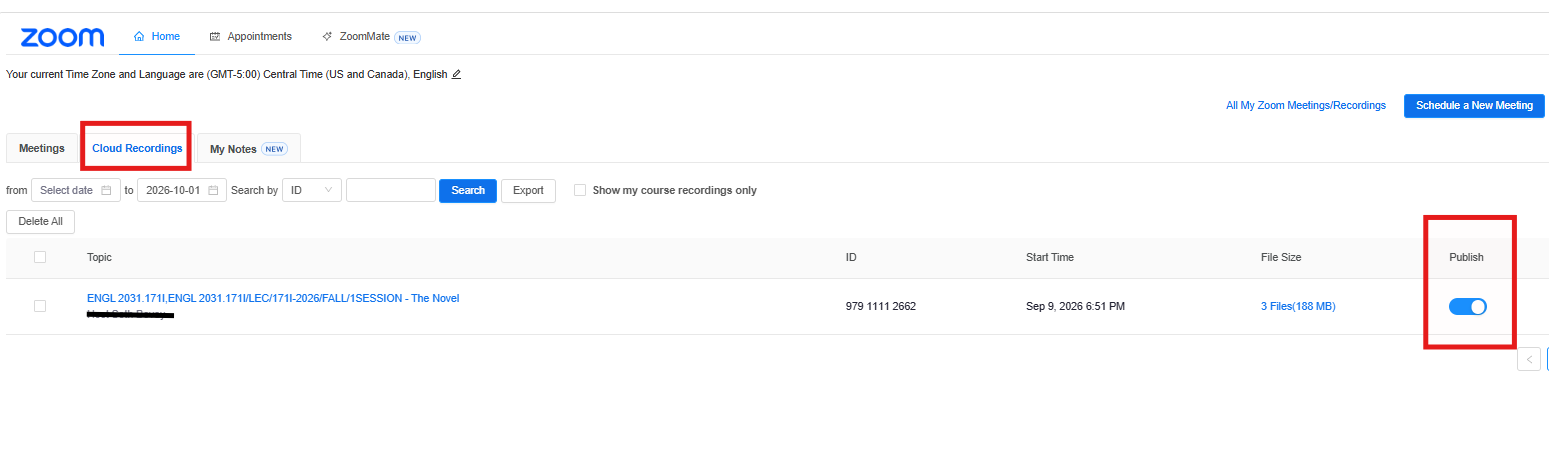
6. Once you hold your meeting, the recording will be stored under the Cloud Recordings Tab. There you can toggle on PUBLISH to allow your students to watch the recording.
If you have any questions about Zoom, email IET at iethelp@lsua.edu.