
In this guide, we will discuss how to uninstall Microsoft Office on your personal computer and how to download and install the latest version of Microsoft Office from your Office 365 portal.
Uninstall Microsoft Office
1. Access the control panel of your operating system. The steps to do this will depend on your operating system. See the list below for instructions on how to locate the Control Panel on your operating system.
- For Windows 10
- In the search box on the taskbar, type control panel and then select Control panel
- For Windows 8.1/Windows RT 8.1
- Swipe in from the right edge of the screen, tap Search (or if you're using a mouse, point to the upper-right corner of the screen, move the mouse pointer down, and then click Search), enter Control Panel in the search box, and then tap or click Control Panel.
- For Windows 7
- Click the start button and then click Control Panel.
- For Mac OS
2. In the control panel, look for a section called Programs and click “Uninstall a program”. A list of all applications on your computer will display. Search for Microsoft Office, select it, then click Uninstall at the top.
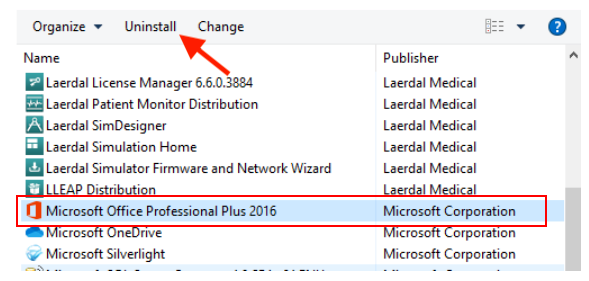
3. Proceed with the prompts to uninstall Office. Once the uninstall process is complete, restart your computer.
Download and Install Microsoft Office
1. To download the latest version of Microsoft Office, open Google Chrome and go to http://login.microsoftonline.com.
2. On the login screen, log in with your LSUA credentials. Use your full LSUA email address.
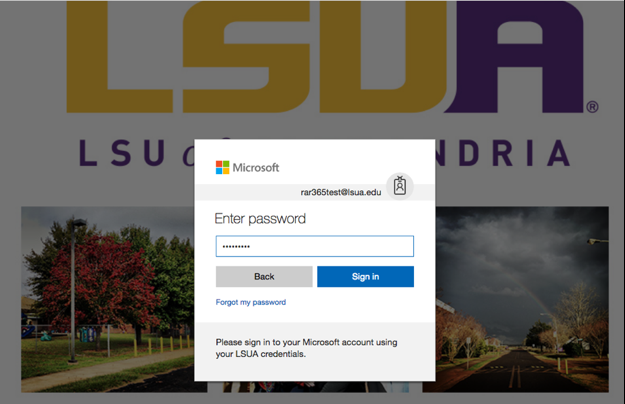
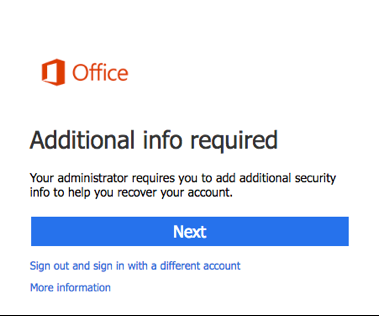
3. If prompted for additional information, select Next. If you are not prompted for Additional information, you can skip to Step 5 in this document.
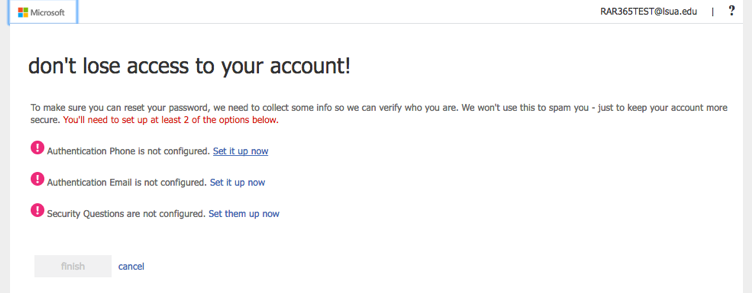
4. Next, you will need to set up at least 2 of the alternate contact options. Be sure to use information that you currently have access to because you will have to verify your alternate content source.
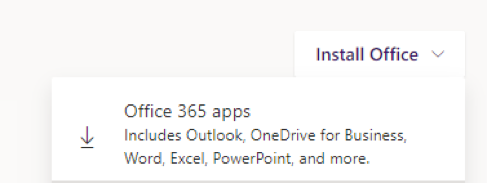
5. Once logged in to your portal, you will see the option to install Office.
Click Install Office, then select Office 365 Apps which will start the download process.
Once the install file has completely downloaded, locate the file (normally in the downloads folder on your computer), and double-click to run the installation. It will take a few minutes to complete the entire installation process.
6. Once the installation process is complete, restart your computer.
7. After restarting your computer, open one of the Microsoft Office applications and login with your LSUA credentials to authenticate the license.