
Overview
All LSUA faculty and staff must complete the university's mandatory trainings and upload a completion certificate for each one in myLSUA.
Before you begin
- Your LSUA username and password (the same login you use for email and Moodle)
- A desktop or laptop computer; uploading files is easiest on a full browser rather than a phone
- 30–60 minutes per training, depending on the module
- A place on your computer to save certificates, such as a folder named Mandatory Trainings
Step 1: Find the mandatory trainings in myLSUA
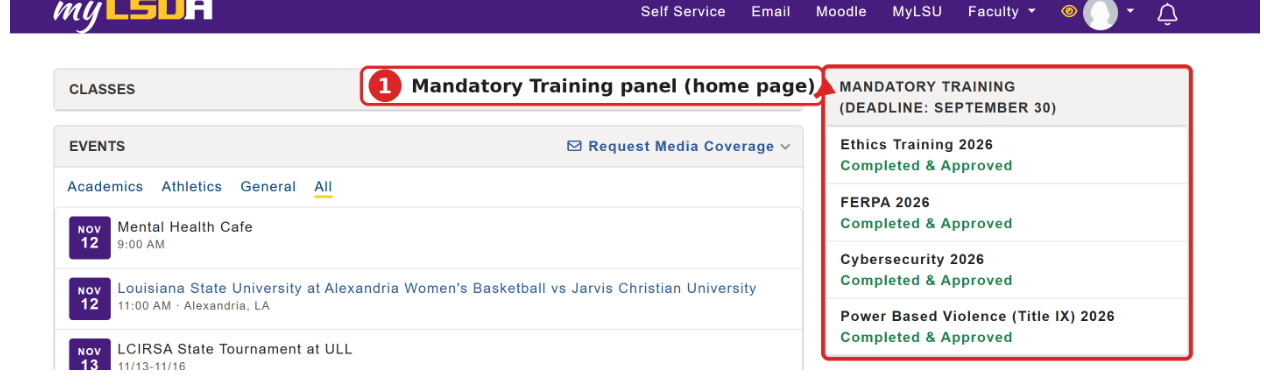
- Go to my.lsua.edu and sign in with your LSUA username and password.
- Scroll to the Mandatory Trainings widget. This page lists every required training for the current year, each with its own link.
- Review the list and note which trainings you still need to complete.
Step 2: Complete a training and save your certificate
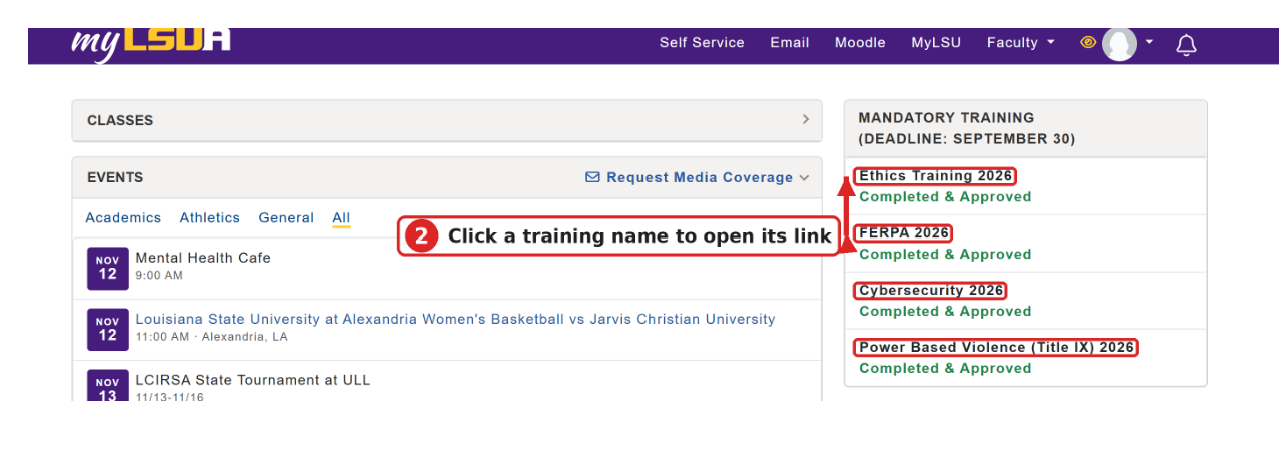
- Click the link for the training you want to complete. It opens in a new tab or window.
- Work through the full module, including any quiz or acknowledgment at the end.
- On the completion screen, download or print the certificate. Choose Save as PDF if you are printing.
- Save the file with a clear name, for example LastName_FERPA_2026.pdf.
- Repeat for each training on the list.
Step 3: Upload your certificate in myLSUA
- Return to the Mandatory Trainings widget in myLSUA.
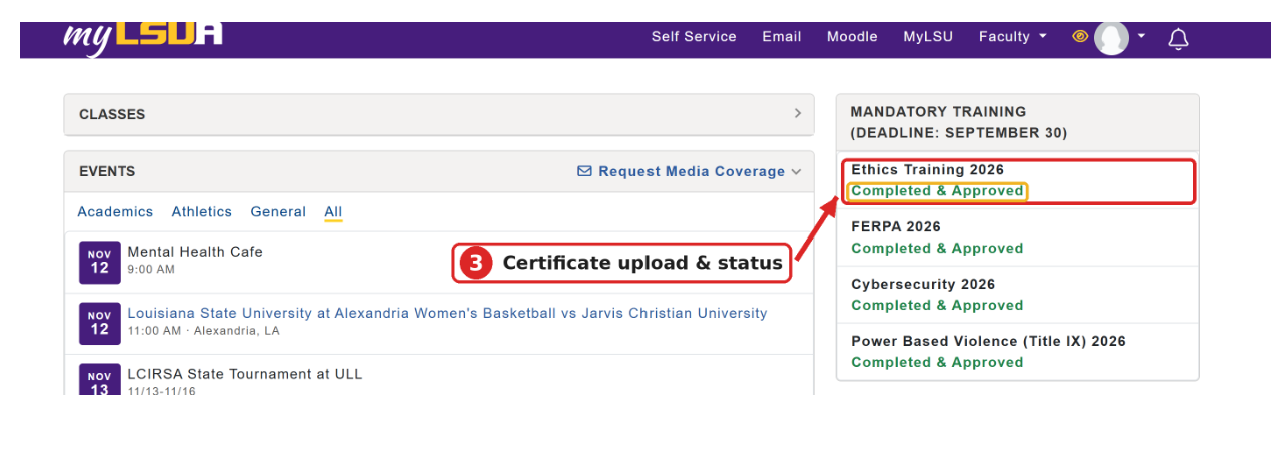
- Find the Certificate Upload area for the training you completed.
- Click Upload / Choose File and select the certificate you saved.
- Click Submit.
- Confirm the training now shows as submitted or complete. If it does not, refresh the page and check again.
Need help?
Email: iethelp@lsua.edu